• TechOps

    Need clarity?
    Chat with our experts now

    • Web Hosting SupportWeb Hosting Support
    • Helpdesk Support

      Skilled and professional 24/7 helpdesk support

    • Product Support

      Boost your product support with our expertise

    • Managed ServicesManaged Services
    • Server Management

      Don't let server issues slow you down. Let us manage them for you

    • Server Monitoring

      Safeguard your server health with our comprehensive monitoring solutions

    • Staff AugmentationStaff Augmentation
    • Hire an Admin

      Transform your business operations with our expert administrative support

    • Hire a Team

      Augment your workforce with highly skilled professional from our diverse talent pool

  • CloudOps

    Confused?
    Discuss with our sales team now.

    • Author ProfileAWS
      Well Architected Review
    • Author ProfileFinOps As a Service

      FinOps As a Service

    • Migrate

      Upgrade the journey: Migrate & Modernize seamlessly

    • Modernize

      Effortless CloudOps mastery for seamless cloud management

    • Optimize

      Efficient CloudOps: Boosting performance through optimization

    • Manage

      Simplify compliance complexities with our dedicated service

  • DevOps

    How Supportsages
    is creating an
    impact?

    View Casestudies
    • Author Profile24/7 DevOps As a Service

      Round-the-clock DevOps for uninterrupted efficiency

    • Author ProfileCI/CD Pipeline

      Automated CI/CD pipeline for seamless deployments

    • Author ProfileInfrastructure As a Code

      Crafting infrastructure with ingenious code

    • Author ProfileDevSecOps

      Integrated security in continuous DevOps practices

    • Author ProfileHire DevOps Engineers

      Level up your team with DevOps visionaries

    • Author ProfileConsulting Services

      Navigate success with expert DevOps consulting

  • SecOps

    Expert SecOps Services
    for any Scale

    • Author ProfileVAPT

      Vulnerability Assessment and Penetration Testing

    • Author ProfileSource Code Review

      Ensuring source code security and safe practices to reduce risks

    • Author ProfileSecurity Consultation

      On demand services for improving server security

    • Author ProfileSystem Hardening

      Reduced vulnerability and proactive protection

    • Author ProfileManaged SOC

      Monitors and maintains system security. Quick response on incidents

    • Author ProfileCompliance as a Service

      Regulatory compliance, reduced risk

  • Insights

    Explore our latest
    insights and resources

    Blog

    Explore our latest articles and insights

    Case Studies

    Read about our client success stories

  • Contact Us

  • About
  • Certifications
  • Life at Supportsages
  • Events
  • Contact
  • Careers
  • Blog

  • Dedicated Support Team
  • Quasi-dedicated Support Team
  • Hire a DevOps Engineer
  • Hire a Billing Support Staff
  • Per-ticket Support Plan
  • Managed Services

  • Microsoft Azure Expert
  • AWS Cloud Expert
  • Hire a developer
SS

SupportSages

Bites of wisdom @ work


Copyright © 2008 - 2026 SupportSages Pvt Ltd. All Rights Reserved.
Privacy PolicyLegal TermsData ProtectionCookie Policy

Installation and Configuring of Varnish Reverse Proxy with Nginx

Sheldon Moor

  • 3 min read
Installation and Configuring of Varnish Reverse Proxy with Nginx

Generating audio, please wait...

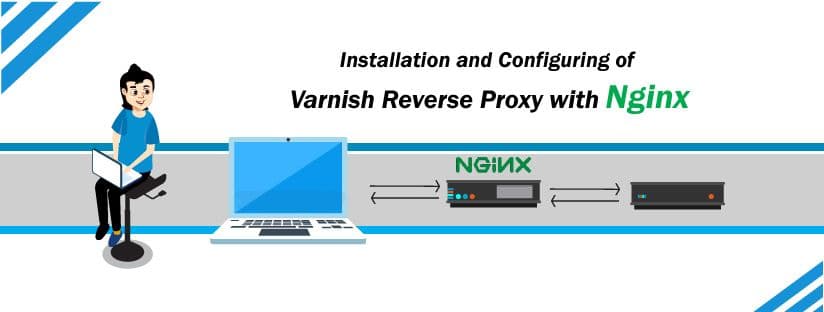
Varnish is a proxy server which can be used for HTTP caching. It can act as a reverse proxy for nginx. Here we are going to look how we can configure varnish as a reverse proxy for nginx web server.

Prerequisites

Ubuntu 16.04

Root Privileges

Step 1: Installing nginx

We can install Nginx from the Ubuntu repository using the apt command

root@server:~# apt install nginx -y

After the installation is complete, start Nginx and enable it to launch every time at system boot using the systemctl commands below.

root@server:~#systemctl start nginx
root@server:~#systemctl enable nginx

Step 2: Configuring Nginx

We will configure nginx to run under non-standard HTTP port 8080. For this purpose, we need to edit virtual host files under ‘sites-available’ directory and change the ‘listen’ line value to 8080.

root@server:~#vi /etc/nginx/sites-available/default

------------------------------

listen 8080 default_server;

listen [::]:8080 default_server;

-------------------------------

Now test the nginx server using the command “nginx -t” and restart the service.

root@server:~# nginx -t

nginx: the configuration file /etc/nginx/nginx.conf syntax is ok

nginx: configuration file /etc/nginx/nginx.conf test is successful

root@server:~#systemctl restart nginx

Step 3: Installing Varnish

Installing varnish from the Ubuntu repository using apt command. After installing start and enable it to launch at system boot.

apt install varnish -y

root@server:~#systemctl start varnish

root@server:~#systemctl enable varnish

Step 4 – Configuring Varnish as a Reverse Proxy for Nginx

Here we are using Varnish as a reverse proxy for the Nginx web server. So Varnish will be running on the HTTP port 80, and the Nginx web server on HTTP port 8080.

Go to the varnish configuration directory and edit the ‘default.vcl’ file.

root@server:~#vi /etc/varnish/default.vcl

On the backend line, define the configuration as below.

backend default {

.host = "127.0.0.1";

.port = "8080";

}

After that edit the Varnish configuration file and on the ‘DAEMON_OPTS’ line, change the default port 6081 to HTTP port 80.

root@server:~#vi /etc/default/varnish

-----------------------------------------

DAEMON_OPTS="-a :80 \

-T localhost:6082 \

-f /etc/varnish/default.vcl \

-S /etc/varnish/secret \

-s malloc,256m"

-------------------------------------------

Now go to the systemd system directory and edit the varnish.service file.

vi /lib/systemd/system/varnish.service

Step 5: Reload the systemd configuration and restart varnish.

root@server:~#systemctl daemon-reload

root@server:~#systemctl restart varnish

Step 6 : Configuring UFW Firewall

In this step, we will activate the firewall and open new ports for SSH, HTTP, and HTTPS.

root@server:# ufw allow ssh

root@server:# ufw allow http

root@server:# ufw allow https

Step 7: Testing

Test varnish using the curl command, so we can see HTTP headers from the server.

root@server:~# curl -I http://136.243.201.230
HTTP/1.1 200 OK
Server: nginx/1.10.3 (Ubuntu)
Date: Thu, 21 Mar 2019 09:58:33 GMT
Content-Type: text/html
Last-Modified: Mon, 04 Mar 2019 10:36:49 GMT
ETag: W/"5c7cffc1-2a"
Vary: Accept-Encoding
X-Varnish: 5 3
Age: 7
Via: 1.1 varnish-v4
Accept-Ranges: bytes
Connection: keep-alive

Thank You for reading!!

Server Management

  • Sever management

Looking for AWS Experts?

We provide top-of-the-line custom AWS setup services tailored to your needs.

Installation and Configuring of Varnish Reverse Proxy with Nginx

Installing Varnish Cache to boost Apache’s Performance

Installing Varnish Cache to boost Apache’s Performance
  • Apache
logo

WordPress tweaks via wp-config.php file

WordPress tweaks via wp-config.php file
  • WordPress
logo

Posts by Sheldon Moor

Sheldon Moor