

Elementor Widget Panel Not Loading: How to Fix It
You open a WordPress page in Elementor, but the widget panel keeps spinning instead of loading. This can prevent you from editing the page, even when the website preview remains visible. If you’re troubleshooting an Elementor widget panel that is not loading, the problem may involve a plugin conflict, cached CSS, or another editor issue. This guide walks through the checks performed during a real investigation, explains what each step helps identify, and shares the fix that worked in this case: reactivating ElementsKit Lite and clearing Elementor’s generated CSS cache. Follow the steps in order to troubleshoot the issue without making unnecessary changes to your website.

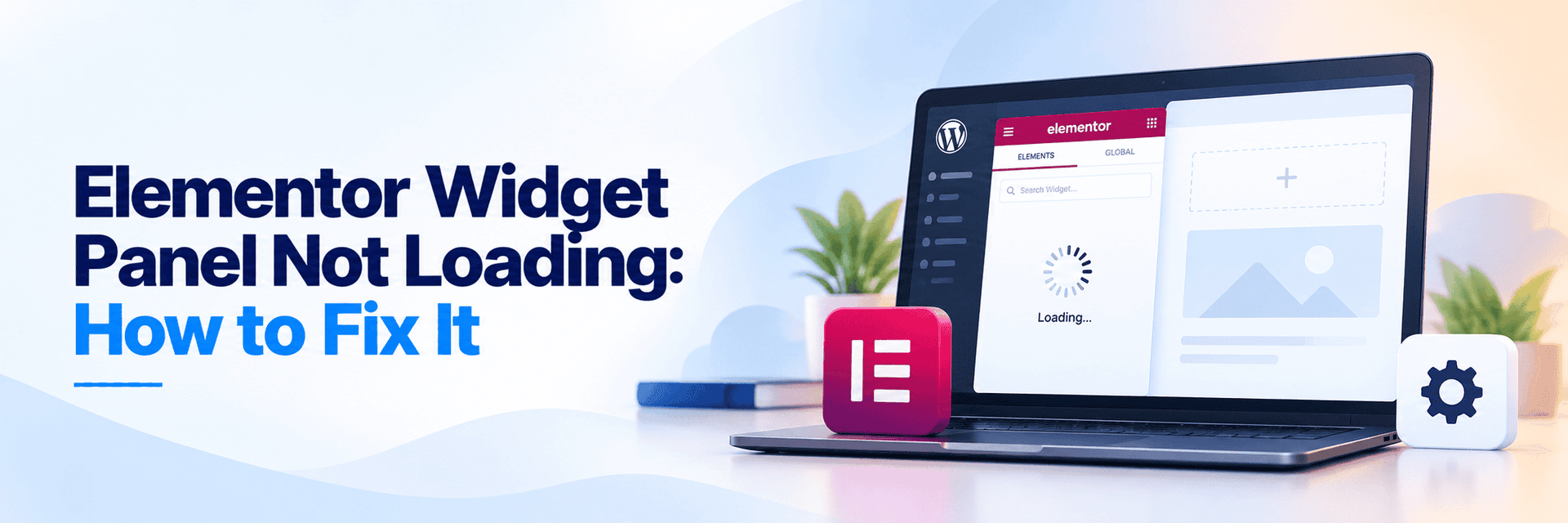
Figure 1. Example of an Elementor editor issue where the widget panel remains stuck loading.
Troubleshooting steps at a glance
Follow these checks in order. Where possible, use a staging site or take a backup before making changes.
Reload Elementor and test another browser.
Check browser Console and Network errors.
Determine whether one page or the entire site is affected.
Test for plugin conflicts.
Review PHP limits, disk space, permissions, and filesystem access.
Verify missing files and check file integrity.
Clear Elementor’s generated CSS cache.
Review fresh PHP and server logs.
Retest the editor after each change.

What each troubleshooting step means
1. Reload the editor and check the browser
Refresh Elementor, then try a private window or another browser. Extensions or stale browser data can sometimes interfere. If the panel still spins, continue with the checks below.
2. Find out whether one page or the whole site is affected
Try another page in Elementor if it is safe to do so. If only one page is affected, investigate something specific to that page. If all pages behave the same way, focus on site wide plugins, the theme, or the hosting environment.
3. Test for a plugin conflict carefully
Plugin conflicts are one possible cause, but disabling plugins at random can interrupt forms, security tools, backups, or other functions. If possible, test on a staging copy. Temporarily deactivate non-essential plugins while keeping Elementor active, then reload the affected page. If the panel starts working, reactivate plugins one at a time and retest after each change. If nothing changes, restore the plugins and continue.
In this case, the issue was resolved after reactivating ElementsKit Lite and clearing Elementor’s generated CSS cache. This suggests that a plugin conflict or stale cached CSS was contributing to the problem.
4. Review PHP limits, storage, and filesystem access
Check Elementor’s System Info and compare the PHP version and memory limit with Elementor’s current requirements. Confirm existing values and hosting constraints before changing any limits. Also check disk space and inode usage. High disk usage alone does not prove it caused the problem, but low available space can prevent updates and file operations.
During the investigation, the PHP logs showed an FTP filesystem error. The FS_METHOD=direct setting was applied to address the FTP connection error. Only use this setting when the web server user owns the WordPress files. It is not appropriate for all server setups. Although it addressed the filesystem issue being investigated, it should not be treated as a universal fix for an Elementor loading spinner.
5. Verify files and clear Elementor’s generated cache
If files are reported missing, verify their paths before replacing anything. Reinstalling Elementor may help restore incomplete plugin files, while replacing WordPress core files may help if core files are damaged. Back up the site before making these changes. Checksum verification can confirm whether files match their expected versions, although it cannot rule out every script or server issue.
During the investigation, Elementor was reinstalled, WordPress core files were replaced, and checksum checks for WordPress core and selected plugins succeeded. Files previously reported as missing were also found to be present. These checks helped investigate potential file-integrity issues, but they were not the final fix.
6. Use fresh logs, not just old errors
Compare PHP error logs with a new attempt to reproduce the issue. Older errors may be unrelated. Look for messages that appear at the same time as the loading spinner or a failed preview request.
The reviewed logs included older missing file messages and an Action Scheduler error involving a missing every_minute schedule, but the latest reviewed entries did not confirm recurrence. A scan for recently modified PHP files returned no results, and the available evidence did not establish malware as the cause. These are findings from the investigation, not proof of a single root cause.
7. Retest after each change
After making a change, reload the same page and repeat the action that previously failed. Change one thing at a time where practical so you can tell whether it affected the result. If the panel still will not load, preserve the timestamp, browser errors, relevant PHP log entries, Elementor System Info, and steps already tested.
Simplified Troubleshooting Steps
investigation established
The issue was resolved after ElementsKit Lite was reactivated and Elementor’s CSS cache was flushed. This points to a plugin conflict and stale generated CSS as the cause. Other checks including file integrity and filesystem access were part of the investigation but were not the final fix. Disk usage was around 90% with roughly 220 GB available, and inode usage was around 28%, so inode exhaustion was not indicated.
Conclusion
When the Elementor widget panel stays on its loading icon, start with the browser and the scope of the problem, then test plugin conflicts, review the server environment, verify files, and compare fresh logs with a new attempt. This sequence helps narrow down the cause without making unnecessary changes. Record what each test shows, and avoid calling the issue resolved until the editor has been retested successfully.
Need help with a persistent WordPress editor issue? Contact SupportSages with the error details and checks already completed.
Further reading
See Elementor’s guidance on the widget panel not loading and editing problems in Elementor. For WordPress logging guidance, see Debugging in WordPress.