In mail server management it’s important to learn the difference between mail protocols IMAP and POP. Most of the core Internet users should have heard of the E-mail Protocols – POP3 and IMAP. In this post, I’ll explain the concepts.
IMAP
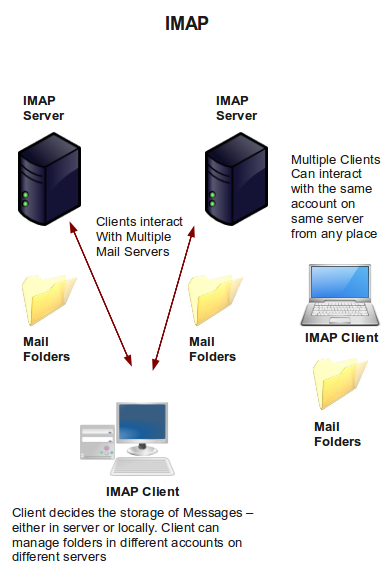
Internet Message Access Protocol (IMAP) is an Application Layer Internet Protocol. It listens to Port 143. IMAP allows a user to access E-mail which is stored on a Remote Server. IMAP is used to retrieve messages from a Mail server. In IMAP mode, Multiple E-mail clients can interact to the same account on the server, from anywhere. Also, E-mail clients can talk to multiple servers. Its upto the E-mail client who decides about the storage of messages – either locally or leave them on the server.
In mail server management IMAP is currently the most desired Mail protocol used since it has many advantages over POP3. They are :
1) Continuous mode of Connection : Using IMAP a client can interact with the Mail server throughout, whereas using POP, this would be impossible. POP connects to the server for the retrieval of new messages. With an IMAP connection, as long as the User interface is active, it connects to the server and download content.
2) Multiple mailboxes : IMAP clients can create, remove, rename mailboxes in the server and allowed to move messages between the folders.
3) Simultaneous Connection : POP allows only one client (currently connected one) to the mail server, whereas IMAP allows multiple clients simultaneously connected to the server and manage it. Changes made by the clients will be updated concurrently.
IMAP Telnet Commands
In mail server management we often need to manage mail accounts through telnet. In this section, I would like to explain how an E-mail account can be managed through Telnet. The real domain name and IP has been masked ð
Before we go, there is one more thing to explain. Since IMAP allows multiple connections, we need to type a command tag before we enter the actual command. This could be anything – like a period (.) or numbers or alphabets. The server will respond with the command tag we entered, indicating the connection we use. For example – I have used a period (.)Â and the server will respond with the . tag along with the output of commands. If another user inputs the command tag as 1 or a then the server will bind its response with the command tag 1 or a.
a list "" "*" * LIST (\HasNoChildren) "." "INBOX.Trash" * LIST (\HasNoChildren) "." "INBOX.test44" * LIST (\HasNoChildren) "." "INBOX.Junk" * LIST (\Unmarked \HasChildren) "." "INBOX" * LIST (\HasNoChildren) "." "INBOX.Sent" * LIST (\HasNoChildren) "." "INBOX.Drafts" * LIST (\HasNoChildren) "." "INBOX.test_imap" a OK LIST completed
Note that the command tag ‘a’ is added to the response returned by the server, in the rest of the blog, I’ll be using .
# telnet example.com 143 Trying xx.xxx.xxx.xxx... Connected to example.com. Escape character is '^]'. * OK [CAPABILITY IMAP4rev1 UIDPLUS CHILDREN NAMESPACE THREAD=ORDEREDSUBJECT THREAD=REFERENCES SORT QUOTA IDLE ACL ACL2=UNION STARTTLS] Courier-IMAP ready. Copyright 1998-2008 Double Precision, Inc. See COPYING for distribution information. . login [email protected] qwe123#$   // Login using E-mail and Password
List
The List command displays all mailboxes on the server. The argument “” “*” displays all the mailboxes including sub folders.
. list "" "*"Â Â Â Â Â Â Â Â Â Â Â Â Â Â Â Â Â Â Â Â Â Â Â Â Â Â Â Â Â Â Â Â Â Â Â Â Â Â Â Â Â Â Â Â Â Â Â Â Â Â Â Â Â // List all folders, * LIST (\HasNoChildren) "." "INBOX.Trash" * LIST (\HasNoChildren) "." "INBOX.Junk" * LIST (\Unmarked \HasChildren) "." "INBOX" * LIST (\HasNoChildren) "." "INBOX.Sent" * LIST (\HasNoChildren) "." "INBOX.Drafts" . OK LIST completed
Status
The Status command return some basic information on the folder (without accessing it), the following command returns the information about INBOX.
. status INBOX (messages) * STATUS "INBOX" (MESSAGES 0) . OK STATUS Completed.
Select and Examine
The Select command return the information about the folder specified, further allowing to access Mails inside it. Select returns a Read-Write reference of the folder where Examine returns a Read-only reference of the folder.
. select INBOX                  // Selecting Inbox * FLAGS (\Draft \Answered \Flagged \Deleted \Seen \Recent) * OK [PERMANENTFLAGS (\* \Draft \Answered \Flagged \Deleted \Seen)] Limited * 0 EXISTS * 0 RECENT * OK [UIDVALIDITY 1294991877] Ok * OK [MYRIGHTS "acdilrsw"] ACL . OK [READ-WRITE] Ok . examine INBOX.Drafts            // Examines Drafts * FLAGS (\Draft \Answered \Flagged \Deleted \Seen \Recent) * OK [PERMANENTFLAGS ()] No permanent flags permitted * 2 EXISTS * 0 RECENT * OK [UIDVALIDITY 1294992205] Ok * OK [MYRIGHTS "acdilrsw"] ACL . OK [READ-ONLY] Ok
Fetch
Fetch command is used to access E-mails. It has many options based upon what we choose to see. The avaialble options are to see Headers, Message Flags, Body Text.
. fetch 1 all                  // Fetch first draft * 1 FETCH (FLAGS (\Draft \Seen) INTERNALDATE "14-Jan-2011 13:33:25 +0530" RFC822.SIZE 267 ENVELOPE ("Fri, 14 Jan 2011 13:33:25 +0530" NIL ((NIL NIL "test77" "example.com")) ((NIL NIL "test77" "example.com")) ((NIL NIL "test77" "example.com")) ((NIL NIL "testaccount" "gmail.com")) NIL NIL NIL NIL)) . OK FETCH completed. . fetch 2 all * 2 FETCH (FLAGS (\Draft \Seen) INTERNALDATE "14-Jan-2011 13:38:05 +0530" RFC822.SIZE 354 ENVELOPE ("Fri, 14 Jan 2011 13:38:05 +0530" "TESTING IMAP COMMANDS TELNET" ((NIL NIL "test77" "example.com")) ((NIL NIL "test77" "example.com")) ((NIL NIL "test77" "example.com")) ((NIL NIL "testaccount" "gmail.com")) ((NIL NIL "supportsages" "gmail.com")) NIL NIL NIL)) . OK FETCH completed. . fetch 1 BODY[]                  // Fetch complete message Return-path: Envelope-to: [email protected] Delivery-date: Sat, 15 Jan 2011 16:49:00 +0530 Received: from mail-iw0-f169.google.com ([209.85.214.169]) by xxx.server.com with esmtps (TLSv1:RC4-MD5:128) (Exim 4.69) (envelope-from ) id 1Pe49s-0002rL-GE for [email protected]; Sat, 15 Jan 2011 16:49:00 +0530 Received: by iwn40 with SMTP id 40so3450323iwn.14 for ; Sat, 15 Jan 2011 03:18:56 -0800 (PST) DKIM-Signature: v=1; a=rsa-sha256; c=relaxed/relaxed; d=gmail.com; s=gamma; h=domainkey-signature:mime-version:date:message-id:subject:from:to :content-type; bh=B0Luob/bjcCckrFJ65OJ/jYZYzofzMPfMMnoH9qYRks=; b=pPOO38Xpmst6rAWSXYSHzwyTXkYcormyjX+5+msdml2QZFJ5ezdEkqOYz8CyQTnc0y Y3Y1NPgixK/qiZFhzYaYZcNznRkAHQmPKWHD+BHqIReqMGeC0VYn0NpIOdXradWF2gNx Q+SP+FjVVl2uPDRru573Hen2TaJUCOd2jVFws= DomainKey-Signature: a=rsa-sha1; c=nofws; d=gmail.com; s=gamma; h=mime-version:date:message-id:subject:from:to:content-type; b=Jga7prO4D9cX54WvYYRo2ABvHCepe9QjWCyOz6QrqbjwKhk4pTDGAfKcgD6ztsc7BR yWpAL3NKASoZ1TzYvP9PmOV7Qik7IRNiV2An3JZJJIRZKrCdnVak9zBp92KdJr2bIjwp /+kbKg7ViTBYmKfRFPhyw7id4BfLvjY0WmljE= MIME-Version: 1.0 Received: by 10.231.199.196 with SMTP id et4mr1855641ibb.71.1295090336833; Sat, 15 Jan 2011 03:18:56 -0800 (PST) Received: by 10.231.14.4 with HTTP; Sat, 15 Jan 2011 03:18:56 -0800 (PST) Date: Sat, 15 Jan 2011 16:48:56 +0530 Message-ID: Subject: Linux Terminal From: support team To: [email protected] Content-Type: multipart/alternative; boundary=90e6ba53a4f47aa2e40499e0b764 X-Spam-Status: No, score=-1.0 X-Spam-Score: -9 X-Spam-Bar: - X-Spam-Flag: NO --90e6ba53a4f47aa2e40499e0b764 Content-Type: text/plain; charset=ISO-8859-1 Terminal --90e6ba53a4f47aa2e40499e0b764 Content-Type: text/html; charset=ISO-8859-1 Terminal --90e6ba53a4f47aa2e40499e0b764-- ) . OK FETCH completed. . create INBOX.test3               // Create a Folder in INBOX . OK "INBOX.test3" created. . list "" "*"                     // Examine Inbox to verify existence of test3 * LIST (\HasNoChildren) "." "INBOX.Trash" * LIST (\HasNoChildren) "." "INBOX.Junk" * LIST (\HasNoChildren) "." "INBOX.test3" * LIST (\Unmarked \HasChildren) "." "INBOX" * LIST (\HasNoChildren) "." "INBOX.Sent" * LIST (\HasNoChildren) "." "INBOX.Drafts" . OK LIST completed . examine INBOX.Sent               // Examine Sent Mails folder * FLAGS (\Draft \Answered \Flagged \Deleted \Seen \Recent) * OK [PERMANENTFLAGS ()] No permanent flags permitted * 1 EXISTS * 0 RECENT * OK [UIDVALIDITY 1294992150] Ok * OK [MYRIGHTS "acdilrsw"] ACL . OK [READ-ONLY] Ok . fetch 2 (body[header.fields (from to subject date)])         // Reading E-mail 1 with specific portions in Sent Folder * 1 FETCH (BODY[HEADER.FIELDS ("from" "to" "subject" "date")] {102} Date: Fri, 14 Jan 2011 13:33:25 +0530 From: [email protected] To: [email protected] ) . OK FETCH completed. . rename INBOX.test3 INBOX.test_imap   // Rename test 3 to test_imap . OK Folder renamed. . list "" "*"                     // To verify the rename process * LIST (\HasNoChildren) "." "INBOX.Trash" * LIST (\HasNoChildren) "." "INBOX.Junk" * LIST (\Unmarked \HasChildren) "." "INBOX" * LIST (\HasNoChildren) "." "INBOX.Sent" * LIST (\HasNoChildren) "." "INBOX.Drafts" * LIST (\HasNoChildren) "." "INBOX.test_imap" . OK LIST completed . idle                     // Enter Idle mode to listen for new messages + entering idle mode * 1 FETCH (FLAGS (\Seen)) * 2 EXISTS * 1 RECENT . done
Store
This command is used to set flags for messages. The flags can be like Answered, Flagged, Draft, Deleted, Seen and Junk. This flags will help us in understanding the message status. These are the ways in storing the message flags :
STORE message +flags [flag list]Â – Adds the [flag list] flags to the chosen messages.
STORE message -flags [flag list]Â – Removes the [flag list] flags from the chosen messages.
STORE message flags [flag list]Â – Resets the flags to [flag list] on the chosen messages (the same as removing all flags and then adding [flag list].
. select INBOX . store 1:2 flags \Deleted            // Sets the flag as Deleted for first 2 messages * 1 FETCH (FLAGS (\Deleted)) * 2 FETCH (FLAGS (\Deleted)) . OK STORE completed. . fetch 1 all                  // Fetch message 1 (See the flag deleted) * 1 FETCH (FLAGS (\Deleted) INTERNALDATE "15-Jan-2011 10:50:17 +0530" RFC822.SIZE 2127 ENVELOPE ("Sat, 15 Jan 2011 10:50:12 +0530" "Test Message" (("support team" NIL "examplesupport" "gmail.com")) (("support team" NIL " <pre>examplesupport</pre> " "gmail.com")) (("support team" NIL " <pre>examplesupport</pre> " "gmail.com")) ((NIL NIL "test77" "webdemo.com")) NIL NIL NIL "<[email protected]>")) . OK FETCH completed. . store 1 +flags NonJunk * FLAGS (NonJunk \Draft \Answered \Flagged \Deleted \Seen \Recent) * OK [PERMANENTFLAGS (NonJunk \* \Draft \Answered \Flagged \Deleted \Seen)] Limited * 1 FETCH (FLAGS (\Deleted NonJunk)) . OK STORE completed. . fetch 1 all * 1 FETCH (FLAGS (\Deleted NonJunk) INTERNALDATE "15-Jan-2011 10:50:17 +0530" RFC822.SIZE 2127 ENVELOPE ("Sat, 15 Jan 2011 10:50:12 +0530" "Test Message" (("support team" NIL " <pre>examplesupport</pre> " "gmail.com")) (("support team" NIL " <pre>examplesupport</pre> " "gmail.com")) (("support team" NIL " <pre>examplesupport</pre> " "gmail.com")) ((NIL NIL "test77" "webdemo.com")) NIL NIL NIL "<[email protected]>")) . OK FETCH completed.
Copy
This command is used to copy a message from one folder to another
. select INBOX               //Select Inbox * FLAGS (NonJunk \Draft \Answered \Flagged \Deleted \Seen \Recent) * OK [PERMANENTFLAGS (NonJunk \* \Draft \Answered \Flagged \Deleted \Seen)] Limited * 3 EXISTS * 0 RECENT * OK [UIDVALIDITY 1294991877] Ok * OK [MYRIGHTS "acdilrsw"] ACL . OK [READ-WRITE] Ok . copy 1 INBOX.test_imap         //Copy First message to INBOX.test_imap . OK [COPYUID 1295001279 1 1] COPY completed. . select INBOX.test_imap         //Verify the message is copied to INBOX.test_imap * FLAGS (NonJunk \Draft \Answered \Flagged \Deleted \Seen \Recent) * OK [PERMANENTFLAGS (NonJunk \* \Draft \Answered \Flagged \Deleted \Seen)] Limited * 1 EXISTS * 0 RECENT * OK [UIDVALIDITY 1295001279] Ok * OK [MYRIGHTS "acdilrsw"] ACL . OK [READ-WRITE] Ok
Close and Expunge
Both commands will permanently delete a message with the label ‘\deleted’ (which is set for deletion). The difference is that Expunge command removes a message, while Close command removes the message as well as deselect the current folder. We’ll need to select a folder for any further operation.
. select INBOX . expunge               // Start Expunge * 1 EXPUNGE * 0 EXISTS * 0 RECENT * FLAGS (\Draft \Answered \Flagged \Deleted \Seen \Recent) * OK [PERMANENTFLAGS (\* \Draft \Answered \Flagged \Deleted \Seen)] Limited . OK EXPUNGE completed . fetch 1 all            // Current folder is still INBOX, Not deselected. * 1 FETCH (FLAGS (\Deleted NonJunk) INTERNALDATE "15-Jan-2011 10:50:17 +0530" RFC822.SIZE 2127 ENVELOPE ("Sat, 15 Jan 2011 10:50:12 +0530" "Test Message" (("support team" NIL " <pre>examplesupport</pre> " "gmail.com")) (("support team" NIL " <pre>examplesupport</pre> " "gmail.com")) (("support team" NIL " <pre>examplesupport</pre> " "gmail.com")) ((NIL NIL "test77" "webdemo.com")) NIL NIL NIL "<[email protected]>")) . OK FETCH completed. . close            // Close Mailbox . OK mailbox closed. . fetch 1 all         // To verify that the current folder has been deselected. . NO Error in IMAP command received by server.
Logout
This is the Logout command
. logout            // Logout . OK LOGOUT completed Connection closed by foreign host.
POP
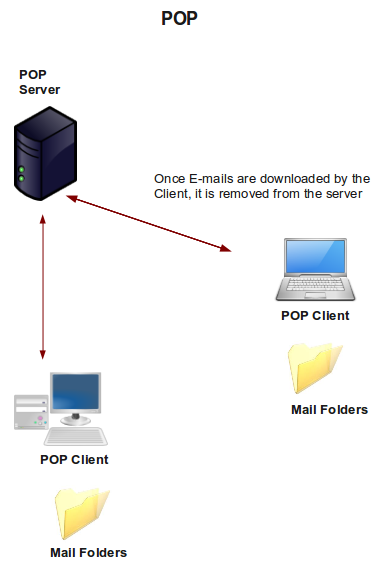
Post Office Protocol (POP) is an Application-layer Internet standard protocol used by E-mail clients to retrieve e-mail from a remote server. POP connects to the mail server for the E-mail client, download all messages to the PC, then delete all messages from the server and then disconnects. POP3 listens to Port 110. Advantages of POP3 are :
1) In Single User mode, you can rely on POP3, since it downloads all E-mails from the server and further erases it.
2) Since the E-mails are stored in your PC, you can access your mails without being connected to the Internet.
3) Handling Mail attachments are quite easy, because they will be downloaded to the PC while downloading E-mails.
4) There is no maximum size of your mailbox, its virtually the storage capacity of your machine !
POP3 Telnet Commands
In mail server management, POP3 telnet commands are also useful, take a look at some of it,
# telnet example.com 110 Trying xx.xxx.xxx.xxx... Connected to example.com. Escape character is '^]'. +OK Hello there. USER [email protected] +OK Password required. PASS qwe123#$ +OK logged in.
STAT
It responds with the OK message with the number of messages and the total size of messages in bytes
STAT +OK 2 4994
LIST
It responds with the lists a line for each message with its number and size in bytes.
LIST +OK POP3 clients that break here, they violate STD53. 1 2103 2 2891
RETR
It can be used to Retrieve messages, please note that not all POP3 servers support this. The syntax is RETR #messageid (RETR 2103)
TOP
It lists the header for #messageid and the first #lines of the message. For example, TOP 1 0 would list the headers (only) for Message 1, where as TOP 1 6 would list the headers and first 6 lines of the message. This is not supported in all POP3 servers
DELE
This marks the #messageid for deletion. The message is removed when the QUIT command is issued. DELE 1 will delete first message
RSET
This unmarks or resets the messages set for removal.
QUIT
This deletes the messages set for deletion and logs out of the server.
QUIT +OK Bye-bye.