
• DevOps
    Case Study

    How we built a resilient multi-account, multi-cloud solution for a Health Tech service provider!

    READ CASESTUDY
    icon

    24/7 DevOps as a Service

    Round-the-clock DevOps for uninterrupted efficiency.

    icon

    Infrastructure as a Code

    Crafting infrastructure with ingenious code.

    icon

    CI/CD Pipeline

    Automated CI/CD pipeline for seamless deployments.

    icon

    DevSecOps

    Integrated security in continuous DevOps practices.

    icon

    Hire DevOps Engineers

    Level up your team with DevOps visionaries.

    icon

    Consulting Services

    Navigate success with expert DevOps consulting.

  • TechOps
    Case Study

    How we built a scalable Odoo solution for a Travel Tech service provider!

    READ CASESTUDY

    WEB HOSTING SUPPORT

    icon

    HelpDesk Support

    Highly skilled 24/7 HelpDesk Support

    icon

    Product Support

    Boost your product support with our expertise.

    MANAGED SERVICES

    icon

    Server Management

    Don’t let server issues slow you down. Let us manage them for you.

    icon

    Server Monitoring

    Safeguard your server health with our comprehensive monitoring solutions.

    STAFF AUGMENTATION

    icon

    Hire an Admin

    Transform your business operations with our expert administrative support.

    icon

    Hire a Team

    Augment your workforce with highly skilled professionals from our diverse talent pool.

  • CloudOps
    Case Study

    How we helped a Private Deemed University in India, save US $3500/m on hosting charges!

    READ CASESTUDY
    icon

    AWS Well Architected Review

    Round-the-clock for uninterrupted efficiency

    icon

    Optimize

    Efficient CloudOps mastery for seamless cloud management

    icon

    Manage

    Automated CI/CD pipeline for seamless deployments

    icon

    Migrate

    Upgrade the journey, Migrate & Modernize seamlessly

    icon

    Modernize

    Simplify compliance complexities with our dedicated services

    icon

    FinOps as a Service

    FinOps as a Service

  • SecOps
    Case Study

    How we built a scalable Odoo solution for TravelTech service provider!

    READ CASESTUDY
    icon

    VAPT

    Vulnerability Assessment and Penetration Testing

    icon

    Source Code Review

    Ensuring source code security ans safe practices to reduce risks

    icon

    Security Consultation

    On demand services for improving server security

    icon

    System Hardening

    Reduced vulnerability and proactive protection

    icon

    Managed SoC

    Monitors and maintains system security. Quick response on incidents.

    icon

    Compliance as a Service

    Regulatory compliance, reduced risk

  • Insights
    Case Study

    How we helped a Private Deemed University in India, save US $3,500/m on hosting charges!

    READ CASESTUDY
    icon

    Blog

    Explore our latest articles and insights

    icon

    Case Studies

    Read about our client success stories

    icon

    Flipbook

    Explore our latest Flipbook

    icon

    Events

    Join us at upcoming events and conferences

    icon

    Webinars

    Watch our educational webinar series

  • Our Story
  • Contact Us

Interested to collaborate?

Get in touch with us!

Ready to elevate your business with certified cloud expertise? Contact us today to learn how our team can help you leverage cloud technology to drive growth, streamline operations, and enhance security.

  • AWSAWS
  • Azure CloudAzure Cloud
  • Google CloudGoogle Cloud
  • Akamai CloudAkamai Cloud
  • OVHOVH
  • Digital OceanDigital Ocean
  • HetznerHetzner
  • Kubernetes Consultancy Services
  • K8s & Cloud native Solutions
  • 24/7 Infrastructure Monitoring
  • DevOps as a Service
  • Cloud CI/CD Solutions
  • White Labeled MSP Support
  • Our story
  • Life@SupportSages
  • Insights
  • Careers
  • Events
  • Contact Us

Connect with us!


LinkedInFacebookXInstagramYouTube

aws partneraws advanced partner
SupportSages

Copyright © 2008 – 2026 SupportSages Pvt Ltd. All Rights Reserved.
Privacy PolicyLegal TermsData ProtectionCookie Policy
EC2 Private Key Recovery

EC2 Private Key Recovery

Mrudhul Mohan

  • 8 min read
EC2 Private Key Recovery

Generating audio, please wait...

Method 1

By creating an AMI
Create a New EC2 instance with a New key pair named “Webserver-private-key”
Download the private key and share it with the client. Please note that Amazon will not save the copy of the private key.
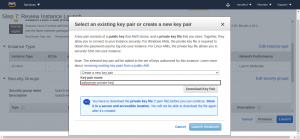
Existing Key Pair

Scenario : The client lost his private key and he is not able to access his server.
1 . Login to AWS console and create AMI of that EC2 instance;

Select the instance >> Right click >> Image and templates>>Create image
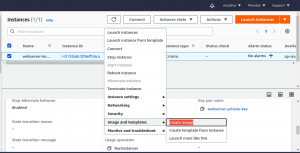
EC2 instance

Then you will navigate to a new window and fill up the fields as below ;
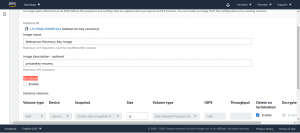
Here highlighted the Reboot Option in the above figure ;
Which means, when we are creating an AMI of instance, The instance will be reboot. So we can enable No reboot option to reduce the downtime.
Then click on Create option and navigate to the EC2 window. Then we can see a popup notification message in that window.
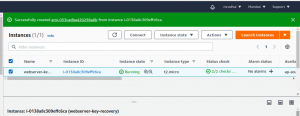
Instance Popup

We can also check the AMI creation from Images>> AMI’S ,
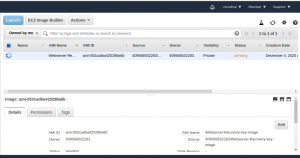
AMI

AMI : An Amazon Machine Image (AMI) provides the information required to launch an instance. You must specify an AMI when you launch an instance. You can launch multiple instances from a single AMI when you need multiple instances with the same configuration.
When the AMI successfully created, there will be create a snapshot of that particular instance.
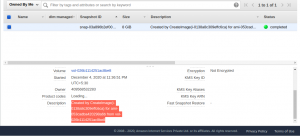
We can check with the description in the above image (Highlighted)
There is two way to launch the instance using the created AMI.
First one: we can launch the instance by normal steps, There we select the AMI from MY AMI’s option.
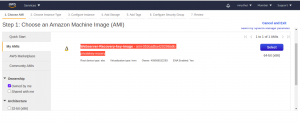
webserver

Select the AMI and you will be navigate to a new window, then click on Review and Launch.
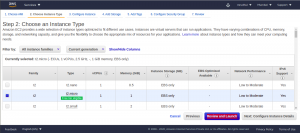
In the above image, If you want to change the instance type you can select, But it will not cause the AMI configuration and data.
Please note that you have to select the old EC2 instance’s security group before launching.
Then create a new private key for the new EC2 instance.
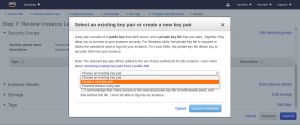
Fill the name field and download the private key to a safe place. Then click on Launch Instances.
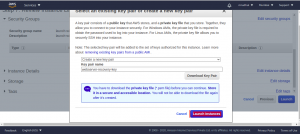
Launch Instance

Now we have created a new instance from the AMI without any downtime.
Please note that we have to associate the public IP from the old EC2 instances to the new EC2 instance.
So Dissociate the elastic IP from the old EC2 instance and associate the elastic IP with the new EC2 instance.

Then connect to the server by the new private key and terminate the old EC2 instance.
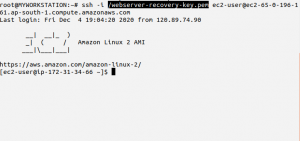
Recovery key

Method 2
By detaching the root volume
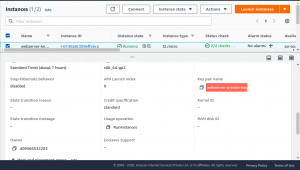
we have an EC2 instance with a demo site running on apache webserver.
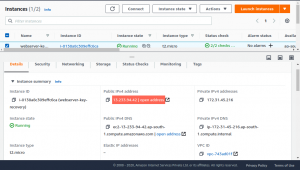
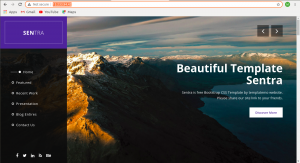
Demo Sites

Demo Website

webserver private key

The same scenario as I already mentioned above.
Here we are going to detach the root volume.

Before detaching the root volume. First, we have to stop the EC2 instance.
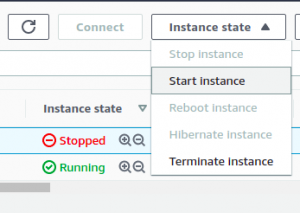
Instances >> Select the instance >> Instance state>> Stop Instance.
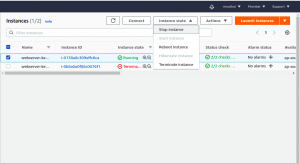
Instance State

After the status instance state went STOPPED , Then we detach the root volume.
Volume >> Select the volume >> Right click >> Detach Volume
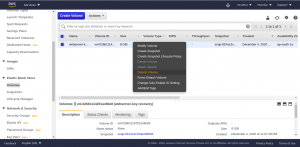
Detach Volume

Then check the status of the volume, The status will be going to Available status after detaching.
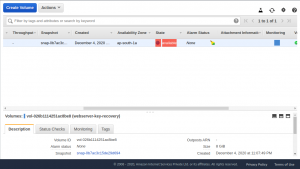
Create Volume

Here the root volume successfully detached from the old instance. Then we create a new instance. And we will attach the root volume to the new instance as an additional volume.
Create a new instance with a new key pair and it’s download to a safe place, So we are going to attach the root volume.
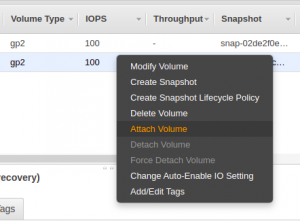
Volume >> Select the volume >> Righ click >> Attach Volume
And select the Instance that we want to attach the volume and click on attach.
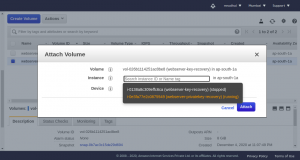
Attach Volume

Check the attached volume from Instance >> Storage details.
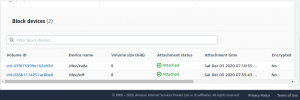
storage details

Connect via ssh to the new instance and mount the new volume temporarily.
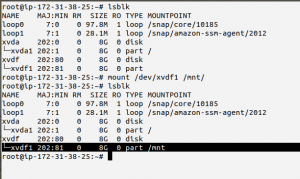
SSH

Copy the public key from the new instance to the old instance and unmount the device /dev/xvdf1.
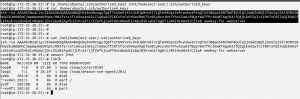
Public Key

Detach the root volume and attach to the old EC2 instance.
Select the volume >> right click>> Detach volume
Click on Yes, Detach
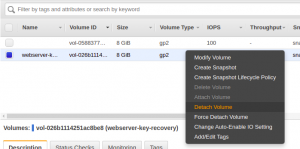
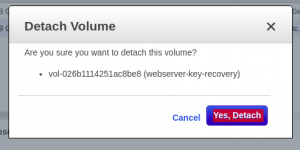
Detach

Detach Volume 1

We have successfully detached the root volume and we are going to attach the root volume to the old instance.
Select the volume >> right click>> Attach Volume
Select the instance ID (please note , we can attach the volume even if the instance is stopped).
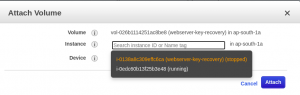
Attach Volume 1

Attach Volume 2

In next window , we have to give the exact device name to root volume as follows.
Then click on the Attach.
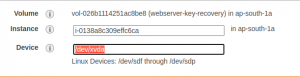
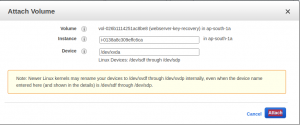
Device Name

Root Volume

Check the volume state , and it will be in use state , Then start the stopped EC2 instance .
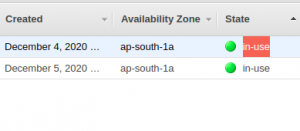
Use State

Start State


Connect the server via ssh using new private key , And check the demo sites files inside the document root.
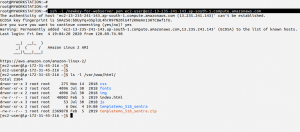
Document root

Successfully accessed the server by using new private key .

Please note that, The new AWS console can directly connect to SSH via web console without the SSH key.
The console method may not work for all OSs and when the SSH port is changed.

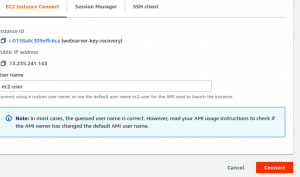
Select the instance >> connect >> EC2 instance connect >> Click on connect.
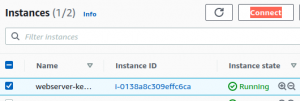
connect

EC2 Connect

Then you will connected to the Console .
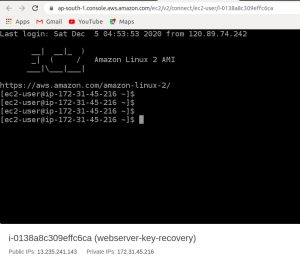
Console


3rd party software installations


  • AWS
  • Linux

Posts by Mrudhul Mohan

Mrudhul Mohan is currently working as System Engineer at SupportSages. He is very enthusiastic about Linux and Cloud Technologies. The attitude and philosophy he shows in his workplace make his colleagues call him "Energy Manuel ". He is very talented at organizing our company meetups and all celebrations.