• TechOps

    Need clarity?
    Chat with our experts now

    • Web Hosting SupportWeb Hosting Support
    • Helpdesk Support

      Skilled and professional 24/7 helpdesk support

    • Product Support

      Boost your product support with our expertise

    • Managed ServicesManaged Services
    • Server Management

      Don't let server issues slow you down. Let us manage them for you

    • Server Monitoring

      Safeguard your server health with our comprehensive monitoring solutions

    • Staff AugmentationStaff Augmentation
    • Hire an Admin

      Transform your business operations with our expert administrative support

    • Hire a Team

      Augment your workforce with highly skilled professional from our diverse talent pool

  • CloudOps

    Confused?
    Discuss with our sales team now.

    • Author ProfileAWS
      Well Architected Review
    • Author ProfileFinOps As a Service

      FinOps As a Service

    • Migrate

      Upgrade the journey: Migrate & Modernize seamlessly

    • Modernize

      Effortless CloudOps mastery for seamless cloud management

    • Optimize

      Efficient CloudOps: Boosting performance through optimization

    • Manage

      Simplify compliance complexities with our dedicated service

  • DevOps

    How Supportsages
    is creating an
    impact?

    View Casestudies
    • Author Profile24/7 DevOps As a Service

      Round-the-clock DevOps for uninterrupted efficiency

    • Author ProfileCI/CD Pipeline

      Automated CI/CD pipeline for seamless deployments

    • Author ProfileInfrastructure As a Code

      Crafting infrastructure with ingenious code

    • Author ProfileDevSecOps

      Integrated security in continuous DevOps practices

    • Author ProfileHire DevOps Engineers

      Level up your team with DevOps visionaries

    • Author ProfileConsulting Services

      Navigate success with expert DevOps consulting

  • SecOps

    Expert SecOps Services
    for any Scale

    • Author ProfileVAPT

      Vulnerability Assessment and Penetration Testing

    • Author ProfileSource Code Review

      Ensuring source code security and safe practices to reduce risks

    • Author ProfileSecurity Consultation

      On demand services for improving server security

    • Author ProfileSystem Hardening

      Reduced vulnerability and proactive protection

    • Author ProfileManaged SOC

      Monitors and maintains system security. Quick response on incidents

    • Author ProfileCompliance as a Service

      Regulatory compliance, reduced risk

  • Insights

    Explore our latest
    insights and resources

    Blog

    Explore our latest articles and insights

    Case Studies

    Read about our client success stories

  • Contact Us

  • About
  • Certifications
  • Life at Supportsages
  • Events
  • Contact
  • Careers
  • Blog

  • Dedicated Support Team
  • Quasi-dedicated Support Team
  • Hire a DevOps Engineer
  • Hire a Billing Support Staff
  • Per-ticket Support Plan
  • Managed Services

  • Microsoft Azure Expert
  • AWS Cloud Expert
  • Hire a developer
SS

SupportSages

Bites of wisdom @ work


Copyright © 2008 - 2026 SupportSages Pvt Ltd. All Rights Reserved.
Privacy PolicyLegal TermsData ProtectionCookie Policy

Extending LVM without data loss

Vishnu K Raj

  • 5 min read
Extending  LVM without data loss

Generating audio, please wait...

A Virtual Server had the ‘/’ partition almost 90 percent of its capacity and hence I had to use the extra added 200GB unpartitioned free space to the LVM volume mounted at ‘/’ without losing the data which already existed in ‘/’.Eventhough the tutorial follows  LVM extend of a VPS it can be followed while doing so in a Dedicated Server as well.

IN DETAIL

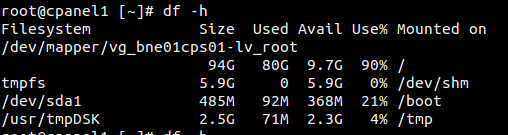
Below screenshot shows the present scenario of the server whose ‘/’ is almost 90% used. It had 3 partitions in the sda drive.

1. sda1 as /boot

2. sda2 and sda3 as /  (lvm group)


Screenshot from 2015-08-13 19:47:47

As mentioned before since this is a VPS the extra space (200GB) was added by the host and no extra physical drives were added so everything will remain as sda in the tutorial.

Disk Partitioning

First thing first, we will have to partition this free space so that we can add this to the Volume group. We can use the fdisk utility here to do so.


fdisk /dev/sda

Now type ‘m’ to show the Menu.

Screenshot from 2015-08-14 10:09:43

Since this is pretty basic I will briefly go through this.

1. Type ‘n‘ to create a new partition and hit Enter.

2. Now you will be prompted for the partition type. Type ‘p‘ for Primary and hit Enter.

3. Now you will have to enter the partition number. As I mentioned above sda1, sda2 and sda3 is already in use so we type in ‘4‘ so we can create sda4 as the new partition. (Please note this depends on your servers setup).

4. Now we will be prompted for allocating the cylinder values for the partition size. Since I had to use the entire free space I hit Enter two times to select the least available cylinder and the last available cylinder.

5. Now type ‘t‘ and hit Enter to select the partition type.

6. Type in ‘8e’ whih correspinds to Linux LVM and hit Enter.

7. Now type ‘p‘ and hit Enter to check everything before writing the change to the drive.

8. Type ‘w‘ and hit Enter to write the changes to the disk.


Physical Volume (PV) Creation

Now we have to create a physical volume in sda4 as below.

 pvcreate /dev/sda4 

Volume Group Identification

Now we have to add this PV to the Volume Group. Using the ‘vgdisplay’ we can see the current Volume Group(s).
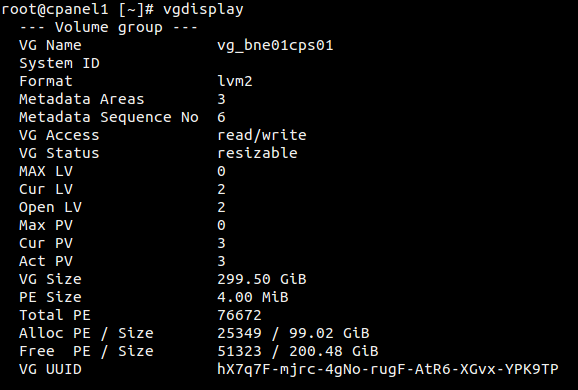
 

Screenshot from 2015-08-13 19:21:06From the above we can make out some information we need in our remaining steps.

1. VG Name : vg_bne01cps01

2. Allocated  PE / Size : 25349 / 99.02 GB

3. Free PE / Size : 51323 / 200.48 GB


Extending the Volume Group

Now we have to extend the Volume Group to add /dev/sda4 using the ‘vgextend’ command as below.


vgextend vg_bne01cps01 /dev/sda4

The syntax is

vgextend [space] VG Name [space] PV Name

A result will be shown as below.

 

Screenshot from 2015-08-13 19:23:07

Now we can the see that Volume Group has been extended.


Extending the Logical Volume

The next step is to make the changes in effect by extending the Logical Volume using the ‘lvextend’ command as below.


lvextend -l +51323 /dev/vg_bne01cps01/lv_root

The syntax is

lvextend [space] -l [space] +Free PE / Size VG

As we have only one VG and logical volume ( refer. image 1)  the process was quite straight forward.

The result is as below. (Please note the values in the screenshot differ)

 

Screenshot from 2015-08-13 19:22:08

Resizing the partition

Now the final step is to resize the ‘/’ partition to use the extra space without losing any data. This can be done using the ‘resize2fs‘ command as below.


resize2fs /dev/vg_bne01cps01/lv_root

The result is as below.

Screenshot from 2015-08-13 19:22:27

Now if you want to see the actual process of extending the ‘/’ partition just log into another shell and use the ‘df -h’ command multiple times to see the increasing disk space in ‘/’ as below.
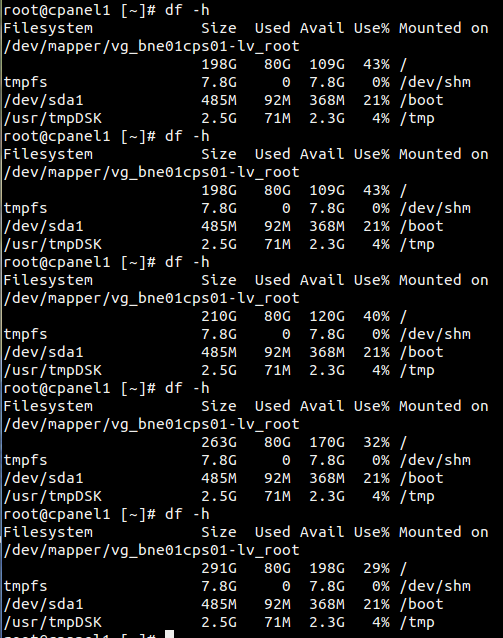
 

Screenshot from 2015-08-13 19:19:36


The resizing is complete without any data loss. Now lets check the present allocation of the drives using ‘lsblk’ command.

 lsblk

The result is as below.


Screenshot from 2015-08-14 11:10:03


Thats it. Thank you for going through 🙂

Get 24/7 expert server management

  • Linux

Looking for AWS Experts?

We provide top-of-the-line custom AWS setup services tailored to your needs.

Extending LVM without data loss

Configure Nginx as a Reverse Proxy for Apache

Configure Nginx as a Reverse Proxy for Apache
  • Apache
  • Howtos
  • Linux
logo

Removing and replacing a disk from software RAID

Removing and replacing a disk from software RAID
  • Howtos
  • Linux
logo

Windows Mirrored Set Failed (Windows Drive Failed, Secondary Plex)

Windows Mirrored Set Failed (Windows Drive Failed, Secondary Plex)
  • Howtos
  • Troubleshooting
  • Windows
logo

Posts by Vishnu K Raj

Vishnu with his impressive knowledge in core concepts of various operating systems and applications, loves to feel and enjoy the excitement in performing highly sophisticated server operations. His excellent customer support skills and ability to groom new talents makes him one of the most successful mentor in the team. He is passionate about photography and travels a lot to satisfy the thirst of his Canon 600D.