


If you're looking to install Proxmox VE on a dedicated server, this step-by-step guide walks you through the entire process - from provisioning the hardware to logging into the Proxmox web interface for the first time. It's written for system administrators, DevOps engineers, and MSPs who want to build a real virtualization environment on cloud bare-metal hardware, not a home lab.
In Part 1 of this series, we covered what Proxmox VE is and how it works. Now we take the next step: a full Proxmox bare metal installation on a cloud dedicated server, including the network configuration steps that most guides skip over.
If you haven't read Part 1 yet, start here: What Is Proxmox VE? A Beginner's Complete Guide.
What You're Setting Up
A cloud dedicated server is a physical machine rented from a hosting provider where the full hardware is reserved for your environment. Unlike a shared VPS, you get access to the actual CPUs, RAM, and storage - which means Proxmox VE can be installed directly on the machine, with no hypervisor in between.
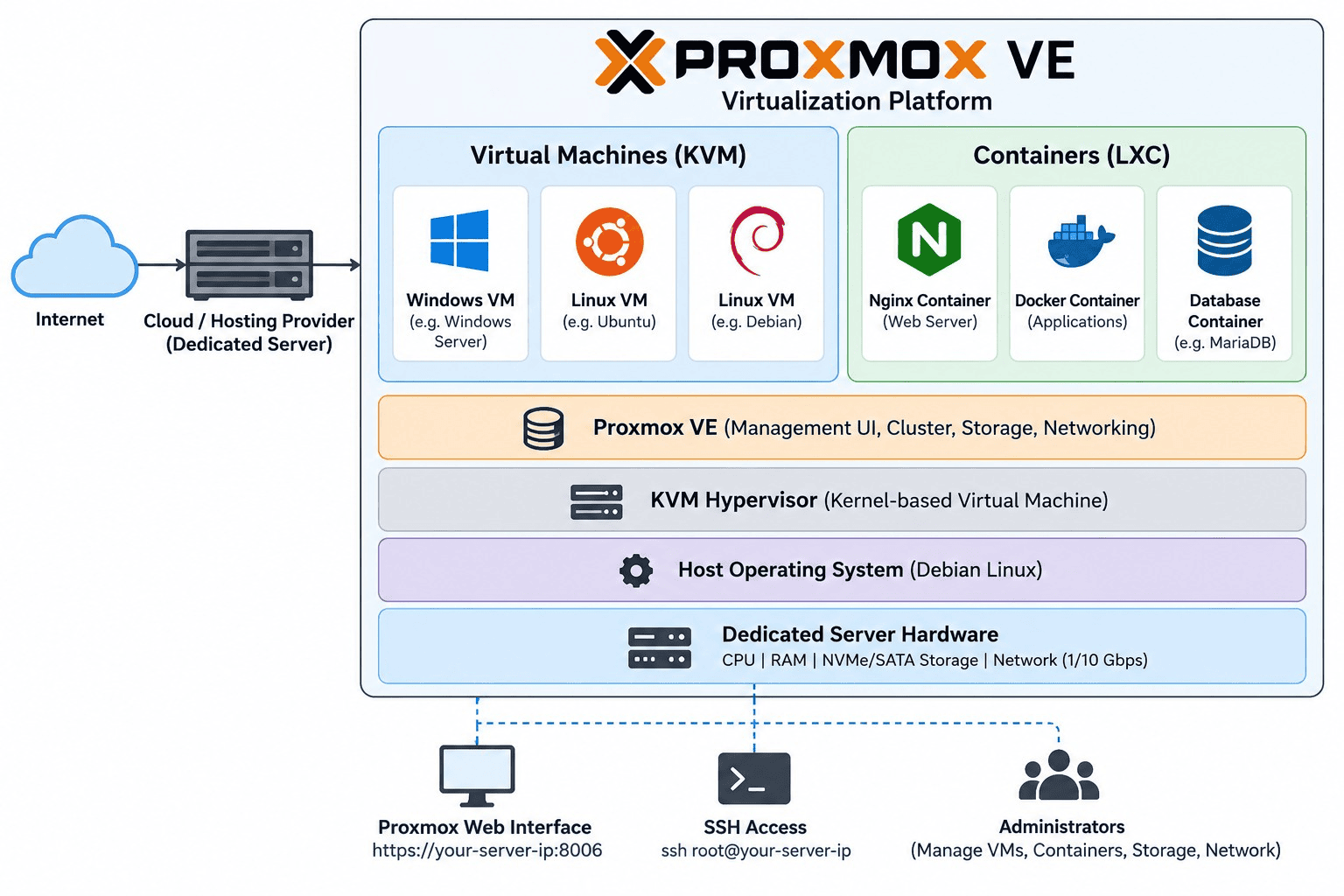
Once the Proxmox bare metal installation is complete, that physical server becomes a Proxmox node. From there, you can spin up virtual machines, Linux containers, configure storage pools, and eventually join additional nodes into a cluster.
A typical entry-level cloud dedicated server for a Proxmox environment looks like this:
Resource | Minimum for learning / recommended for production |
CPU | 8 cores (learning) · 16+ cores (production) |
RAM | 32 GB (learning) · 64 GB+ (production) |
Storage | 500 GB SSD (learning) · 2× SSD or NVMe (production) |
Network | 1 Gbps with at least one public IPv4 |
Architecture | x86_64 (Intel VT-x or AMD-V required) |
Before You Start: What to Collect From Your Provider
Installing Proxmox on a cloud server is different from a home lab install in one critical way: you're working remotely, over a network, on hardware you can't physically touch. Getting the pre-installation details right avoids the most common failure modes.
Remote console access
This is the single most important thing to confirm before you start. If you misconfigure the network during installation - which is easy to do - you'll lose SSH access. Without a remote console, you have no way back in.
Ask your provider which of these they offer:
- Remote KVM
- IPMI
- iDRAC (Dell)
- iLO (HPE)
- Virtual console / serial console
- Rescue mode with ISO mounting
Any of these will do. The important thing is that you can reach the server independently of the OS network stack.
Network information
Before touching the installer, collect your exact network details from the provider dashboard. You will need:
- Main public IP address and subnet (e.g. /24 or CIDR notation)
- Default gateway
- DNS server addresses
- Any additional IPs, virtual MACs, or VLAN IDs
- IPv6 details if provided

Virtualization support
Confirm the server's CPU supports hardware virtualization. On most cloud dedicated servers this is enabled by default, but it's worth verifying before installation:

You should see either VT-x (Intel) or AMD-V. If you see nothing, check your provider's BIOS/UEFI settings through the remote management console.
Step-by-Step: Installing Proxmox VE on a Dedicated Server
Step 1 - Download the Proxmox VE ISO
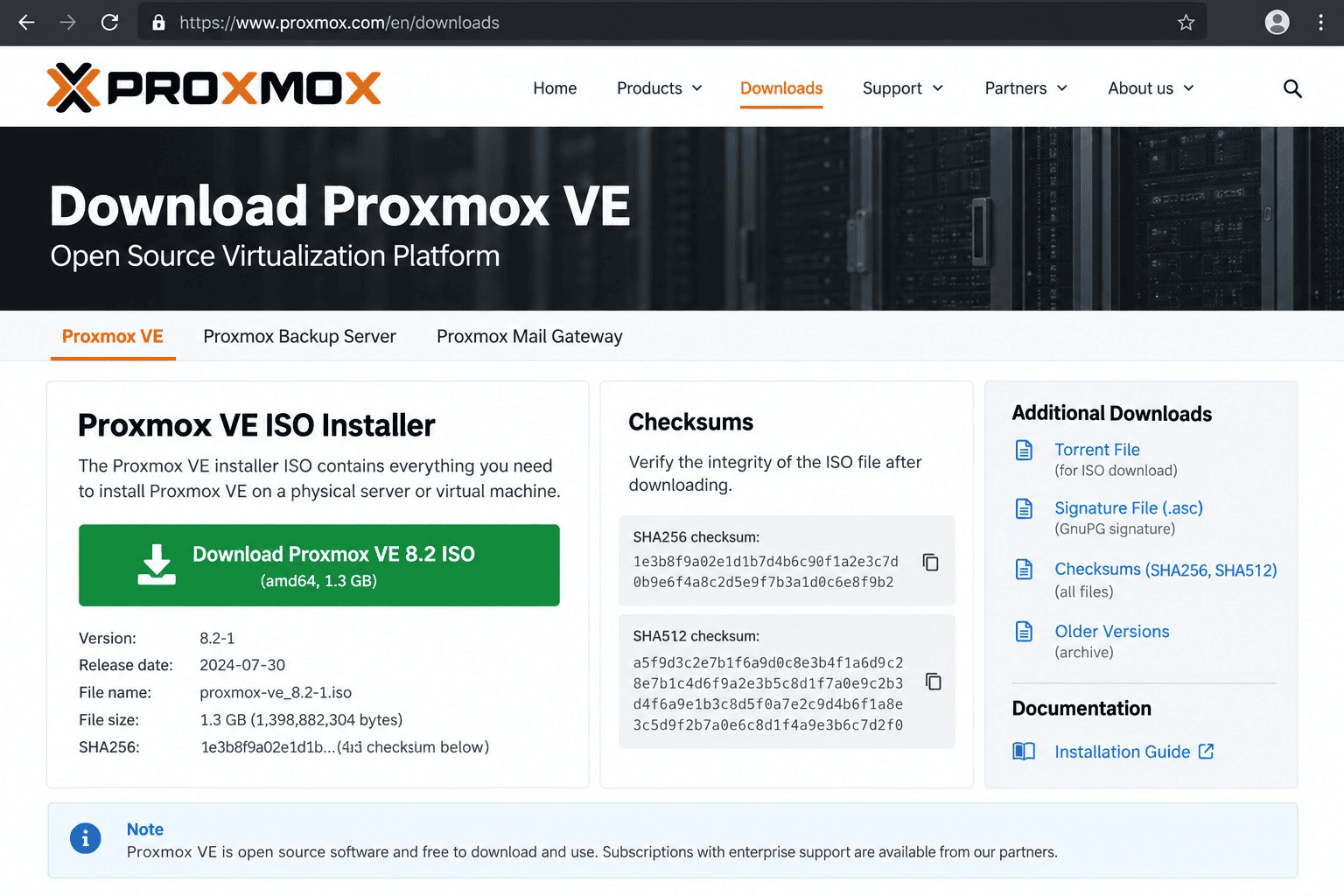
Download the latest Proxmox VE ISO directly from the official Proxmox website:
https://www.proxmox.com/en/downloads
Always download from the official source. The ISO contains the full installer and all packages needed for the Proxmox bare metal installation - no internet connection is required during install.
Step 2 - Mount the ISO and boot the server
Upload the ISO to your provider's control panel or mount it through the remote KVM/IPMI console. Then reboot the server and set the virtual CD/DVD as the first boot device.
Once the server boots from the ISO, the Proxmox installer screen will appear. Select:
Install Proxmox VEAccept the license agreement and proceed.
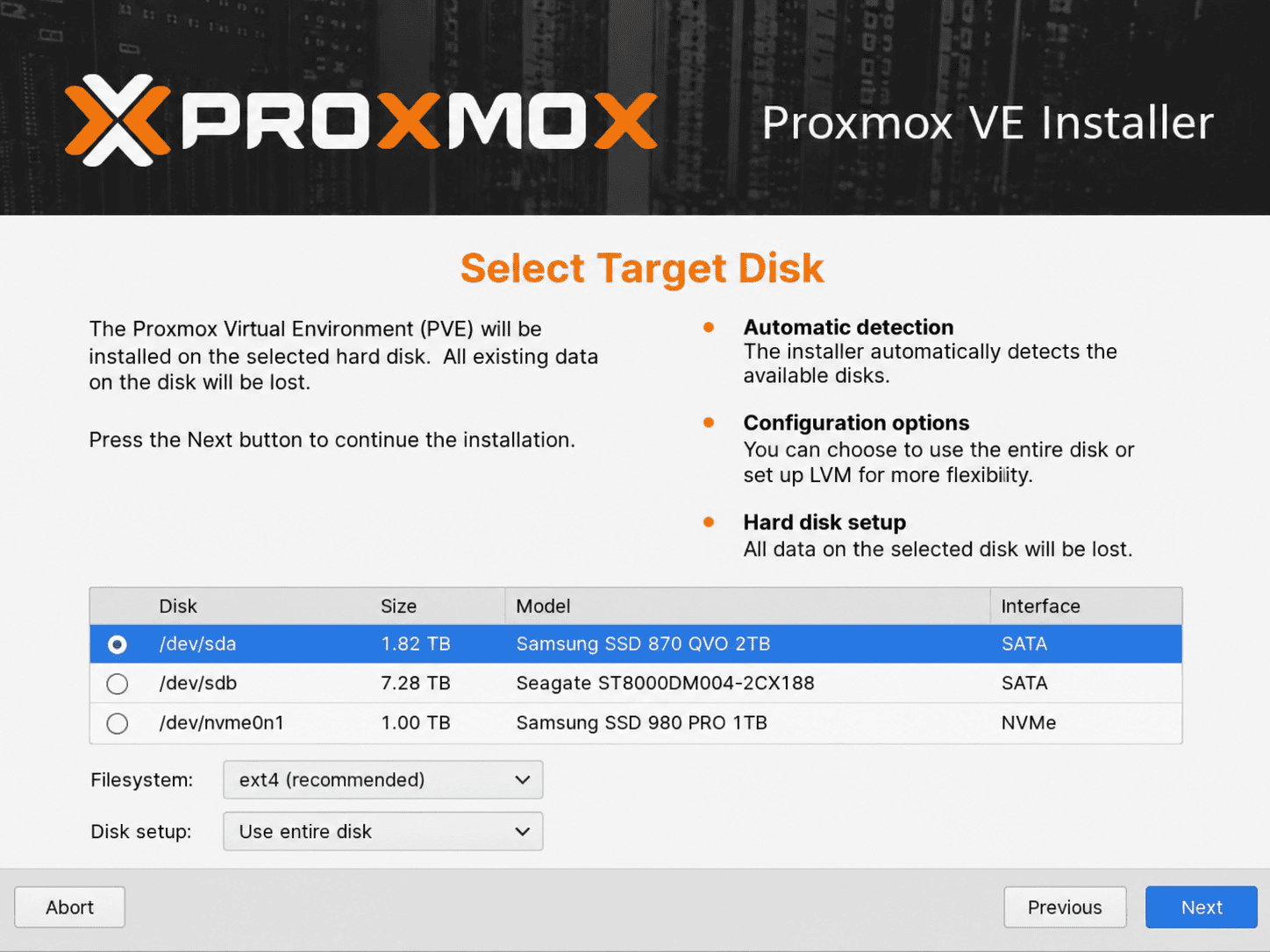
Step 3 - Select the installation disk
The installer lists all disks detected on the server. This is a critical step - choose the wrong disk and you'll wipe the wrong drive.
Identify your target disk by size and type. For a server with two drives, a common approach is:
- Smaller SSD (e.g. 480 GB) → Proxmox OS installation
- Larger SSD/NVMe (e.g. 1.92 TB) → VM and container storage For a single-disk server, all storage will share the same drive.
Step 4 - Choose the filesystem
The installer offers several filesystem options. For most installations:
- ext4 - straightforward, widely supported, good default for single-disk setups.
- ZFS - recommended when you have multiple disks and want built-in RAID, snapshots, and checksumming. Requires more planning upfront.
- XFS - a solid option for large file workloads.
For a first install on a single disk, ext4 is fine. ZFS becomes valuable when you're designing a multi-disk storage architecture, which we cover in a later part of this series.
Step 5 - Set time zone and root credentials
Select your country, time zone, and keyboard layout. Getting the time zone right matters more than it seems - it affects backup schedules, log timestamps, cron jobs, and cluster operations.
Then set a strong root password and an administrative email address for system alerts. You will use these credentials to log into the Proxmox web interface.
Step 6 - Configure the management network
This is the most important step for a cloud dedicated server installation. The network configuration determines how you access Proxmox after the install.
Fill in the values from your provider:


Use a proper FQDN as the hostname - this matters for cluster operations later. After installation, Proxmox will be accessible at:

Step 7 - Review and install
Before clicking Install, verify every field. Double-check:
- Correct installation disk
- Correct IP address, gateway, and subnet
- FQDN hostname
- Time zone
Once satisfied, click Install. The process partitions the disk, installs the OS and Proxmox packages, configures the bootloader, and writes the network configuration. Time varies by hardware - typically 5 to 15 minutes.
Step 8 - Reboot and verify
When installation finishes, unmount the ISO from the remote console before rebooting - otherwise the server will boot back into the installer.
After the reboot, the Proxmox console will display the server's IP and the web interface URL. Before opening a browser, verify from the server console:

If all tests pass, your Proxmox bare metal installation is complete and the network is working correctly.
Accessing the Proxmox Web Interface
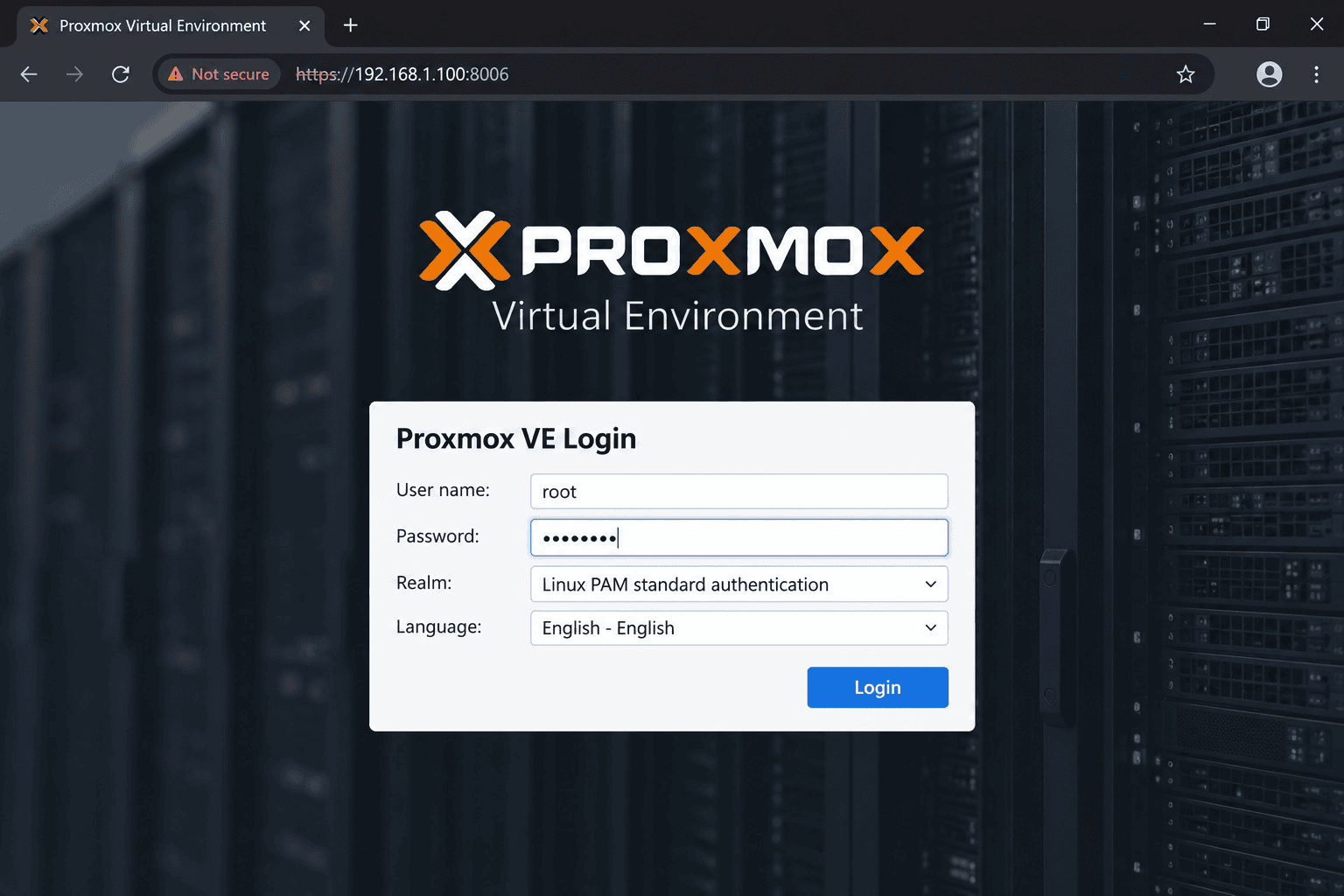
Open a browser on your workstation and navigate to:
You'll see a browser warning about the self-signed SSL certificate - this is expected for a fresh install. Accept the exception and proceed.
Log in with:
- Username: root
- Password: the password set during installation
The Proxmox dashboard will load showing your node's CPU, memory, and storage utilization, along with the datacenter tree on the left. Your dedicated server is now a fully operational Proxmox node.
Common Installation Problems and How to Fix Them
Most issues with installing Proxmox VE on a dedicated server fall into three categories:
Server doesn't boot from the ISO
- Confirm the ISO is mounted correctly in the remote KVM/IPMI panel
- Check the boot order - virtual CD/DVD must come before the internal disk
- Verify the ISO file isn't corrupted by checking its checksum against the official download
- Reboot the server after mounting the ISO
No network after installation
Access the server via remote console and run:

Verify the interface name matches what you entered during install. On cloud servers, network interface names like eno1, eth0, or enp3s0 vary by hardware. If the name is wrong, edit:

Correct the interface name and restart networking:

Cannot access port 8006
First confirm the server itself is reachable:

Then check the Proxmox web proxy service:

Also check whether your cloud provider has a firewall or security group rule blocking TCP port 8006 - this is a common oversight on providers like Hetzner, OVH, and AWS bare-metal.
Lost SSH access during installation
Don't assume the server is down. Use the provider's remote KVM, IPMI, iDRAC, or iLO console to access the server directly and troubleshoot the network configuration. This is exactly why confirming remote console access before you start is non-negotiable.
What You've Built
At this point your infrastructure looks like this: a physical cloud dedicated server running Proxmox VE directly on the hardware, accessible via a web interface on port 8006, ready to host virtual machines and Linux containers.
The Proxmox node is now the foundation everything else in this series builds on - cluster networking, VM creation, storage configuration, high availability, and backup strategy all start here. For a full picture of how backup fits into a Proxmox environment, see our guide on
Proxmox HA vs Backup: Why HA Alone Won't Protect Your VMs.
Frequently Asked Questions
Can I install Proxmox VE on a VPS instead of a dedicated server?
Not in the standard way. Proxmox requires bare-metal access to hardware virtualization (Intel VT-x or AMD-V). Most VPS environments don't expose these CPU features. Some providers offer nested virtualization, but performance is significantly degraded. A cloud dedicated server is the correct target for a real Proxmox installation.
Does installing Proxmox VE erase my existing data?
Yes - the Proxmox installer formats the selected disk. Back up any important data before starting. If the server has multiple disks, choose your installation target carefully to avoid wiping a data disk.
What port does Proxmox use for the web interface?
The Proxmox web interface runs on port 8006 over HTTPS. Make sure TCP port 8006 is open in your provider's firewall or security group rules. SSH access to the Proxmox host uses the standard port 22.
Should I use ZFS or ext4 for my Proxmox installation?
For a single-disk server or a first install, ext4 is the simpler choice. ZFS is worth considering when you have two or more disks and want software RAID, snapshots, and built-in data integrity checks. We cover ZFS storage architecture in a later part of this series.
How do I add more storage to Proxmox after installation?
Additional storage - local disks, NFS shares, iSCSI targets, or Ceph - can be added through the Proxmox web interface under Datacenter → Storage, without reinstalling. We cover storage configuration in detail in Part 4 of this series.
Conclusion
Installing Proxmox VE on a dedicated server is the first real step toward building a production-grade virtualization environment. The process itself is straightforward - boot from the ISO, configure your disk and network, and you have a working Proxmox node in under 20 minutes. The part that trips most people up isn't the installer; it's the preparation: confirming remote console access and collecting accurate network details from the provider before a single command is run.
With the node up and the web interface accessible, you're ready to move to Part 3 of this series: a full walkthrough of the Proxmox web interface - Datacenter, Node, Storage, Network, and Tasks - before creating your first virtual machine.