• TechOps

    Need clarity?
    Chat with our experts now

    • Web Hosting SupportWeb Hosting Support
    • Helpdesk Support

      Skilled and professional 24/7 helpdesk support

    • Product Support

      Boost your product support with our expertise

    • Managed ServicesManaged Services
    • Server Management

      Don't let server issues slow you down. Let us manage them for you

    • Server Monitoring

      Safeguard your server health with our comprehensive monitoring solutions

    • Staff AugmentationStaff Augmentation
    • Hire an Admin

      Transform your business operations with our expert administrative support

    • Hire a Team

      Augment your workforce with highly skilled professional from our diverse talent pool

  • CloudOps

    Confused?
    Discuss with our sales team now.

    • Author ProfileAWS
      Well Architected Review
    • Author ProfileFinOps As a Service

      FinOps As a Service

    • Migrate

      Upgrade the journey: Migrate & Modernize seamlessly

    • Modernize

      Effortless CloudOps mastery for seamless cloud management

    • Optimize

      Efficient CloudOps: Boosting performance through optimization

    • Manage

      Simplify compliance complexities with our dedicated service

  • DevOps

    How Supportsages
    is creating an
    impact?

    View Casestudies
    • Author Profile24/7 DevOps As a Service

      Round-the-clock DevOps for uninterrupted efficiency

    • Author ProfileCI/CD Pipeline

      Automated CI/CD pipeline for seamless deployments

    • Author ProfileInfrastructure As a Code

      Crafting infrastructure with ingenious code

    • Author ProfileDevSecOps

      Integrated security in continuous DevOps practices

    • Author ProfileHire DevOps Engineers

      Level up your team with DevOps visionaries

    • Author ProfileConsulting Services

      Navigate success with expert DevOps consulting

  • SecOps

    Expert SecOps Services
    for any Scale

    • Author ProfileVAPT

      Vulnerability Assessment and Penetration Testing

    • Author ProfileSource Code Review

      Ensuring source code security and safe practices to reduce risks

    • Author ProfileSecurity Consultation

      On demand services for improving server security

    • Author ProfileSystem Hardening

      Reduced vulnerability and proactive protection

    • Author ProfileManaged SOC

      Monitors and maintains system security. Quick response on incidents

    • Author ProfileCompliance as a Service

      Regulatory compliance, reduced risk

  • Insights

    Explore our latest
    insights and resources

    Blog

    Explore our latest articles and insights

    Case Studies

    Read about our client success stories

  • Contact Us

  • About
  • Certifications
  • Life at Supportsages
  • Events
  • Contact
  • Careers
  • Blog

  • Dedicated Support Team
  • Quasi-dedicated Support Team
  • Hire a DevOps Engineer
  • Hire a Billing Support Staff
  • Per-ticket Support Plan
  • Managed Services

  • Microsoft Azure Expert
  • AWS Cloud Expert
  • Hire a developer
SS

SupportSages

Bites of wisdom @ work


Copyright © 2008 - 2026 SupportSages Pvt Ltd. All Rights Reserved.
Privacy PolicyLegal TermsData ProtectionCookie Policy

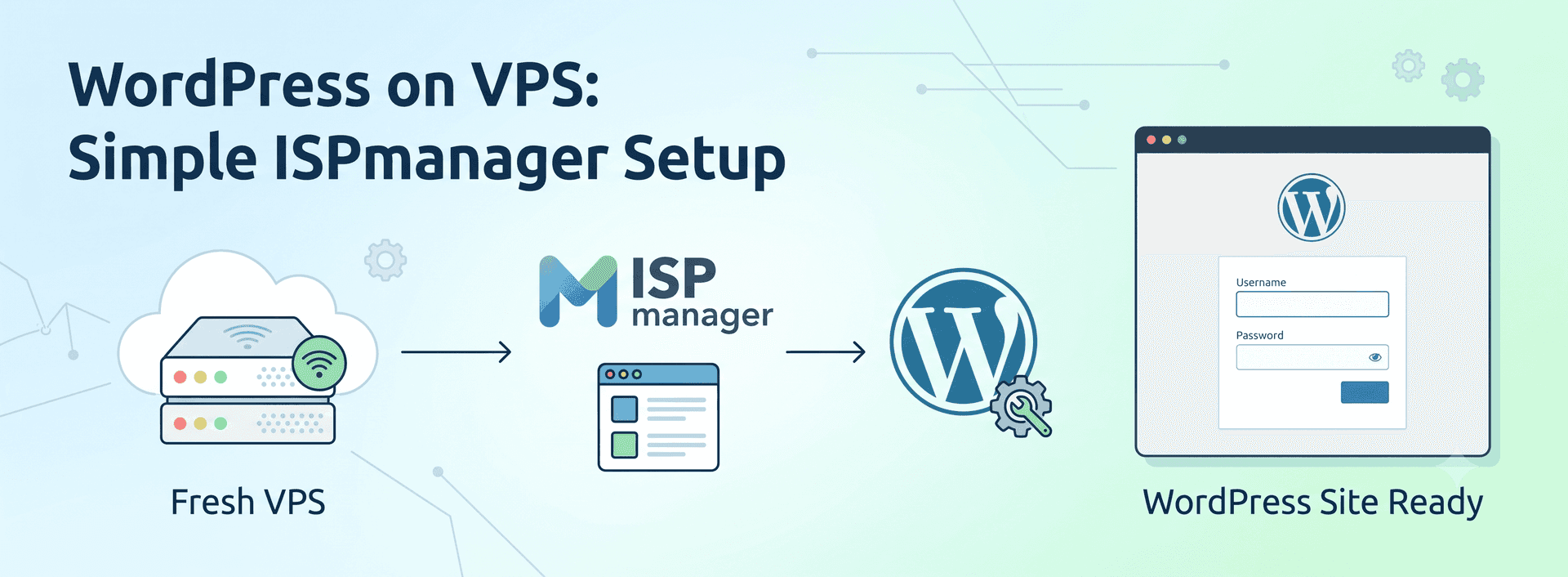
How to setup a WordPress website on a freshly provisioned VPS with ISPmanager control panel

Vinayan C V

  • 3 min read
SupportSages Logo

Generating audio, please wait...

ISPmanager is a popular web hosting control panel designed to simplify the administration and management of web hosting servers. It provides a user-friendly interface that allows hosting providers, server administrators, and website owners to easily handle various aspects of server and website management.

Let’s see how we can setup a WordPress website on a fresh VPS with ISPManager control panel.

1. Login to ISPManager control panel using your credentials. In a freshly installed ISPmanager, there will be only root user present. We need atleast one normal user to create and manage a website.

2. Go to “Users” tab on the left panel and click “Create User”. Since it’s a fresh installation, you need to set the default settings for the server.Set the server details.

3. Set the server details.

4. Save the settings and click on the Users tab again and click “Create User”. Fill in the basic details
5. Click “Next” to set the resource limits and access privileges.

 6. On the next page, Specify the domain name, Click on the “Select a script” dropdown menu and select “WordPRess 6.3.2” to install the latest version of wordpress available from ISPManager

7. Complete the installation from the next page and you will be provided with the logins for wp-admin and the database details

8. Point your domain to the new server IP and open the site

Conclusion:
In conclusion, setting up WordPress on ISPManager is a straightforward process that can be accomplished with just a few simple steps. By following the guidelines outlined in this blog, users can create a robust and functional website powered by WordPress, complete with customization options, themes, plugins, and more.
ISPManager’s user-friendly interface and compatibility with popular web technologies make it an ideal choice for hosting WordPress sites. Whether you’re a beginner or an experienced webmaster, ISPManager provides the tools and features needed to manage your website efficiently.


  • VPS

Looking for AWS Experts?

We provide top-of-the-line custom AWS setup services tailored to your needs.

How to setup a WordPress website on a freshly provisioned VPS with ISPmanager control panel

Amazon ECS Exec to access your containers on AWS Fargate Skip to end of metadata

Amazon ECS Exec to access your containers on AWS Fargate Skip to end of metadata
  • AWS
logo

Amazon SES Suppression List

Amazon SES Suppression List
  • AWS
logo

Azure VmScaleset Alert Configuration

Azure VmScaleset Alert Configuration
  • Linux
logo

EC2 Status check and restart using SSM runbook

EC2 Status check and restart using SSM runbook
  • Linux
logo

Posts by Vinayan C V

Vinayan C V