Scenario:
Usually when a client complains he is not able to access his site or the cPanel, the highest possibility is that his IP has been blocked in the server with CSF Firewall installed.
You can simply check the IP block in a CSF Firewall installed server through the command
csf -g <IP>
As an example, suppose 79.130.5.66 is the client’s IP
# csf -g 79.130.5.66 Chain num pkts bytes target prot opt in out source destination DENYIN 100 427 25532 DROP all -- eth0 * 79.130.5.66 0.0.0.0/0 DENYOUT 100 9 12386 DROP all -- * eth0 0.0.0.0/0 79.130.5.66 ip6tables: Chain num pkts bytes target prot opt in out source destination No matches found for 79.130.5.66 in ip6tables csf.deny: 79.130.5.66 # lfd: (cpanel) Failed cPanel login from 79.130.5.66 (GR/Greece/athedsl-4363602.home.otenet.gr): 10 in the last 300 secs - Mon Nov 18 16:46:58 2013
Now we know that the IP is blocked in the server due to Failed cPanel Login attempts.
Mostly, when temporary blocks happen, they use to get recovered by the time we check the logs. In such cases, you need to look in the lfd.log file for entries for the IP.
grep 79.130.5.66 /var/log/lfd.log Nov 18 16:46:58 hosting_server lfd[119704]: (cpanel) Failed cPanel login from 79.130.5.66 (GR/Greece/athedsl-4363602.home.otenet.gr): 10 in the last 300 secs - *Blocked in csf* [LF_CPANEL]
Now, if the IP is blocked, you may just remove from via:
csf -dr 79.130.5.66 Removing rule... DROP all opt -- in eth0 out * 79.130.5.66 -> 0.0.0.0/0 DROP all opt -- in * out eth0 0.0.0.0/0 -> 79.130.5.66
Analysis and Resolution
[LF_CPANEL] : IP address blocked due to failed cPanel login attempts. The maximum number of attempts and the duration is mentioned in the CSF firewall configuration file. For example, if the LFD log says the below line:
(cpanel) Failed cPanel login from x.x.x.x (CA/Canada/bas7-sudbury98-1096760400.dsl.bell.ca): 5 in the last 300 secs – *Blocked in csf* [LF_CPANEL]
This means that the CSF firewall has set a maximum of 5 cPanel invalid login attempts from an IP address. So when 5 login failures occur from a single IP address it will be automatically blocked in the CSF firewall.
In most cases, the user must be entering a whitespace along with the login password or username. This happens when you copy-paste the login passwords.
[LF_FTPD] : IP address is blocked due to failed FTP login attempts. The maximum number of attempts and the duration is mentioned in the CSF firewall configuration file. For example, if the LFD log says the below line:
(ftpd) Failed FTP login from x.x.x.x (NL/Netherlands/541f4283.cm-5-8b.dynamic.ziggo.nl): 10 in the last 300 secs – *Blocked in csf* [LF_FTPD]
This means that the server firewall has set a maximum of 10 FTP invalid login attempts from an IP address. So when 10 login failures occur from a single IP address it will be automatically blocked in the server firewall.
In most cases, the user must be entering a whitespace along with the login password or username. This happens when you copy-paste the login passwords.
[LF_POP3D] : IP address blocked due to failed POP3 login attempts. The LFD log will show as below:
pop3d – 61 logins in 2990 secs from x.x.x.x (AU/Australia/-) for [email protected] exceeds 60/hour – *Blocked in csf* for 610 secs [LT_POP3D]
CSF firewall uses the parameter “LF_POP3D” to check email login failures from a single IP address. Once this limit is exceeded the IP address will be automatically blocked in the CSF firewall.
In most reported cases, there may be Mail Clients like Outlook or thunderbird, trying to login continuously automatically after he has supplied it with wrong login details.
[CT_LIMIT] : IP address is blocked due to excessive number of connections. The IP address is temporarily blocked for a particular time interval. The LFD log will show as:
(CT) IP x.x.x.x (AU/Australia/CPE-58-165-216-228.nsw.bigpond.net.au) found to have 79 connections – *Blocked in csf* for 900 secs
Connection Tracking Limit or ( CT_LIMIT ) option in CSF, enables tracking of all connections from IP addresses to the server. If the total number of connections is greater than this limit, then the offending IP address is blocked. This can be used to prevent DOS attack.
Please make sure that you have disabled the settings that make too many connections to the server like email check interval in email clients, ftp session limit in ftp clients, auto reload in browser etc.
If you are using any email clients, please check whether you have enabled automatic mail check option. If so, please disable the same or increase the mail check interval to avoid such issues in future.
For example, if you are using email client outlook, you can follow the steps given below to do the same:
[otw_shortcode_info_box border_type=”bordered” border_color_class=”otw-aqua-border” border_style=”bordered”]1) Open Outlook.
2) Choose Tools Options.
3) In the Options dialog box, click the General tab (if needed).
4) Uncheck the “Check for New Messages Every [interval you have given] Minutes” check box, or you can increase the mail check interval by giving the desired time in [interval you have given].
5) Click OK to save the changes.[/otw_shortcode_info_box]
FTP clients configurations
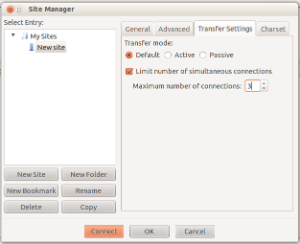
FileZilla>>File>>Site Manager>>Transfer Settings>>Limit Number of Simultaneous Connections and reduce it to a lower number.
You may also recommend the client to use to try the File Manager feature in their cPanel:
cPanel>>File Manager which is the most recommended one and that with least issues.
If you want to download a large amount of files, you can first use the cPanel File Manager to compress them into a single .zip file and only download one file to your computer. This not only reduces your connection to the server but will also save time as one large file being downloaded will always be faster than multiple small files.
[PS_LIMIT] : IP address is blocked due to excess generation for port blocks. The LFD log shows below:
[Port Scan* detected from x.x.x.x (BE/Belgium/d51A54121.access.telenet.be). 11 hits in the last 268 seconds – *Blocked in csf* for 3600 secs [PS_LIMIT]
Port Scan Tracking or PS_LIMIT feature tracks port blocks logged by iptables to syslog. If an IP address generates a port block that is logged more than PS_LIMIT within PS_INTERVAL seconds, the IP address will be blocked.
Port scanning is normally done to check for the open ports in the server. This is normally done by the intruders to get access to the server through the open ports. It will temporarily block the IP address if port scan is detected from any IP address.
Please refer the below mentioned preventive Measures against Port Scanning Attacks from the PC:
- Do all Windows Critical Update in your PC monthly or when reminded to do so.
- (In the Internet Explorer, click the ‘Tools’ menu => ‘Windows Update’ => ‘Scan for Update’.
- Install anti-virus software on your computer and update regularly (daily) for the latest virus pattern from the vendor of your anti-virus software.
- Remove viruses and trojan horses: (Some viruses would disable anti-virus software and special tools are required to remove them.)
- Do not open suspicious mail or attachments from unknown or suspicious sources. Always scan an attachment before opening it.
- If you are using Outlook or Outlook Express for reading email, be careful that the attachment preview setting might open a virus-infected attachment.
- Avoid file sharing with unknown or suspicious sources, such as using Peer-to-Peer (P2P) software. Many viruses can spread through P2P file sharing software.