LiteSpeed should process PHP files when we install LiteSpeed as all the configuration settings are present by default. As for python scripts, it’s required to be manually enable python done. We’re going to see how to enable python application on LiteSpeed Web Server assuming python is already installed and it’s working fine.
Requirement : LiteSpeed Version greater than 4.2.4
Python LSAPI Installation
Downloading and compiling the module.
cd /usr/local/lsws/
Download the WSGI LSAPI module:
wget http://www.litespeedtech.com/packages/lsapi/wsgi-lsapi-1.0.tgz tar -xvf wsgi-lsapi-1.0.tgz cd wsgi-lsapi-1.0/ python ./configure.py make mv lswsgi /usr/local/lsws/fcgi-bin/ (this directory contains all the LSAPI binaries)
First we’ll see how to get into the LiteSpeed control panel (WebAdmin Console). It’s a centralized control panel to control and configure all LiteSpeed Web Server settings.
Login to WHM of the server.
Select ‘LiteSpeed Web Server‘ under Plugins
Click on the ‘LiteSpeed Configuration’ and then ‘WebAdmin Console’
Enter your LiteSpeed admin username and password.
From Configuration select Server
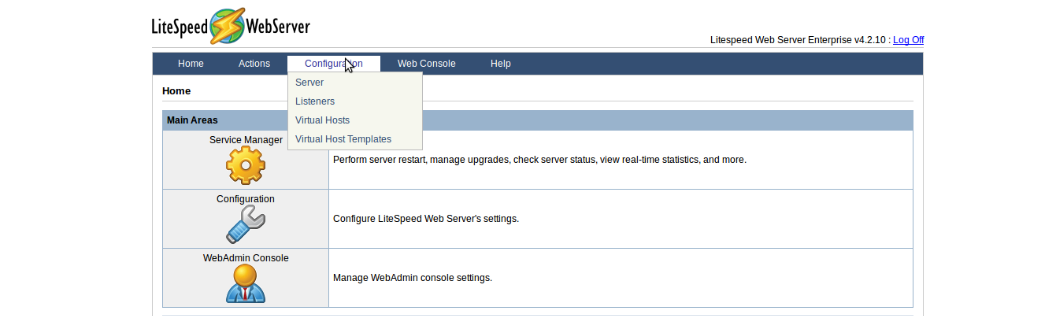
Now we need to set up an external application and script handler.
Set up an external application
External App : LiteSpeed web server can forward requests to external applications to process and generate dynamic content. Since 2.0, LiteSpeed Web Server has supported seven types of external applications: CGI, FastCGI, web server, servlet engine, LiteSpeed SAPI application, load balancer, and piped logger.
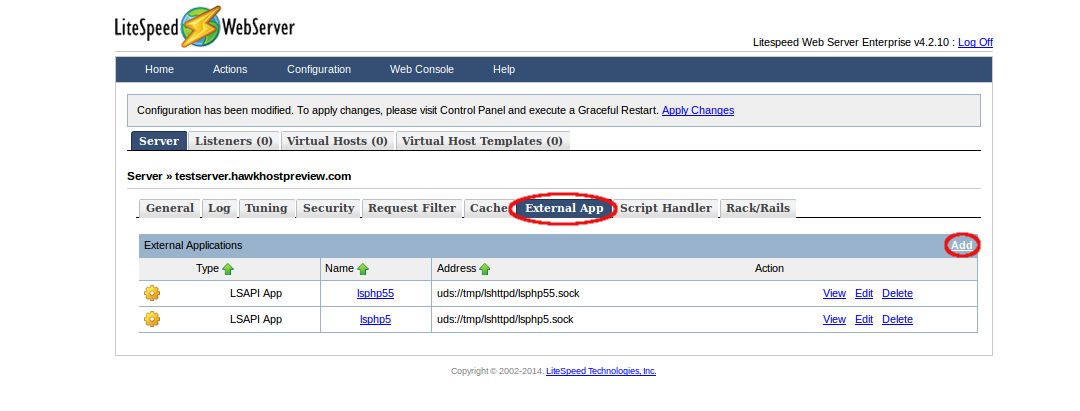
Go to the External App tab from the console.
WebAdmin console » Configuration » External App and click Add.
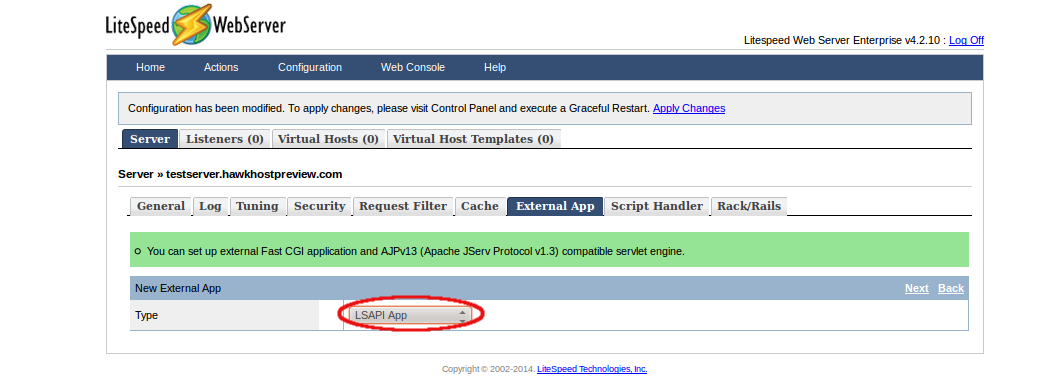
Add a new app with Type as LSAPI App
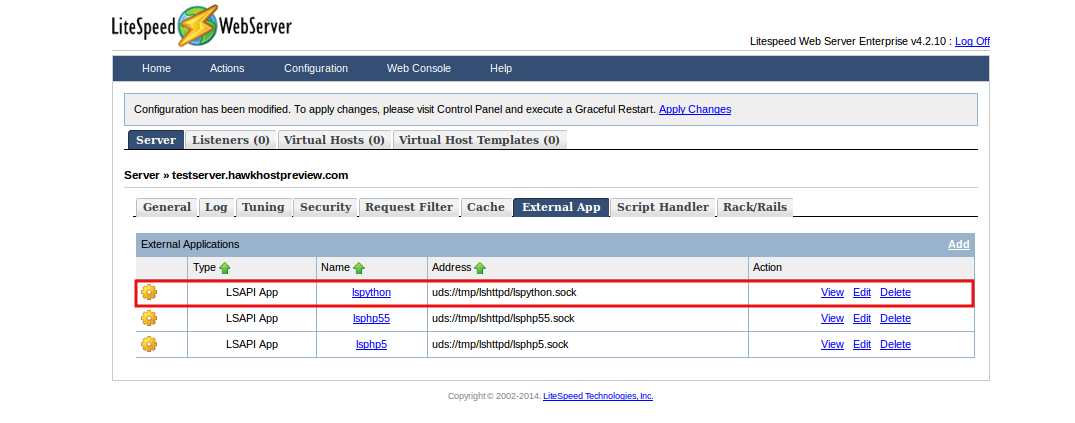
Give the new app a name. In this case it’s ‘lspython’.
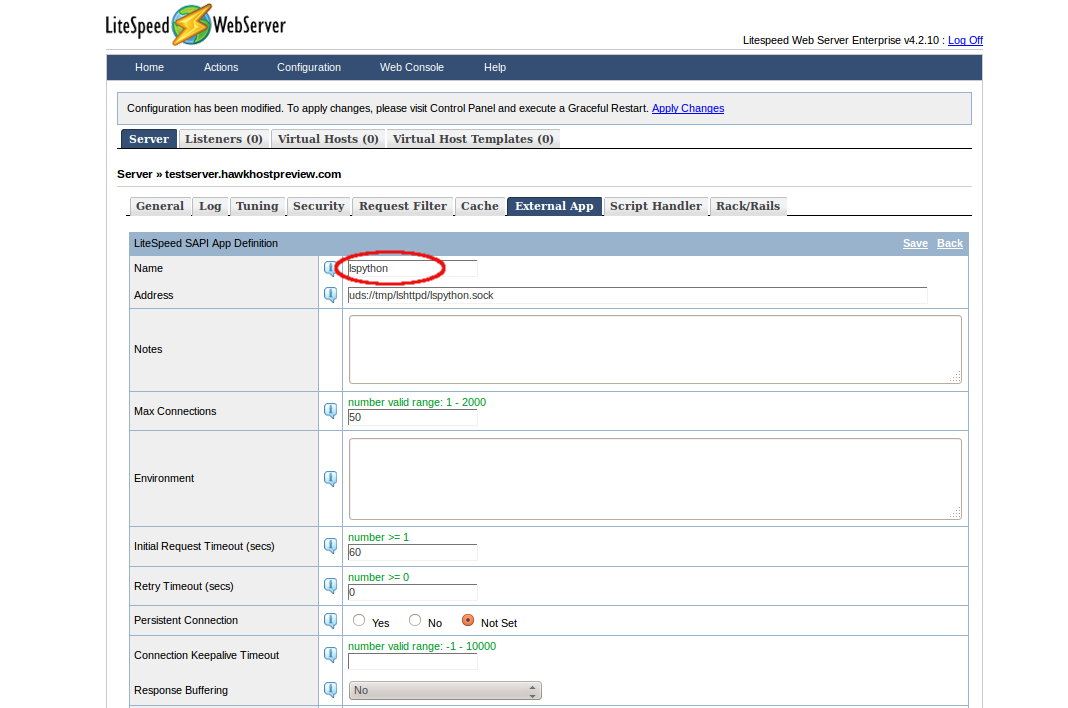
The important thing you need to specify is for the option ‘Command’. It tells which binary to execute so as to launch the processes. You need to specify the full path with the binary file: /usr/local/lsws/fcgi-bin/lswsgi
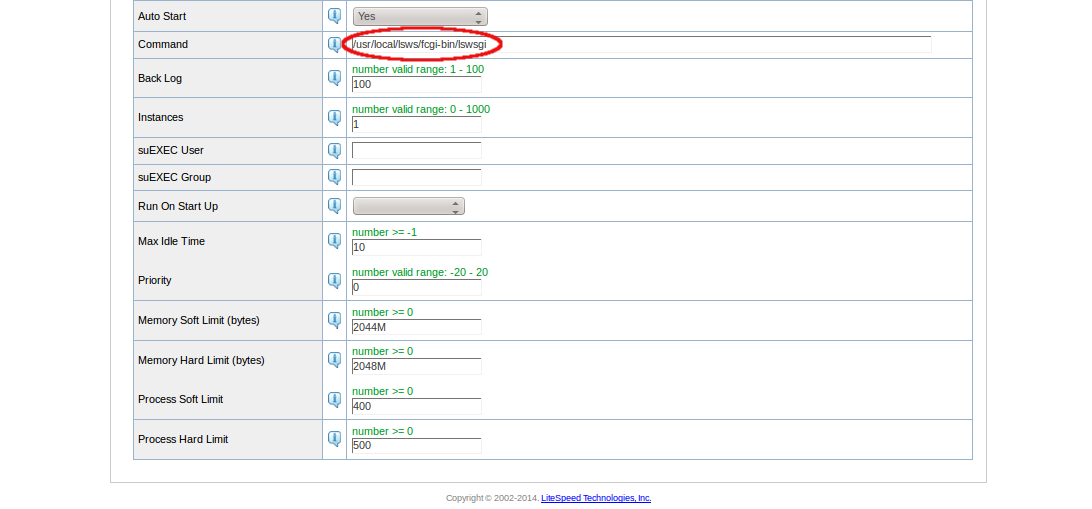
You need to specify values for Max Connections, Initial Request Timeout, and Retry Timeout.
You can refer the one’s for PHP app, if you are not sure about on what values to input as PHP app is enabled by default when installing LiteSpeed. Click ‘Save’.
Now we have an LSWSGI external application ‘lspython’. Now we need to create a script handler for the app we’ve created.
Set up the script handler
Script Handler : LiteSpeed Web Server supports all scripting languages including Perl, PHP, Ruby, Python, Java, etc. Scripts written in these different languages must be brought to the appropriate external application to be processed. LiteSpeed Web Server uses script handlers to decide which external application a script should go to. These script handlers map files to external applications by using the file suffix. (Actually, the suffix is used to determine a MIME type which is then mapped to the external application.) External applications must be set up in the {PAGE= ExtApp_Help} tab before they can be selected for use in a script handler. You can set up script handler at the server or virtual host level. Server-level script handlers apply to all virtual hosts unless overridden in virtual host level. Virtual host-level script handlers only apply within that virtual host.
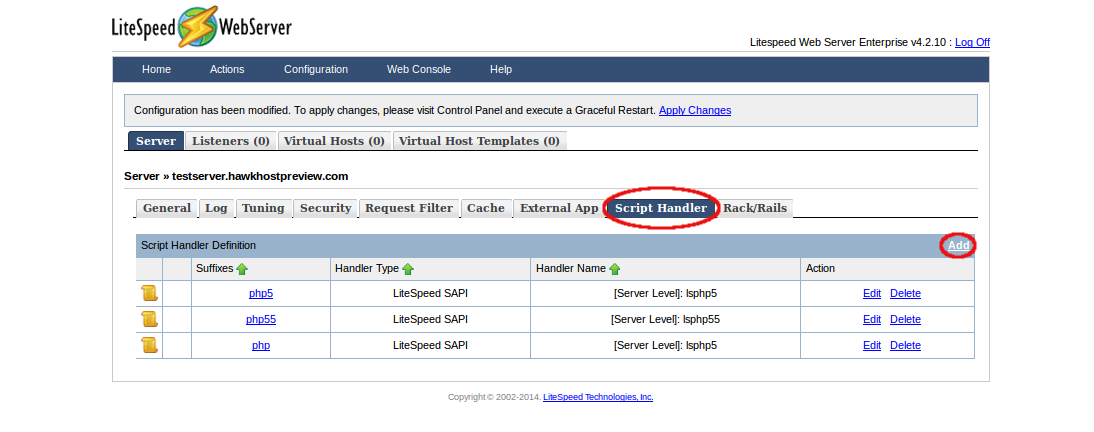
Go to the Script Handler tab from the console.
WebAdmin console » Configuration » Script Handler and click Add.
You need to specify ‘wsgi’ as the suffix. For Handler Type select LiteSpeed SAPI and for Handler Name choose the LSWSGI external application (lspython) we’ve just created. So any python script with .wsgi sufix will get executed.
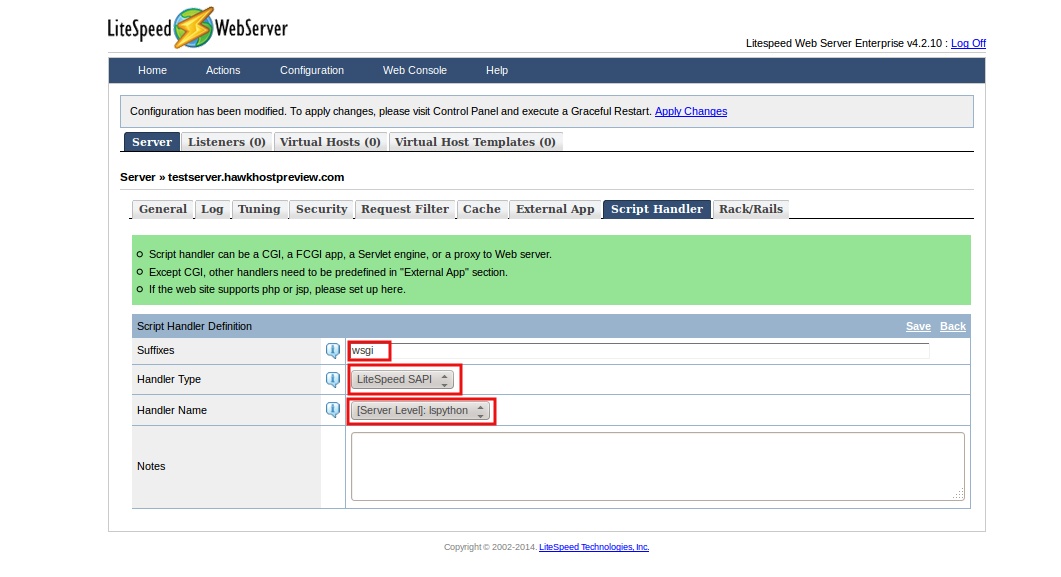
Click ‘Save’ and now we’ve a handler for our app ‘[Server Level]: lspython‘.
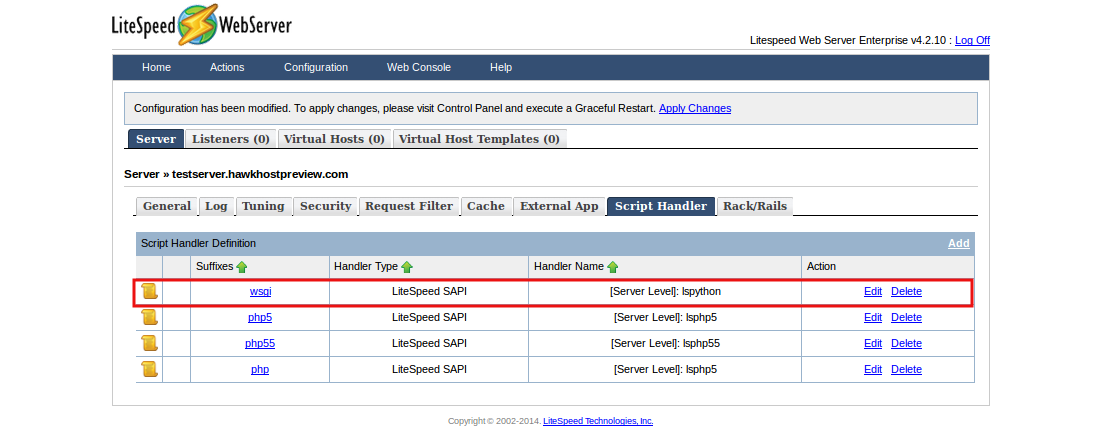
Graceful restart LSWS to apply changes. Now the LiteSpeed Web Server should be able to handle .wsgi scripts.
/scripts/restartsrv_apache
If you need to execute a different script with suffix, for eg: .py , you need to add another handler with extension as ‘py’. But it seems suEXEC mode won’t get enabled if we are using a different extension other than ‘wsgi’ assuming it’s a bug or something in their WSGI LSAPI module, the processes will be launched under the ownership of ‘nobody’ user. So it’s recommended to create the handler with suffix as just ‘wsgi’.
But most of the python scripts should have .py extension, so we need to either specify the extension in the configuration file or need to mention it in .htaccess file so as to get executed in suEXEC mode itself.
To add in the configuration file.
vi /usr/local/apache/conf/httpd.conf
Add the below code somewhere on the file:
AddType application/x-httpd-wsgi .py
This should execute the .py extensions via the wsgi handler which we’ve created.
Graceful restart LSWS to apply changes.
/scripts/restartsrv_apache
You can also specify the extension in the .htaccess file in the document root where you are trying to execute the script.
AddType application/x-httpd-wsgi .py
Now let’s test this to see if python scripts are getting executed. Here we’re using a simple Hello World python script.
def application(environ, start_response): status = '200 OK' output = 'Hello World' response_headers = [('Content-type', 'text/plain'), ('Content-Length', str(len(output)))] start_response(status, response_headers) return [output]
We’ll save this script as python.py to the document root of any test domain. Now when we try to access the file in a browser, it should work fine and display our ‘Hello World’
References:
http://www.litespeedtech.com/docs/litespeed-sapi/python-lsapi/installation
http://www.litespeedtech.com/docs/litespeed-sapi/python-lsapi/configuration