

• DevOps
    Case Study

    How we built a resilient multi-account, multi-cloud solution for a Health Tech service provider!

    READ CASESTUDY
    icon

    24/7 DevOps as a Service

    Round-the-clock DevOps for uninterrupted efficiency.

    icon

    Infrastructure as a Code

    Crafting infrastructure with ingenious code.

    icon

    CI/CD Pipeline

    Automated CI/CD pipeline for seamless deployments.

    icon

    DevSecOps

    Integrated security in continuous DevOps practices.

    icon

    Hire DevOps Engineers

    Level up your team with DevOps visionaries.

    icon

    Consulting Services

    Navigate success with expert DevOps consulting.

  • TechOps
    Case Study

    How we built a scalable Odoo solution for a Travel Tech service provider!

    READ CASESTUDY

    WEB HOSTING SUPPORT

    icon

    HelpDesk Support

    Highly skilled 24/7 HelpDesk Support

    icon

    Product Support

    Boost your product support with our expertise.

    MANAGED SERVICES

    icon

    Server Management

    Don’t let server issues slow you down. Let us manage them for you.

    icon

    Server Monitoring

    Safeguard your server health with our comprehensive monitoring solutions.

    STAFF AUGMENTATION

    icon

    Hire an Admin

    Transform your business operations with our expert administrative support.

    icon

    Hire a Team

    Augment your workforce with highly skilled professionals from our diverse talent pool.

  • CloudOps
    Case Study

    How we helped a Private Deemed University in India, save US $3500/m on hosting charges!

    READ CASESTUDY
    icon

    AWS Well Architected Review

    Round-the-clock for uninterrupted efficiency

    icon

    Optimize

    Efficient CloudOps mastery for seamless cloud management

    icon

    Manage

    Automated CI/CD pipeline for seamless deployments

    icon

    Migrate

    Upgrade the journey, Migrate & Modernize seamlessly

    icon

    Modernize

    Simplify compliance complexities with our dedicated services

    icon

    FinOps as a Service

    FinOps as a Service

  • SecOps
    Case Study

    How we built a scalable Odoo solution for TravelTech service provider!

    READ CASESTUDY
    icon

    VAPT

    Vulnerability Assessment and Penetration Testing

    icon

    Source Code Review

    Ensuring source code security ans safe practices to reduce risks

    icon

    Security Consultation

    On demand services for improving server security

    icon

    System Hardening

    Reduced vulnerability and proactive protection

    icon

    Managed SoC

    Monitors and maintains system security. Quick response on incidents.

    icon

    Compliance as a Service

    Regulatory compliance, reduced risk

  • Insights
    Case Study

    How we helped a Private Deemed University in India, save US $3,500/m on hosting charges!

    READ CASESTUDY
    icon

    Blog

    Explore our latest articles and insights

    icon

    Case Studies

    Read about our client success stories

    icon

    Flipbook

    Explore our latest Flipbook

    icon

    Events

    Join us at upcoming events and conferences

    icon

    Webinars

    Watch our educational webinar series

  • Our Story
  • Contact Us

Interested to collaborate?

Get in touch with us!

Ready to elevate your business with certified cloud expertise? Contact us today to learn how our team can help you leverage cloud technology to drive growth, streamline operations, and enhance security.

  • AWSAWS
  • Azure CloudAzure Cloud
  • Google CloudGoogle Cloud
  • Akamai CloudAkamai Cloud
  • OVHOVH
  • Digital OceanDigital Ocean
  • HetznerHetzner
  • Kubernetes Consultancy Services
  • K8s & Cloud native Solutions
  • 24/7 Infrastructure Monitoring
  • DevOps as a Service
  • Cloud CI/CD Solutions
  • White Labeled MSP Support
  • Our story
  • Life@SupportSages
  • Insights
  • Careers
  • Events
  • Contact Us

Connect with us!


LinkedInFacebookXInstagramYouTube

aws partneraws advanced partner
SupportSages

Copyright © 2008 – 2026 SupportSages Pvt Ltd. All Rights Reserved.
Privacy PolicyLegal TermsData ProtectionCookie Policy

How to setup Google Apps on your domain with cPanel and create upto 50 custom email accounts for FREE – Part (2)

Balu Michael

  • 4 min read
How to setup Google Apps on your domain with cPanel and create upto 50 custom email accounts for FREE – Part (2)

Generating audio, please wait...

This next steps for creating cPanel google accounts are given below,

Step V : Setting Up Your E-mail Server.

The next step is to set up the URL you want to use to access Webmail. In most cases, this is either webmail.example.com or simply mail.example.com. To make this change, click on the ‘Service Settings‘ tab in the top menu of the dashboard. Then, click ‘Email‘. From there, specify that you want to use a custom URL, and enter the appropriate subdomain for your domain.
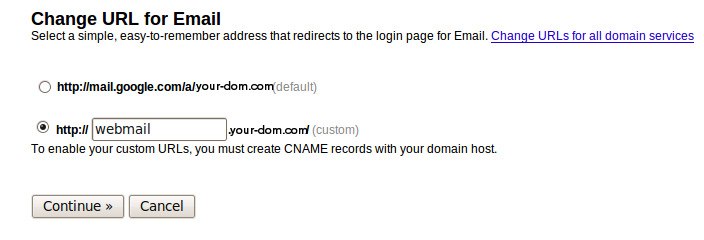
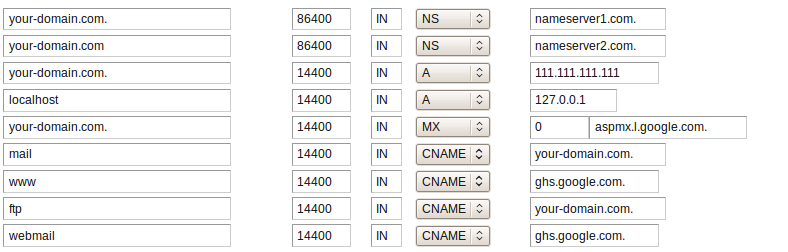
Submit that form, and Google will then provide you with information about adding a CNAME entry for your new subdomain. You should make corresponding entries in the DNS zone to implement this. For example if the URL with which you wish to access your mail is webmail.example.com then you must give a CNAME record ‘ ghs.google.com. ‘ in the DNS zone for webmail. This is shown below :
Step VI : MX Record Changes

Once you have finished creating all of the users, you can return to the dashboard and click ‘Activate email‘  and follow the MX change instructions provided by Google. If you are lucky enough to use one of the hosts included in the dropdown menu there, you should be able to get clear, specific instructions explaining how to make the changes in your domains control panel.

Google will have you add seven new MX records to your DNS zone file. Those entries will probably look like:

MX Server address                                  Priority

ASPMX.L.GOOGLE.COM.                 10
ALT1.ASPMX.L.GOOGLE.COM.       20
ALT2.ASPMX.L.GOOGLE.COM.       20
ASPMX2.GOOGLEMAIL.COM.         30
ASPMX3.GOOGLEMAIL.COM.         30
ASPMX4.GOOGLEMAIL.COM.         30
ASPMX5.GOOGLEMAIL.COM.         30

It’s important that you copy and paste those addresses exactly as they appear in the Google instructions. They all include dots at the end of the addresses, and that dots need to be included. I am attaching a screenshot below which will hopefully give you an idea on how it should be entered.

Your new entries will need to look similar to:

your-domain.com    14400    IN    MX    10    ASPMX.L.GOOGLE.COM.

Where your-domain.com is your domain name, the second spot is the TTL or Time To Live (which can be left blank if required), the word ‘IN‘ is in the third spot, the fourth spot is filled with ‘MX‘ , the fifth spot is the ‘Priority‘ and the last spot includes the address provided by Google.

Also, in most of the cases you can only add four or five entries to the zone file at a time, so you’ll have to add this first, save the file, and then add the rest.
Once you’ve made those changes, click the  ‘I’ve made these changes‘ button in the Google Apps window.
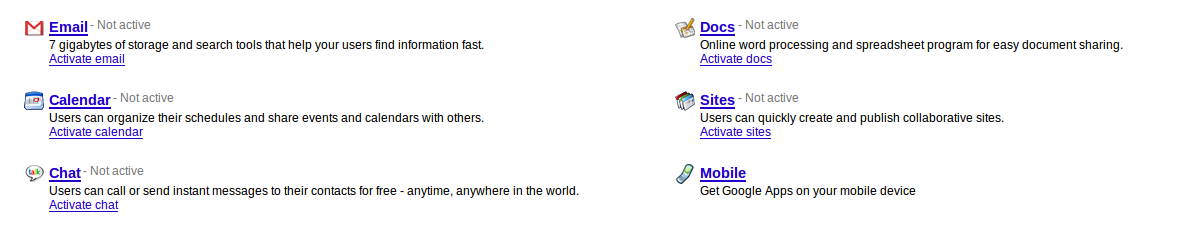
Finally you can return to dashboard and click on the ‘Activate email‘ tab which you will find right below the ‘Email‘ option. See below :
The last and most difficult Step : Waiting.

At this point, you’re pretty much done. You now simply have to wait because It can take anywhere from one hour to 48 hours before the changes are complete.

Once the changes have completed, though, you can set up your e-mail client (Outlook, Thunderbird etc.) to check your e-mail. The Gmail IMAP settings are fairly simple. They are as follows:

IMAP (incoming) mail:
Server: imap.gmail.com
Port: 993
Encryption: SSL

SMTP (outgoing) mail:
Server: smtp.gmail.com
Port: 465 or 587
Encryption: TLS

***********************************************************************************************************

  • cPanel
  • General
  • Howtos
  • Linux
  • Troubleshooting
  • Webmail
How to setup Google Apps on your domain with cPanel and create upto 50 custom email accounts for FREE – Part (2)

How to setup 50 free Google powered email accounts for your domain with cPanel – Part (1)

How to setup 50 free Google powered email accounts for your domain with cPanel – Part (1)
  • cPanel
  • General
  • Howtos
  • Linux
  • Training
  • Troubleshooting
  • Webmail
logo

Posts by Balu Michael

Balu is a "go getter" by nature and always loves to be challenged. His excellent scripting skills and unending passion to explore new possibilities has resulted in the formation of various automation tools which significantly improved the workflow. This hardcore Manchester United fan loves to watch and play football.