
Essential Docker Image & Volume Cleanup Commands
As applications scale, Docker environments tend to accumulate unused images, orphaned volumes, stale networks, and bloated caches. Over time, this leads to:
- Slower CI/CD pipelines
- Disk space exhaustion
- Debugging complexity
- Security risks due to outdated layers
This guide breaks down practical Docker cleanup and troubleshooting techniques that every DevOps engineer should know.
The Problem: “Where Did My Disk Go?”
One of the most common issues in containerized environments is silent disk consumption.
Diagnose Storage Usage
docker system df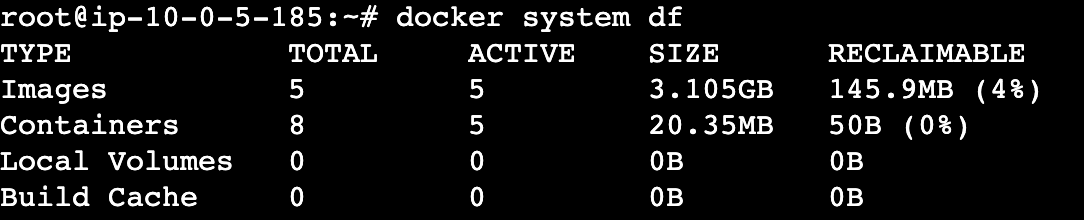
This gives you a breakdown of:
- Images (used vs unused)
- Containers
- Local volumes
- Build cache
Use this as your first debugging step whenever pipelines slow down or builds start failing.
Cleaning Up the Right Way (Precision Pruning)
Avoid Blind Cleanup
Running aggressive cleanup without understanding dependencies can break environments.
Remove Unused Resources Safely
Remove everything not attached to containers:
docker system pruneRemove unused volumes only:
docker volume pruneVolumes are often hidden storage hogs, especially in:
- Database containers
- CI/CD test runs
- Stateful services
Identify Dangling Images
Dangling images are those with <none> tags — usually leftover from builds.
docker images -f "dangling=true"These are safe to remove and often consume significant space.
Image Optimization: Fixing Slow Pipelines
Large images = slow builds + slow deployments.
Best Practice: Multi-Stage Builds
Instead of shipping everything, build only what you need.
# Build stage
FROM node:18 AS builder
WORKDIR /app
COPY . .
RUN npm install && npm run build

# Production stage
FROM nginx:alpine
COPY --from=builder /app/build /usr/share/nginx/html
Benefits:
- Smaller image size
- Faster CI/CD pipelines
- Reduced attack surface
Container Debugging (When Things Go Wrong)
Check Resource Usage
docker stats --no-stream
Helps identify:
- CPU bottlenecks
- Memory leaks
Inspect Logs
docker logs <container_id> --tail 50 -tAlways check logs before restarting containers.
Debug Inside Container
docker exec -it <container_id> /bin/shUse this to:
- Inspect file system
- Verify environment variables
- Test connectivity internally

Network Troubleshooting
Docker networking issues can cause:
- Service communication failures
- Port conflicts
- Unexpected latency
List Networks
docker network lsInspect Network Details
docker network inspect <network_name>Check for:
- Connected containers
- Subnet overlaps
- IP conflicts
Backup & Recovery Strategy
Export Image for Backup
docker save <image_name> > backup.tarUseful for:
- Disaster recovery
- Migration between environments
Understanding Container States
State | Meaning |
| Running | Active and processing |
| Paused | Suspended (no CPU usage) |
| Exited | Stopped (check exit codes) |
If exit code ≠ 0 → investigate logs immediately.
CI/CD Optimization Insights