

Introduction
FTP (File Transfer Protocol) is a standard network protocol used to transfer files between a client and a server over the internet. In the context of Webuzo, which is a popular web hosting control panel, FTP management refers to the process of configuring and managing FTP accounts and settings within the Webuzo environment.
Webuzo is a web-based control panel that provides a user-friendly interface for managing web hosting accounts, making it easy to set up and manage websites, databases, and other web-related services. FTP management in Webuzo allows website owners and administrators to conveniently configure FTP accounts to upload, download, and manage files on their web servers.
FTP management in Webuzo typically involves tasks such as creating and deleting FTP accounts, setting up FTP access permissions, configuring FTP settings, and monitoring FTP usage. It allows users to establish secure FTP connections, such as FTP over TLS/SSL (FTPS), which encrypts file transfers for enhanced security.
Here we discuss about how to manage and configure FTP in Webuzo and also how to connect to FTP using FileZilla, which is a a free and open-source, cross-platform FTP application.
Manage, Edit & Add FTP Accounts
Step 1: Login to Webuzo Enduser Panel.
Step 2: In the FTP section, you can see the options to manage the FTP of the domain.

Step 3: Click on Manage FTP to know all the FTP user's details of that domain.
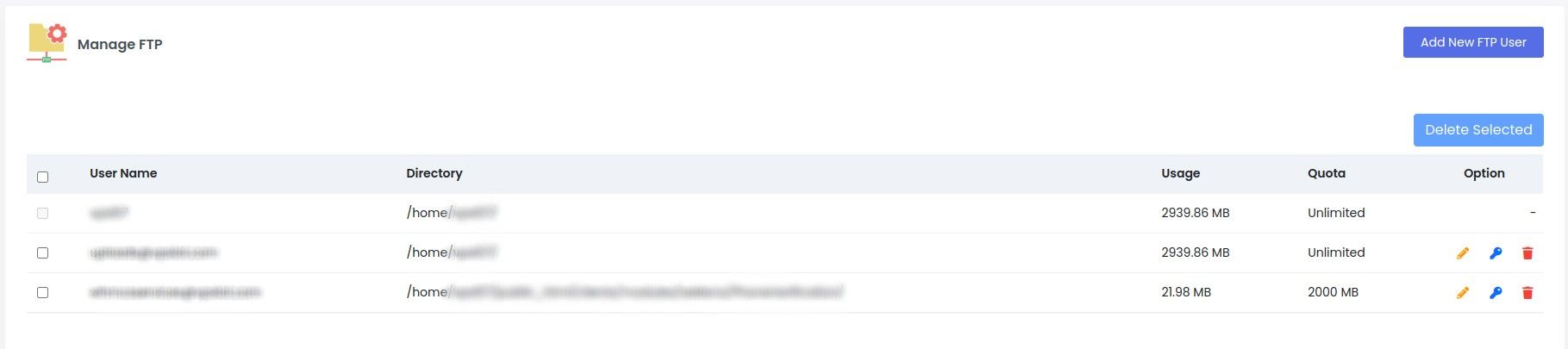
Step 3.1: Click on the pencil icon to change the allowed quota for the FTP user.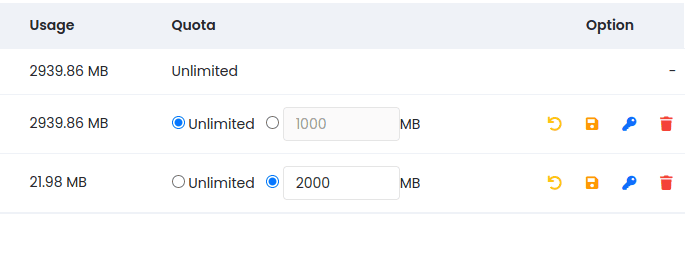
Step 3.2: Click on the key icon to change the password of FTP user.
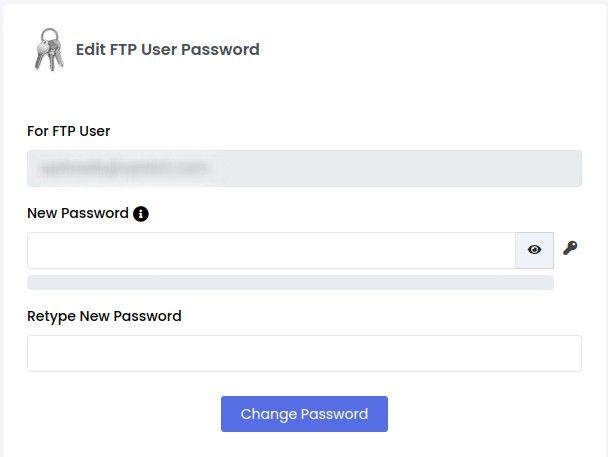
Step 4: Click on Add FTP Account to add a new FTP account under that domain.
Step 4.1: Enter the desired username, password, quota and the directory to which FTP access is needed.
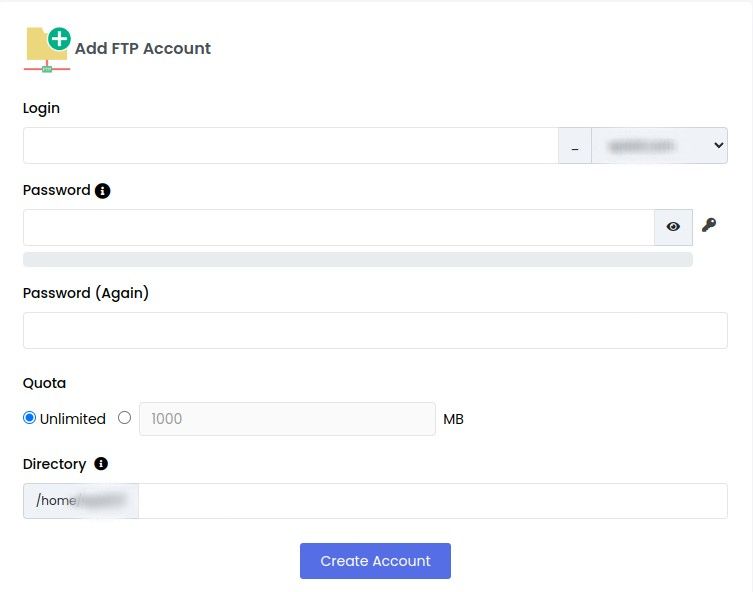
Step 5: Click on FTP Connections to list the currently active connections to the server.
Connecting to FTP via FileZilla
FileZilla is a popular, free, and open-source FTP client that allows users to transfer files between their local computer and a remote FTP server. Connecting to FTP via FileZilla involves a series of steps that enable users to establish a secure FTP connection and transfer files to and from an FTP server.
Here's a step-by-step guide on how to connect to FTP via FileZilla in Webuzo:
Step 1: Open FileZilla app on you computer.
Step 2: Enter the Host as your Domain name or the server hostname. Both are accepted.
Step 3: Enter the full username in username column (Eg. test_example.com) and the password given.
Step 4: Click on Quickconnect.

Step 4: Click Ok on the Unknown certificate popup window.
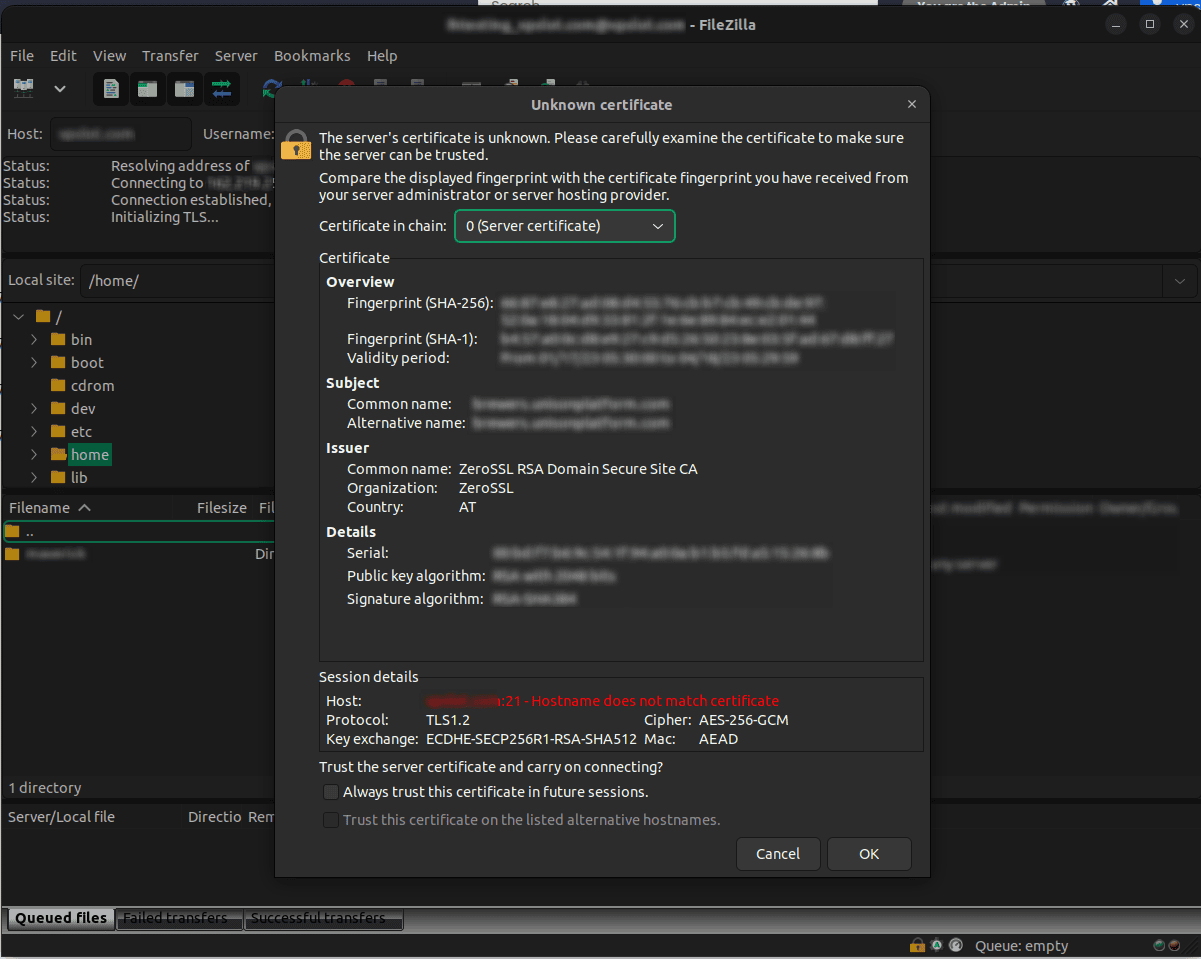
Step 5: You will receive a Directory Listing Successful message when the connection is successfully completed. The contents inside the given FTP directory will be listed in the right pane of the FileZilla window.
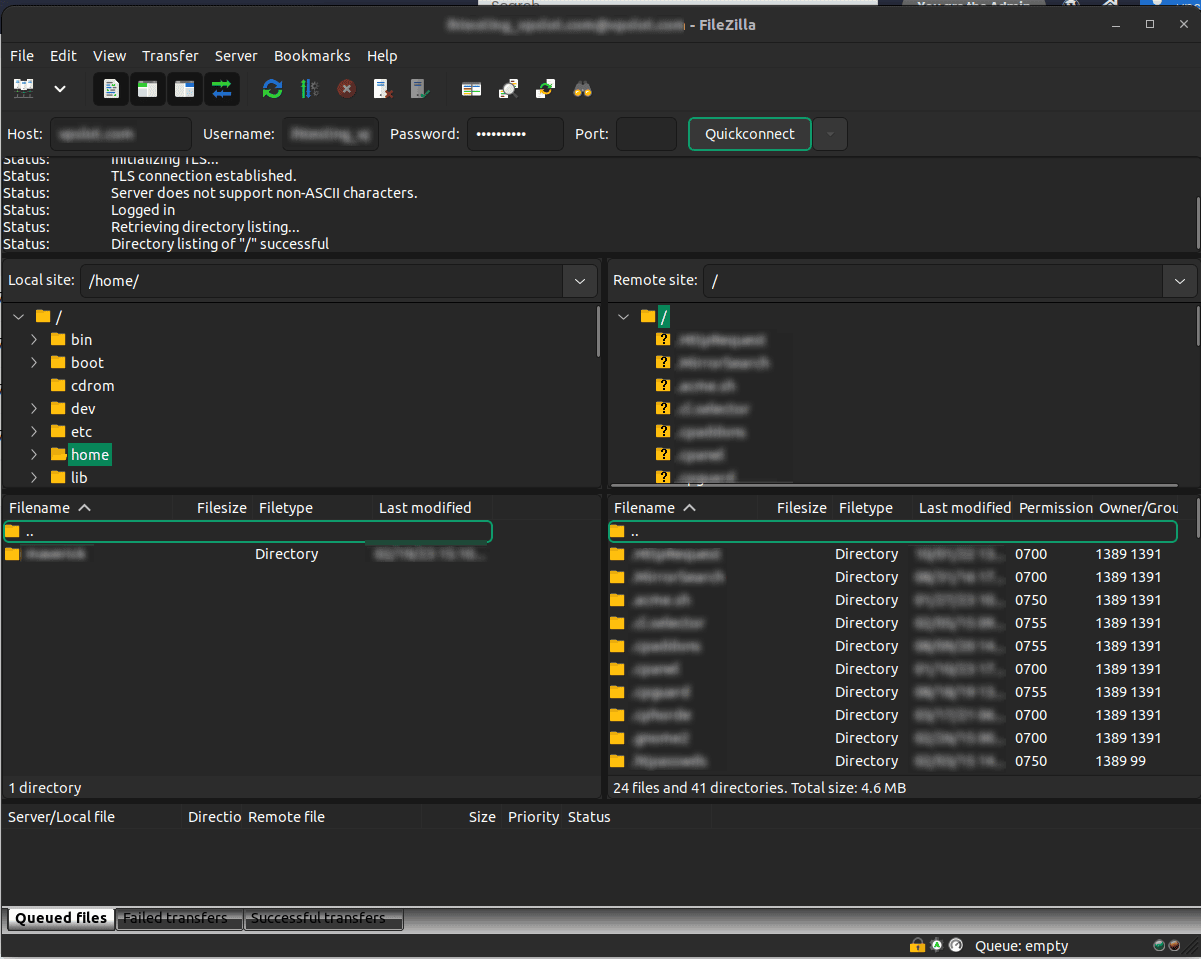
In short, Webuzo's FTP management features provide flexibility and control over file transfers, making it convenient for website owners and administrators to upload, download, and manage files for their websites, web applications, and other web-related services. FTP management in Webuzo is an essential feature that allows users to easily configure and manage FTP accounts and settings for efficient file transfer and management within the Webuzo web hosting environment.
Common FTP error in Webuzo
Like any other software, Webuzo may encounter some FTP errors that users may face while working with FTP accounts. Among those, the most common error is that the user receives an FTP connection error stating Failed to retrieve directory listing as shown below while trying to connect to the server via FTP. It is quite simple to resolve this issue.
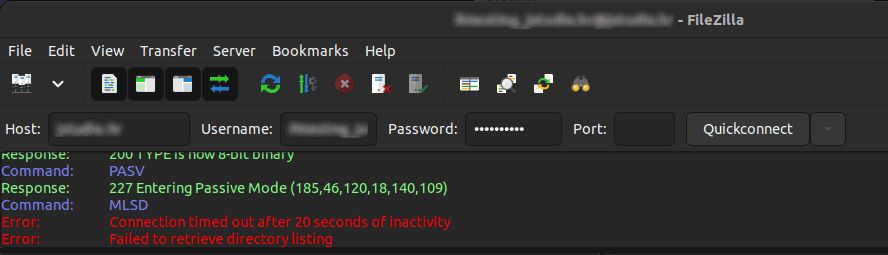
The common troubleshooting methods are:
Step 1: Verify the authentication details are correct. Try changing the password and try again.
Step 2: Try using Plain FTP by following the steps below.
Step 2.1: In FileZilla window, click on File option and open Site Manager. Use the shortcut Ctrl+S as an alternative to open Site Manager window.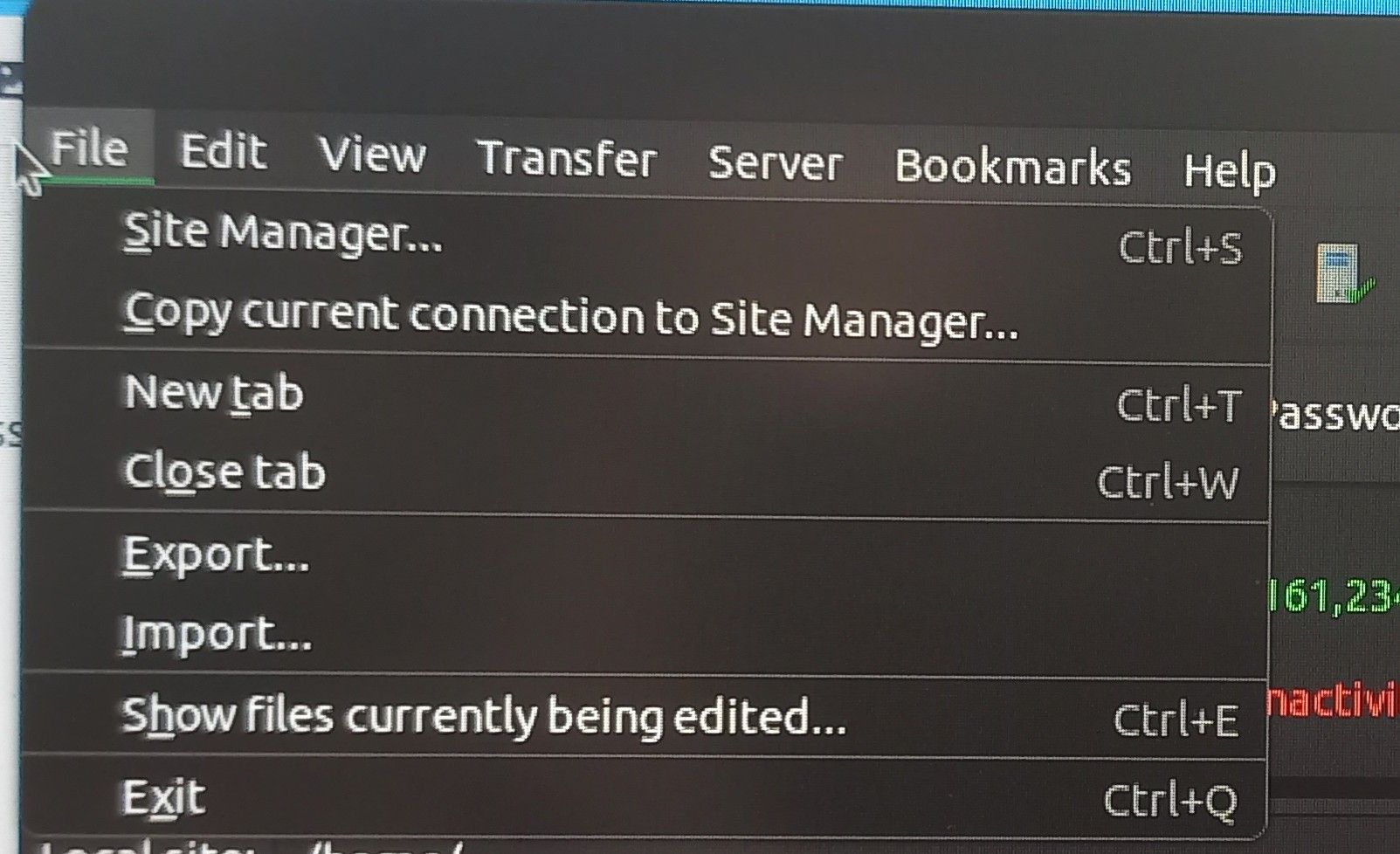
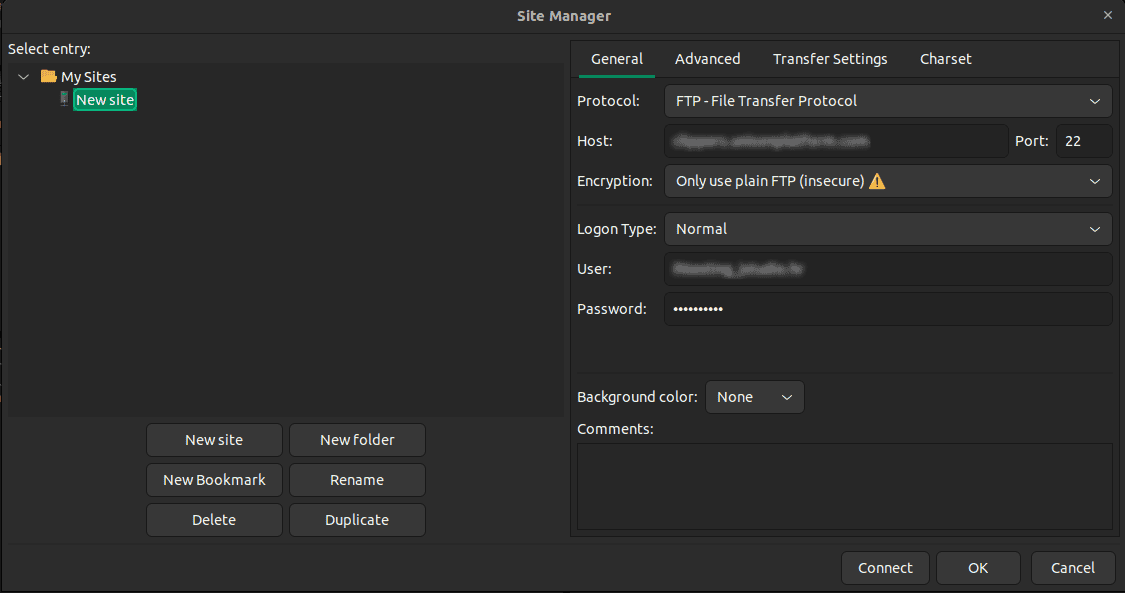
Step 2.2: In the Site Manager window, keep the Protocol option as it is (FTP - File Transfer Protocol).
Step 2.3: Enter the Host option as mentioned above (either domain name or server hostname) and keep the Port Number as it is (22).
Step 2.4: Change the Encryption option to Only use plain FTP (insecure).
Step 2.5: Keep the Logon Type option as it is (Normal).
Step 2.6: Enter the required Username and Password.
Step 2.7: Click on Connect.
Step 3: Check if the FTP ports are correctly added in the server by following the below steps.
Via Backend:
Step 3.1: Enter the server terminal.
Step 3.2: Navigate to the csf configuration file using the following command.
vi /etc/csf/csf.conf
Step 3.3: Scroll down to TCP_IN and TCP_OUT line shown below. You can also search the word in the file by typing /TCP in the command mode of vi editor.

Step 3.4: Add the port range 30000:65500 in both TCP_IN and TCP_OUT lines as shown below. If it is already added, leave it as it is.

Step 3.5: Save and exit the file.
Step 3.6: Restart csf using csf -r command.
Via Frontend:
Step 3.7: Enter the Webuzo GUI using webuzo sso command or login using root credentials by loading the URL (https://serverhostname.com:2087) in the browser.
Step 3.8: Navigate to FTP Server Config by searching it in the left pane of Webuzo.
Step 3.9: In the FTP Server Configuration page, update the Passive Port Range as the same range mentioned above i.e. 30000:65500.
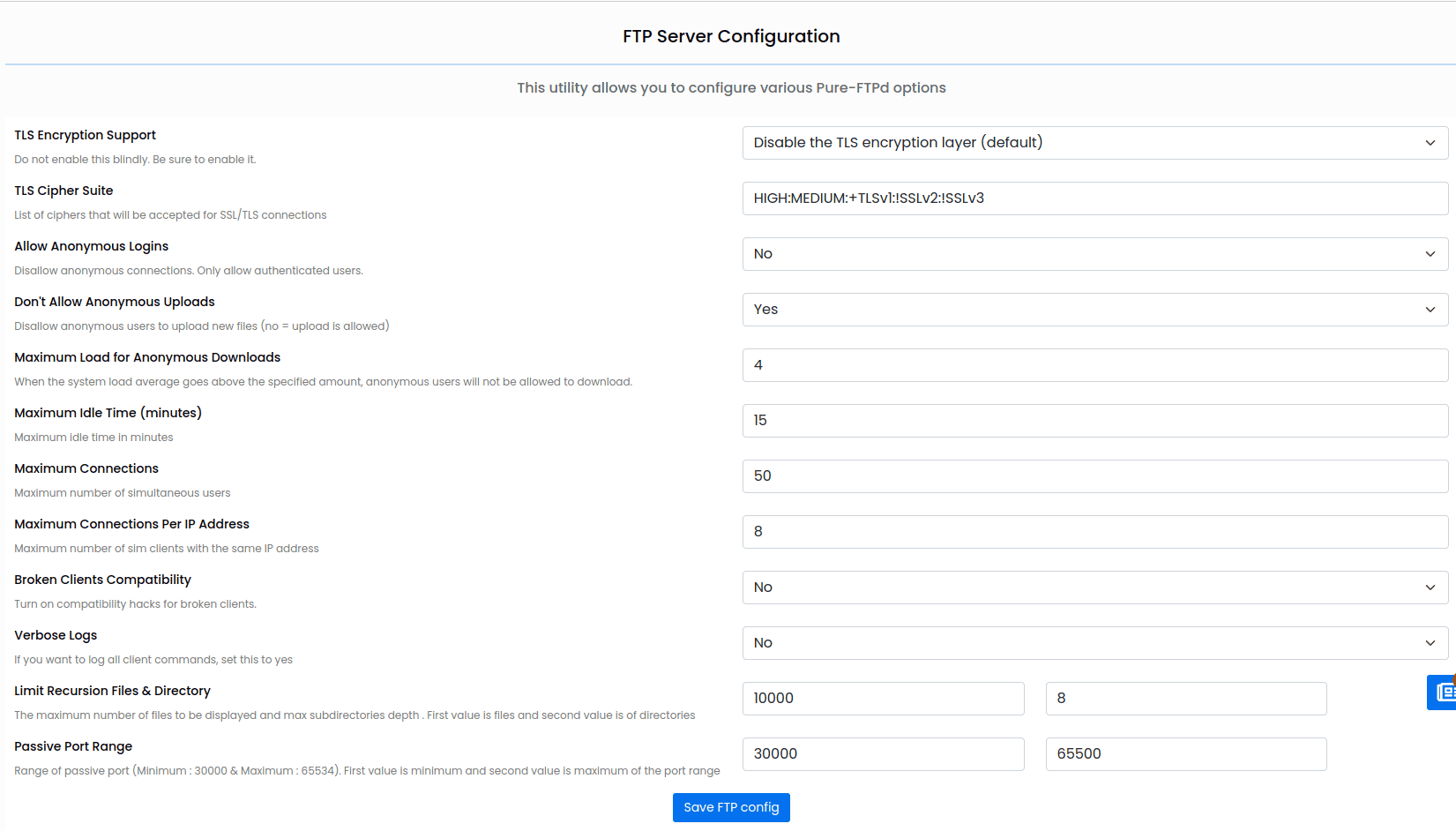
Step 3.10: Save the FTP Config.
Step 4: Try reconnecting the FTP. The directory listing should be successful now.
In conclusion, FTP management in Webuzo is a crucial aspect of managing web hosting accounts, allowing users to easily transfer files between their local computer and the FTP server. Webuzo provides a user-friendly interface for configuring and managing FTP accounts, enabling users to set up FTP users, permissions, and other settings.
In this article, we discussed the basics of FTP management in Webuzo, including connecting to FTP via FileZilla, common FTP error that users may encounter, and how to troubleshoot and resolve that error. It is important to be familiar with FTP concepts, settings, and best practices to ensure smooth file transfers and efficient website management.
By understanding how to properly configure FTP accounts, troubleshoot common FTP errors, and follow security best practices, users can effectively manage their web hosting accounts and streamline their file transfer processes. Regularly reviewing and updating FTP settings, permissions, and security configurations can help ensure the integrity and security of the website data. With proper FTP management in Webuzo, users can efficiently transfer files, manage websites, and enhance their web hosting experience.