Essential Terraform State Management & Infrastructure Protection Guide
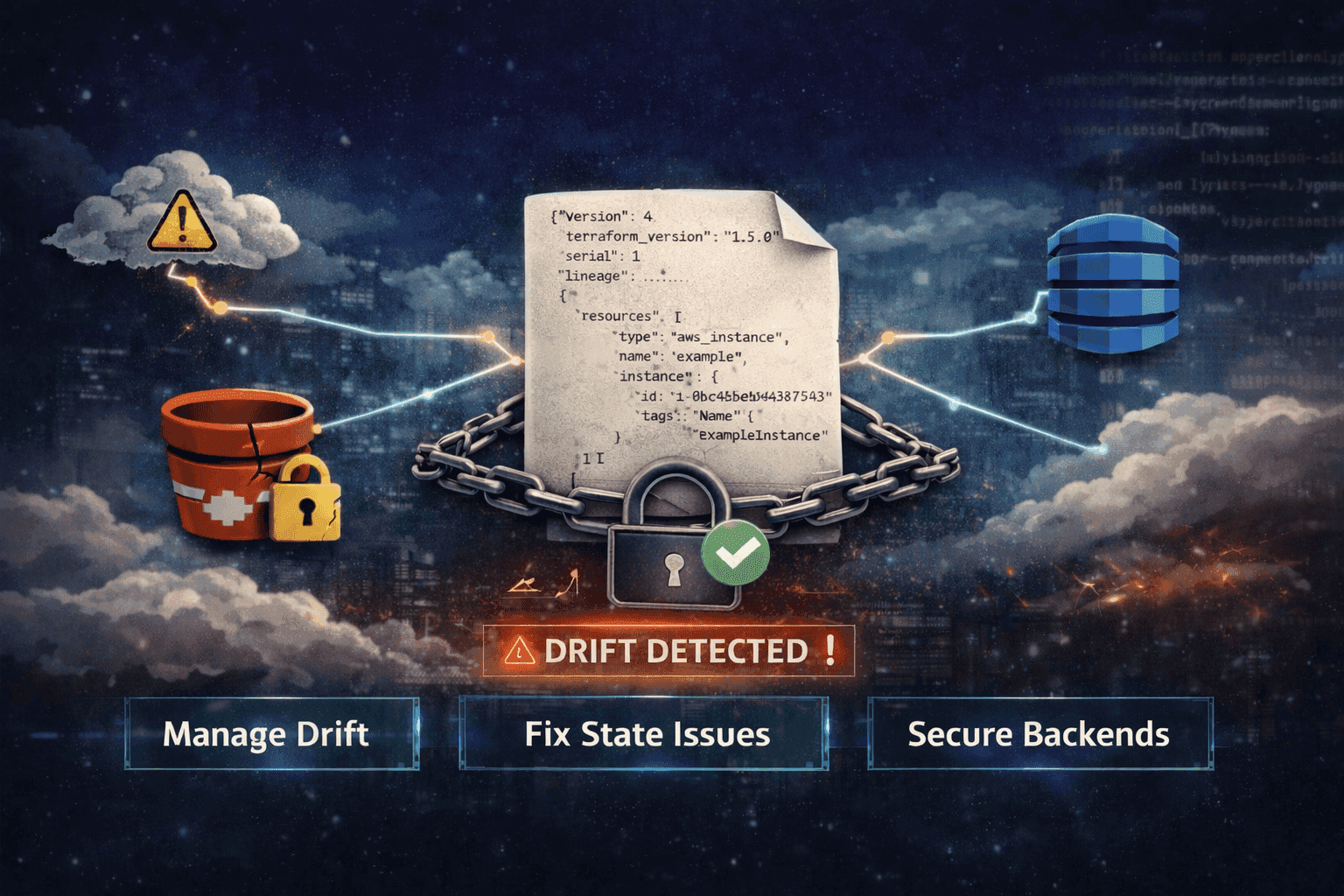
Infrastructure as Code with Terraform is powerful—but its real strength (and risk) lies in state management.
If your Terraform state is wrong, your infrastructure is wrong.
This guide goes beyond commands. It shows how to diagnose, recover, and protect production environments using Terraform state safely.

Why Terraform State Is Critical
Terraform maintains a state file (terraform.tfstate) that maps:
- What exists in your cloud (AWS, Azure, GCP)
- What Terraform thinks exists
- Resource dependencies and metadata
If state is:
- Lost → Infrastructure becomes orphaned
- Corrupted → Terraform may recreate or destroy resources
- Outdated → Leads to drift and unexpected changes
Treat state like a production database, not a temp file.
1. Detecting Infrastructure Drift (Your Daily Ritual)
Drift happens when:
- Someone changes resources manually (console changes)
- External automation modifies infrastructure
- Partial Terraform failures occur
Command
terraform plan -detailed-exitcodeWhat It Does
- Compares desired state (code) vs actual state (cloud)
- Returns exit codes:
- 0 → No changes
- 2 → Drift detected
- 1 → Error
Why It Matters
- Safe way to inspect changes without applying
- Essential for CI/CD validation
Real Scenario
A security group was modified manually in AWS:
- Terraform still thinks old rules exist
- Next apply could overwrite changes
Always run plan before apply in production.
2. State Manipulation (Fix “Phantom Resources”)
Sometimes Terraform thinks a resource exists—but it doesn’t.
Common Errors
- ResourceAlreadyExists
- Error: Duplicate resource
Command
terraform state rm [resource_address]What It Does
- Removes resource from Terraform state
- Does NOT delete actual infrastructure
Use Case
- Resource deleted manually in console
- State still references it
Example
terraform state rm aws_s3_bucket.logs_bucketAfter removal:
- Run terraform apply to recreate cleanly
3. Tainting / Replacing Resources (Safe Rebuild)
Sometimes a resource is:
- Misconfigured
- Partially broken
- Needs forced recreation
Command
terraform apply -replace="[resource_address]"What It Does
- Destroys and recreates the resource
- Keeps configuration unchanged
4. Backend Integrity & Locking (Avoid Race Conditions)
In teams, multiple engineers or pipelines may run Terraform simultaneously.
Without locking:
- State corruption is guaranteed
Best Practice Backend
- S3 (state storage)
- DynamoDB (state locking)
Problem Scenario
- Pipeline crashes mid-deployment
- Lock remains active
Command
terraform force-unlock [lock-id]Warning
Only use if:
- You are 100% sure no process is running
Otherwise, you risk state corruption
5. Targeted Apply (Emergency Fixes Only)
Running Terraform across hundreds of resources is slow.
Sometimes you just need to fix one resource.
Command
terraform apply -target=resource_addressUse Case
- Fix broken resource quickly
- Avoid full infrastructure deployment
Example
terraform apply -target=aws_lb.app_load_balancerCaveat
- Skips dependency graph
- Can create inconsistent state if overused
Use only for hotfixes, not regular workflows