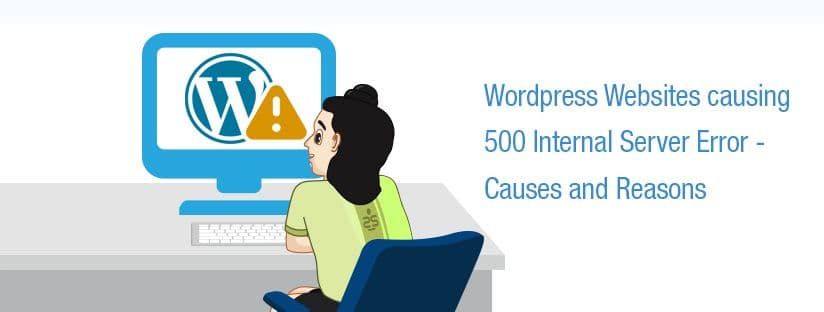
WordPress based websites sometimes show a 500 internal server error and in some cases, you get a white screen instead of the error. There can be many reasons for this error, but primarily two which accounts for 80% of the cases. Let’s discuss the scenarios in detail.
Primary reasons
Wrong entries in .htaccess (assuming that you are running Apache as a Web Server)
As a very first step, you would need to rename the .htaccess to something like .htaccess.sages and then see whether the website loads fine. If that is not working check for the reason #2. If that worked, in order to get the links working, create a new .htaccess and put the default WordPress .htaccess entry as below
# BEGIN WordPress <IfModule mod_rewrite.c> RewriteEngine On RewriteBase / RewriteRule ^index\.php$ - [L] RewriteCond %{REQUEST_FILENAME} !-f RewriteCond %{REQUEST_FILENAME} !-d RewriteRule. /index.php [L] </IfModule> # END WordPress
If the WordPress installation is a Multidomain/ Multiuser one, please refer below URL to choose the appropriate rule depending on the WordPress implementation.
Don’t stop here, aren’t you a little curious to find out which rule caused the error with the original .htaccess file. However, for that, you may need to learn more about the rewriting mod_rewrite rules and other aspects of .htaccess.
The memory_limit directive in PHP configuration
You may not know, but most of the web hosting providers impose a limit on shared hosting, especially with the entry of CloudLinux and other related services. PHP memory limits are set by your web host on a global level but can be locally modified under WordPress by using the below methods
Adding the below rule in wp-config.php file
define('WP_Memory_LIMIT','128M');
Adding the below rule in the .htaccess file
php_value memory_limit 128M
Else by adding the below rule in php.ini
memory_limit = 128M
WordPress will attempt to increase your limit if you begin to exceed it, but it can only go as high as the limit your host has placed on your server.

Secondary reasons
Deactivate all the Plugins
This could be a reason if you have recently updated either the WordPress Core or installed a new plugin. If it is a new plugin, try to uninstall it and see whether it fixes the issue.
In the latter case, try to update the plugins one by one and check if the issue is fixed after each update. If the above troubleshooting steps related to plugins are not helping to identify the issue, then you will have to disable the plugins altogether, either by renaming the plugins folder or by renaming it one by one.
Related to the below-mentioned reason, you may need to disable the cache plugins like WP Total Cache and such.
Did you try it on another browser or on another machine?
This is a simple yet sometimes odd method to troubleshoot. Sometimes the issue could be with browser cache or cookies. In such cases, you may try to clear or disable the cookies.
If clearing the cache/cookie didn’t help, try to duplicate the issue on another machine. If you are able to recreate the issue on that machine, then you can confirm that the issue is not due to cache or cookies.
Re-upload entire files again
If the website works well in the localhost environment and the issue arises when you upload the website for the first time, higher chances are that, you have missed checking the errors in the FTP client related to the uploads. Even if one file is missing, you may end up in 500 internal server error.
You can identify the missing file or try to re-upload the entire website files again.
Check the file permissions and ownership of the uploaded files
This issue did happen a few years back and is not so common nowadays, especially if you are uploading using FTP.
If the hosting provider has handled the migration for you, this could be a reason, because they would have migrated or uploaded the files as root and did not change the permissions or ownership of the files/directories as it should be. This has to be solved by the provider itself and you may need to raise a support ticket with them.
If everything else fails, you need an error log to help
Even though this is mentioned as the last step here, in fact, this is the first step to be taken especially if you are a developer or a support technician or sysadmin. It is about checking the error log in the directory, where the wpconfig.php is located or sometimes inside the wp-admin folder.
If that error log is not present there, you can enable the debug log by adding the below lines in the wpconfig.php file.
define( 'WP_DEBUG', true ); define( 'WP_DEBUG_DISPLAY', false ) define( 'WP_DEBUG_LOG', true );
Typo in the wp-config.php/index.php
Depending on the web server configuration, a typo in the wp-config.php may also cause 500 Internal server error. This usually results in the white screen, but occasionally you may see 500 Internal server error.
You can try re-creating the wp-config.php file using the database credentials or will need to go through the configuration line by line to fix it.
Your filesystem is corrupt
This is not an issue which you can fix yourself. You will need to contact your upstream provider and if the corruption is in the initial stage, only a few files will have an issue (could be a developer issue as well) and it may be slowly expanding to other files as well.