• TechOps

    Need clarity?
    Chat with our experts now

    • Web Hosting SupportWeb Hosting Support
    • Helpdesk Support

      Skilled and professional 24/7 helpdesk support

    • Product Support

      Boost your product support with our expertise

    • Managed ServicesManaged Services
    • Server Management

      Don't let server issues slow you down. Let us manage them for you

    • Server Monitoring

      Safeguard your server health with our comprehensive monitoring solutions

    • Staff AugmentationStaff Augmentation
    • Hire an Admin

      Transform your business operations with our expert administrative support

    • Hire a Team

      Augment your workforce with highly skilled professional from our diverse talent pool

  • CloudOps

    Confused?
    Discuss with our sales team now.

    • Author ProfileAWS
      Well Architected Review
    • Author ProfileFinOps As a Service

      FinOps As a Service

    • Migrate

      Upgrade the journey: Migrate & Modernize seamlessly

    • Modernize

      Effortless CloudOps mastery for seamless cloud management

    • Optimize

      Efficient CloudOps: Boosting performance through optimization

    • Manage

      Simplify compliance complexities with our dedicated service

  • DevOps

    How Supportsages
    is creating an
    impact?

    View Casestudies
    • Author Profile24/7 DevOps As a Service

      Round-the-clock DevOps for uninterrupted efficiency

    • Author ProfileCI/CD Pipeline

      Automated CI/CD pipeline for seamless deployments

    • Author ProfileInfrastructure As a Code

      Crafting infrastructure with ingenious code

    • Author ProfileDevSecOps

      Integrated security in continuous DevOps practices

    • Author ProfileHire DevOps Engineers

      Level up your team with DevOps visionaries

    • Author ProfileConsulting Services

      Navigate success with expert DevOps consulting

  • SecOps

    Expert SecOps Services
    for any Scale

    • Author ProfileVAPT

      Vulnerability Assessment and Penetration Testing

    • Author ProfileSource Code Review

      Ensuring source code security and safe practices to reduce risks

    • Author ProfileSecurity Consultation

      On demand services for improving server security

    • Author ProfileSystem Hardening

      Reduced vulnerability and proactive protection

    • Author ProfileManaged SOC

      Monitors and maintains system security. Quick response on incidents

    • Author ProfileCompliance as a Service

      Regulatory compliance, reduced risk

  • Insights

    Explore our latest
    insights and resources

    Blog

    Explore our latest articles and insights

    Case Studies

    Read about our client success stories

  • Contact Us

  • About
  • Certifications
  • Life at Supportsages
  • Events
  • Contact
  • Careers
  • Blog

  • Dedicated Support Team
  • Quasi-dedicated Support Team
  • Hire a DevOps Engineer
  • Hire a Billing Support Staff
  • Per-ticket Support Plan
  • Managed Services

  • Microsoft Azure Expert
  • AWS Cloud Expert
  • Hire a developer
SS

SupportSages

Bites of wisdom @ work


Copyright © 2008 - 2026 SupportSages Pvt Ltd. All Rights Reserved.
Privacy PolicyLegal TermsData ProtectionCookie Policy

WordPress Upgrade or Reinstall using SSH

Felix

  • 4 min read
WordPress Upgrade or Reinstall using SSH

Generating audio, please wait...

Automated WordPress upgrade may not work always. In such cases, we may need to do WordPress upgrade manually or reinstall the existing installation and perform it as a step by step process.

Sometimes a failed upgrade or file corruption may occur in your current installation. You can follow the below steps for resolving such issues also.

Here I am trying to explain the steps involved with manual WordPress upgrade without affecting the websites contents.

Before proceeding take necessary precautions to avoid a data loss.

Take a backup of the website including its files and database before proceeding.


Legend

WordPress Domain’s document root :  /home/felix/public_html/mydomain/

Extracted WordPress directory from WordPress package ‘ latest.zip ‘ :

/home/felix/public_html/mydomain/wordpress

Requirements

SSH access to your website’s document root.


Steps to be followed

1. Download the latest WordPress package ‘ latest.zip ‘ in the Domain’s document root.

In this example its ‘ /home/felix/public_html/mydomain/ ‘ .

root@training1 [/home/felix/public_html/mydomain]
# wget --no-check-certificate http://wordpress.org/latest.zip
100%[============================================================================================>;] 6,586,773 1.86M/s in 3.5s
2014-12-16 20:48:18 (1.78 MB/s) - “latest.zip” saved [6586773/6586773]

Extracted directory would be in the name ‘wordpress/’ .

root@training1 [/home/felix/public_html/mydomain]# unzip latest.zip

root@training1 [/home/felix/public_html/mydomain]# ll -d wordpress
drwxr-xr-x 5 root root 4096 Dec 16 20:55 wordpress/

2. Rename the wp-content Folder in the extracted directory ‘ wordpress/ ‘ so that the current one doesn’t get replaced.

 
root@training1 [/home/felix/public_html/mydomain]# cd mywordpress/ 
root@training1 [/home/felix/public_html/mydomain/mywordpress]
# mv wp-content/ wp-content.default 

3. Take a backup of your db. You can use PhpMyAdmin or mysqldump for the process


#mysqldump dbname > dbname.sql;

4. Copy Files/Folders from new ( wordpress/ ) to old WP installation ( mydomain/ ) .

root@training1 [/home/felix/public_html/]
# /bin/cp -Rv mydomain/wordpress/* mydomain/ 

Using the command ‘ /bin/cp ‘ will forcefully copy without asking for confirmation so be cautious

5.  Finally you can execute the following command to ensure all the Files/Folders are in the right ownership. ( Note that felix is the user in this example )

 
root@training1 [/home/felix/public_html]
# chown -R felix.felix mydomain/* 

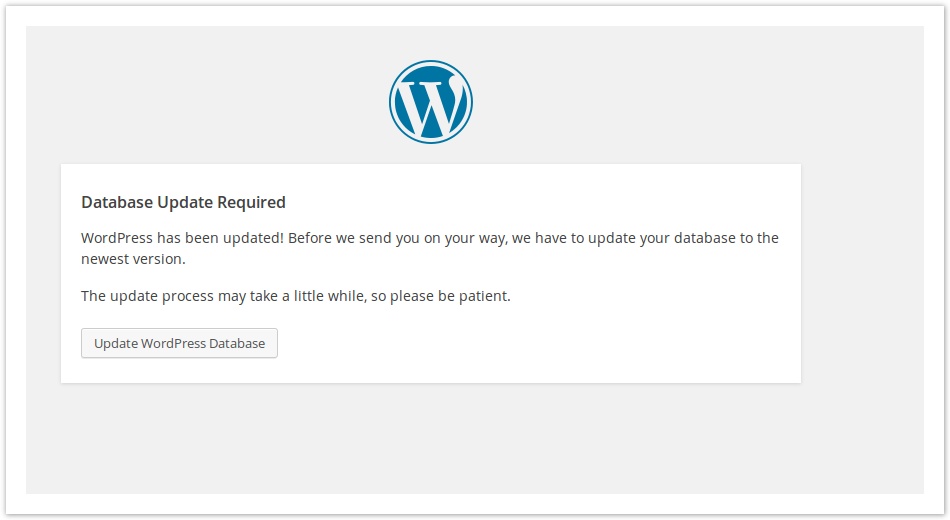
7. If you had an older WordPress version in the domain, you can see the following page when accessing the website or when logging into WordPress Admin since it has been upgraded.
wordpress

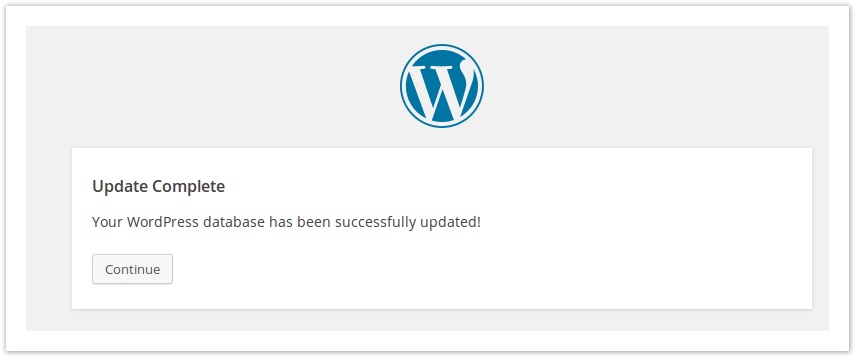
6. Just click the update button and you will see the below confirmation page.
wordpress2

You have re-installed WordPress successfully 🙂


Theme/Plugin Issues

7. You can see  two ‘ wp-content ‘ folders in your document root.

root@training1 [/home/felix/public_html/mydomain]# ll
wp-content/
wp-content.default/ 

Here wp-content.default is the default one which we downloaded earlier. Sometimes you may experience issues with the current theme or plugins.

If the existing installation is configured with default themes/plugins which throws errors, you may replace theme/plugin folders with the corresponding folders present in the wp-content.default/ folder.

root@training1 [/home/felix/public_html/mydomain]
# /bin/cp -Rv wp-content.default/* wp-content/

If you are having issues in Custom Themes, you may have to re-upload them. Note that when re-installing theme/plugin, custom settings may get lost.


Get Dedicated Webhosting Support Team

  • Linux
  • WordPress

Looking for AWS Experts?

We provide top-of-the-line custom AWS setup services tailored to your needs.

Conversion of string from lower to upper cases

Conversion of string from lower to upper cases
  • Howtos
  • Linux
  • Troubleshooting
logo

cPanel: Account restore fails – cpmod: CleanPanel

cPanel: Account restore fails – cpmod: CleanPanel
  • cPanel
  • Linux
logo

cPanel: Licence Verification

cPanel: Licence Verification
  • cPanel
  • Linux
  • Troubleshooting
logo

Direct Admin login failure: “Consider disabling the Folder Usage Count”

Direct Admin login failure: “Consider disabling the Folder Usage Count”
  • Howtos
  • Troubleshooting
logo
WordPress Upgrade or Reinstall using SSH

Posts by Felix

Firaz has been in the Web Hosting industry since 2012. He is always fascinated in resolving complicated DNS, cPanel and other Web hosting issues. He loves to help newbies to climb the hill from a fresher to an experienced System admin. Movies and songs are his favourite passtime.