• DevOps
    Case Study

    How we built a resilient multi-account, multi-cloud solution for a Health Tech service provider!

    READ CASESTUDY
    icon

    24/7 DevOps as a Service

    Round-the-clock DevOps for uninterrupted efficiency.

    icon

    Infrastructure as a Code

    Crafting infrastructure with ingenious code.

    icon

    CI/CD Pipeline

    Automated CI/CD pipeline for seamless deployments.

    icon

    DevSecOps

    Integrated security in continuous DevOps practices.

    icon

    Hire DevOps Engineers

    Level up your team with DevOps visionaries.

    icon

    Consulting Services

    Navigate success with expert DevOps consulting.

  • TechOps
    Case Study

    How we built a scalable Odoo solution for a Travel Tech service provider!

    READ CASESTUDY

    WEB HOSTING SUPPORT

    icon

    HelpDesk Support

    Highly skilled 24/7 HelpDesk Support

    icon

    Product Support

    Boost your product support with our expertise.

    MANAGED SERVICES

    icon

    Server Management

    Don’t let server issues slow you down. Let us manage them for you.

    icon

    Server Monitoring

    Safeguard your server health with our comprehensive monitoring solutions.

    STAFF AUGMENTATION

    icon

    Hire an Admin

    Transform your business operations with our expert administrative support.

    icon

    Hire a Team

    Augment your workforce with highly skilled professionals from our diverse talent pool.

  • CloudOps
    Case Study

    How we helped a Private Deemed University in India, save US $3500/m on hosting charges!

    READ CASESTUDY
    icon

    AWS Well Architected Review

    Round-the-clock for uninterrupted efficiency

    icon

    Optimize

    Efficient CloudOps mastery for seamless cloud management

    icon

    Manage

    Automated CI/CD pipeline for seamless deployments

    icon

    Migrate

    Upgrade the journey, Migrate & Modernize seamlessly

    icon

    Modernize

    Simplify compliance complexities with our dedicated services

    icon

    FinOps as a Service

    FinOps as a Service

  • SecOps
    Case Study

    How we built a scalable Odoo solution for TravelTech service provider!

    READ CASESTUDY
    icon

    VAPT

    Vulnerability Assessment and Penetration Testing

    icon

    Source Code Review

    Ensuring source code security ans safe practices to reduce risks

    icon

    Security Consultation

    On demand services for improving server security

    icon

    System Hardening

    Reduced vulnerability and proactive protection

    icon

    Managed SoC

    Monitors and maintains system security. Quick response on incidents.

    icon

    Compliance as a Service

    Regulatory compliance, reduced risk

  • Insights
    Case Study

    How we helped a Private Deemed University in India, save US $3,500/m on hosting charges!

    READ CASESTUDY
    icon

    Blog

    Explore our latest articles and insights

    icon

    Case Studies

    Read about our client success stories

    icon

    Flipbook

    Explore our latest Flipbook

    icon

    Events

    Join us at upcoming events and conferences

    icon

    Webinars

    Watch our educational webinar series

  • Our Story
  • Contact Us

Interested to collaborate?

Get in touch with us!

Ready to elevate your business with certified cloud expertise? Contact us today to learn how our team can help you leverage cloud technology to drive growth, streamline operations, and enhance security.

  • AWSAWS
  • Azure CloudAzure Cloud
  • Google CloudGoogle Cloud
  • Akamai CloudAkamai Cloud
  • OVHOVH
  • Digital OceanDigital Ocean
  • HetznerHetzner
  • Kubernetes Consultancy Services
  • K8s & Cloud native Solutions
  • 24/7 Infrastructure Monitoring
  • DevOps as a Service
  • Cloud CI/CD Solutions
  • White Labeled MSP Support
  • Our story
  • Life@SupportSages
  • Insights
  • Careers
  • Events
  • Contact Us

Connect with us!


LinkedInFacebookXInstagramYouTube

aws partneraws advanced partner
SupportSages

Copyright © 2008 – 2026 SupportSages Pvt Ltd. All Rights Reserved.
Privacy PolicyLegal TermsData ProtectionCookie Policy

How to Create a VM in Proxmox and rebuild it with another OS

Abin Raaj

  • 7 min read
How to Create a VM in Proxmox and rebuild it with another OS

Generating audio, please wait...

Proxmox VE is a platform to run virtual machines and containers. It is based on Debian Linux and completely open-source.

1. How to Create a VM in Proxmox VE?
There are three main steps to create a VM in Proxmox VE.

  1. Uploading an ISO to Proxmox VE
  2. Creating a VM in Proxmox VE
  3. Installing an OS in Proxmox VE

These steps are explained in detail below:

1.Uploading an ISO to Proxmox VE

The first step when creating a VM in any hypervisor is to make sure we have the ability to install an OS on the VM. Uploading your ISO is easy Proxmox UI. You can follow the below steps to upload an ISO to Proxmox VE.

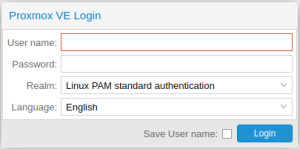
1.a)Login into the Proxmox by entering your username and Password.
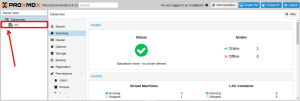
1.b) Click on the expand button at the left end of the Datacenter.
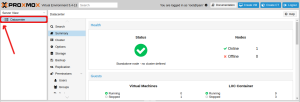
1.c) This will list all the nodes in it. Expand it by clicking on the expand button at the left end of a node.
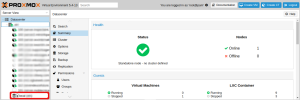
1.d) Click local from the side panel on the left-hand side of your screen.
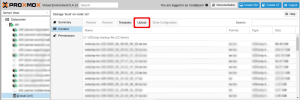
1.e)Under the “Content” section, click the Upload button at the top of the screen.
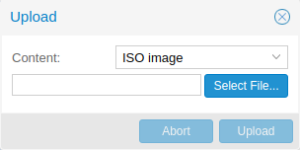
1.f)) A pop-up window will appear on the screen which enables you to select the ISO file from your local system. Click on the upload button after selecting the ISO file. The time it takes for your ISO to upload will be dependent upon the speed of your network and the size of the ISO. Once the upload is complete, you are ready to create your VM in Proxmox.
 

1.g) There is also a method to have the ISO file in the Proxmox server. i.e. Downloading the ISO file to the server. The steps to download an ISO file to the server is given below:

  • After accessing the server via SSH, change the directory to “/var/lib/vz/template/iso”
    cd /var/lib/vz/template/iso
  • Then find the URL of the ISO that is to be downloaded. The URL for Ubuntu 18.04 is given in the example below:
    https://releases.ubuntu.com/18.04/ubuntu-18.04.5-desktop-amd64.iso
  • Then download the iso file using the wget or axel command
    wget https://releases.ubuntu.com/18.04/ubuntu-18.04.5-desktop-amd64.iso
    or
    axel https://releases.ubuntu.com/18.04/ubuntu-18.04.5-desktop-amd64.iso
  • The iso file will be downloaded to the location “/var/lib/vz/template/iso”

2. Creating a VM in Proxmox VE

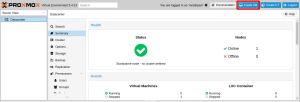
2.a) To create a VM in Proxmox VE, click Create VM at the top of the screen
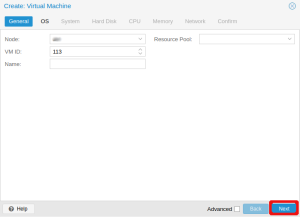
2.b) This will bring up the following pop-up window. Give your VM a name and then click the Next button
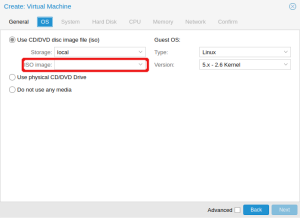
2.c) On the OS tab, choose your ISO image to install your OS. Once you have chosen your operating system, click Next
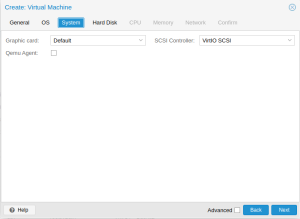
2.d) You can click Next on the System tab
2.e) On the Hard disk tab, choose how much storage space your need for your VM. After selecting the hard disk space, click the Next button
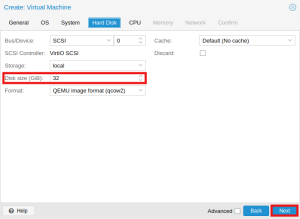
2.f) On the CPU tab, choose the number of cores you need for your VM. Once you have set your CPU settings, click Next
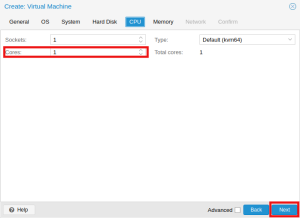
2.g) On the Memory tab, select how much RAM you wish to allocate to your VM. Click Next to advance to the Network tab
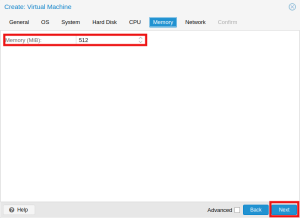
2.h) You can click on the Next button in the Network tab.
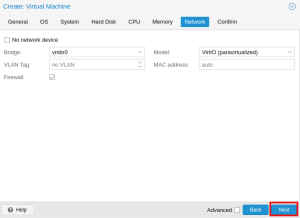
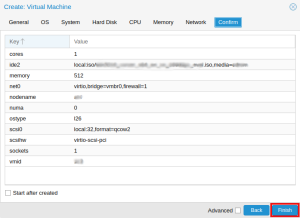
2.i) Once you reach the Confirm tab, ensure the information is correct, and then click Finish. Your VM will be created with the parameters you have chosen.
1.Installing an OS in Proxmox VE

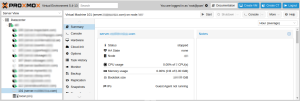
The actual installation of the OS will differ depending on the OS you choose. However, you can easily begin the installation in Proxmox VE’s user interface. To begin, choose your VM from the “Server View” panel on the left-hand side of your screen.
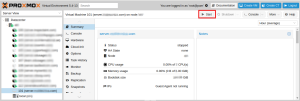
Start the VM by clicking the Start button at the top of the screen.
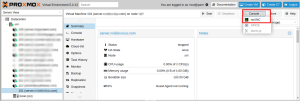
Once the VM has started, click the Console button at the top of the screen and select the noVNC console.
After this, follow your operating system’s installation instructions. Windows operating system installation steps are explained below.

Launching Windows install:

Follow the installer steps until you reach the installation type selection where you need to select “Custom (advanced)”

Now click “Load driver” to install the VirtIO drivers for the hard disk and the network.

1.Hard disk: Browse to the CD drive where you mounted the VirtIO driver and select folder “vioscsi\w10\amd64” and confirm. Select the “Red Hat VirtIO SCSI pass-through controller” and click next to install it. Now you should see your drive.

2.Network: Repeat the steps from above (click again “Load driver”, etc.) and select the folder “NetKVM\w10\amd64”, confirm it and select “Redhat VirtIO Ethernet Adapter” and click next.

3.Memory Ballooning: Again, repeat the steps but this time, select the “Balloon\w10\amd64” folder, then the “VirtIO Balloon Driver” and install it by clicking next. With these three drivers, you should be well covered to run a fast virtualized Windows 10 system.

Choose the drive and continue the Windows installer steps.

2. How to rebuild a VM with another OS in Proxmox VE?
While rebuilding, there is a chance of losing your current data. So to be safe take a backup of all contents in the server.

To rebuild the operating system of a VM with another operating system in Proxmox, you can follow the following steps.

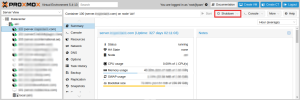
  • First, stop the VM. To stop the VM click on the shut down after clicking the VM which is to be stopped
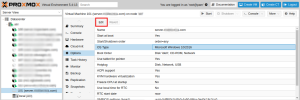
  • Under the “Options” section, select “OS Type”, and click on “Edit” on the top of the screen.
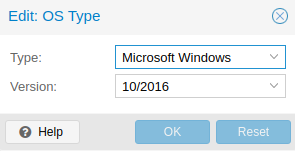
  • Select the OS and version which you need from the popup window and click on OK.
  • Then restart the VM by clicking on the Start button.
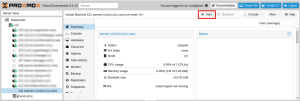
Your VM should now be running the new OS.

  • Linux

How to Disable Binary Logging in MySQL on Bitnami servers?

How to Disable Binary Logging in MySQL on Bitnami servers?
  • Linux
logo

How to Fix a Mixed Content Error in WordPress?

How to Fix a Mixed Content Error in WordPress?
  • WordPress
logo

How to Fix the Mixed Content Error in WordPress?

How to Fix the Mixed Content Error in WordPress?
  • WordPress
logo

How to use Cyberduck to transfer files via FTP?

How to use Cyberduck to transfer files via FTP?
  • Linux
logo
How to Create a VM in Proxmox and rebuild it with another OS

Posts by Abin Raaj

Abin Raaj is currently working as System Engineer at SupportSages. He is well-versed in Linux and server management and interested in new technologies. The dedication and work-ethic he shows in the workplace combined with his ability to build good relationships and decision-making skill has earned him the role of Team Leader. He is proficient in WordPress and loves working with WordPress websites. In his free time, Abin enjoys playing football, badminton, and discovering new music.