• DevOps
    Case Study

    How we built a resilient multi-account, multi-cloud solution for a Health Tech service provider!

    READ CASESTUDY
    icon

    24/7 DevOps as a Service

    Round-the-clock DevOps for uninterrupted efficiency.

    icon

    Infrastructure as a Code

    Crafting infrastructure with ingenious code.

    icon

    CI/CD Pipeline

    Automated CI/CD pipeline for seamless deployments.

    icon

    DevSecOps

    Integrated security in continuous DevOps practices.

    icon

    Hire DevOps Engineers

    Level up your team with DevOps visionaries.

    icon

    Consulting Services

    Navigate success with expert DevOps consulting.

  • TechOps
    Case Study

    How we built a scalable Odoo solution for a Travel Tech service provider!

    READ CASESTUDY

    WEB HOSTING SUPPORT

    icon

    HelpDesk Support

    Highly skilled 24/7 HelpDesk Support

    icon

    Product Support

    Boost your product support with our expertise.

    MANAGED SERVICES

    icon

    Server Management

    Don’t let server issues slow you down. Let us manage them for you.

    icon

    Server Monitoring

    Safeguard your server health with our comprehensive monitoring solutions.

    STAFF AUGMENTATION

    icon

    Hire an Admin

    Transform your business operations with our expert administrative support.

    icon

    Hire a Team

    Augment your workforce with highly skilled professionals from our diverse talent pool.

  • CloudOps
    Case Study

    How we helped a Private Deemed University in India, save US $3500/m on hosting charges!

    READ CASESTUDY
    icon

    AWS Well Architected Review

    Round-the-clock for uninterrupted efficiency

    icon

    Optimize

    Efficient CloudOps mastery for seamless cloud management

    icon

    Manage

    Automated CI/CD pipeline for seamless deployments

    icon

    Migrate

    Upgrade the journey, Migrate & Modernize seamlessly

    icon

    Modernize

    Simplify compliance complexities with our dedicated services

    icon

    FinOps as a Service

    FinOps as a Service

  • SecOps
    Case Study

    How we built a scalable Odoo solution for TravelTech service provider!

    READ CASESTUDY
    icon

    VAPT

    Vulnerability Assessment and Penetration Testing

    icon

    Source Code Review

    Ensuring source code security ans safe practices to reduce risks

    icon

    Security Consultation

    On demand services for improving server security

    icon

    System Hardening

    Reduced vulnerability and proactive protection

    icon

    Managed SoC

    Monitors and maintains system security. Quick response on incidents.

    icon

    Compliance as a Service

    Regulatory compliance, reduced risk

  • Insights
    Case Study

    How we helped a Private Deemed University in India, save US $3,500/m on hosting charges!

    READ CASESTUDY
    icon

    Blog

    Explore our latest articles and insights

    icon

    Case Studies

    Read about our client success stories

    icon

    Flipbook

    Explore our latest Flipbook

    icon

    Events

    Join us at upcoming events and conferences

    icon

    Webinars

    Watch our educational webinar series

  • Our Story
  • Contact Us

Interested to collaborate?

Get in touch with us!

Ready to elevate your business with certified cloud expertise? Contact us today to learn how our team can help you leverage cloud technology to drive growth, streamline operations, and enhance security.

  • AWSAWS
  • Azure CloudAzure Cloud
  • Google CloudGoogle Cloud
  • Akamai CloudAkamai Cloud
  • OVHOVH
  • Digital OceanDigital Ocean
  • HetznerHetzner
  • Kubernetes Consultancy Services
  • K8s & Cloud native Solutions
  • 24/7 Infrastructure Monitoring
  • DevOps as a Service
  • Cloud CI/CD Solutions
  • White Labeled MSP Support
  • Our story
  • Life@SupportSages
  • Insights
  • Careers
  • Events
  • Contact Us

Connect with us!


LinkedInFacebookXInstagramYouTube

aws partneraws advanced partner
SupportSages

Copyright © 2008 – 2026 SupportSages Pvt Ltd. All Rights Reserved.
Privacy PolicyLegal TermsData ProtectionCookie Policy
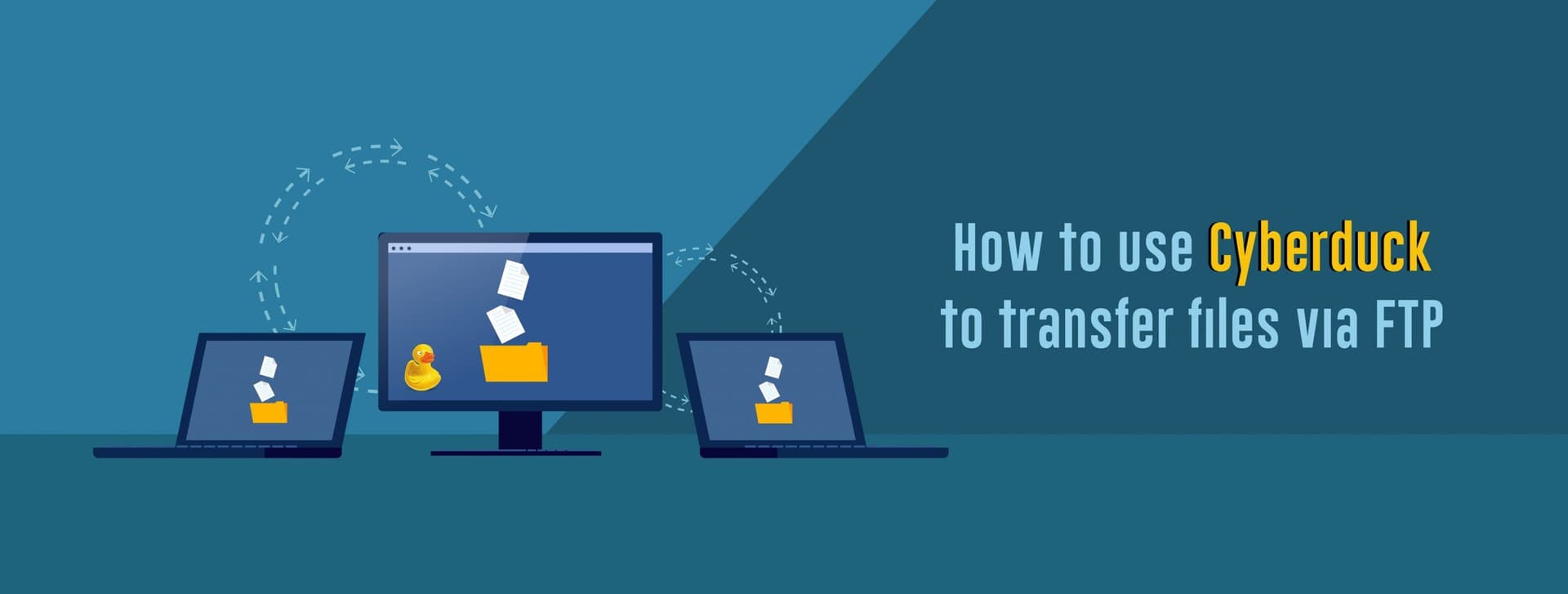
How to use Cyberduck to transfer files via FTP?

How to use Cyberduck to transfer files via FTP?

Abin Raaj

  • 4 min read
How to use Cyberduck to transfer files via FTP?

Generating audio, please wait...

What is FTP?

It is a standard network protocol used for the transfer of computer files between a client and server on a computer network. FTP is built on a client-server model architecture using separate control and data connections between the client and the server. FTP is often secured with SSL/TLS (FTPS) or replaced with SSH File Transfer Protocol (SFTP). FTP may run in active or passive mode, which determines how the data connection is established.

An FTP Client is a software designed to transfer files back-and-forth between a computer and a server over the Internet. It needs to be installed on your computer and can only be used with a live connection to the Internet. FTP clients’ interface is usually divided into two – the panel on the left shows the files and folders on your computer and the panel on the right displays the files on the remote server. One such FTP client is Cyberduck which is an open-source client for transferring files over the Internet.

Cyberduck is a libre server and cloud storage browser for Mac and Windows with support for FTP, SFTP, WebDAV, Amazon S3, OpenStack Swift, Backblaze B2, Microsoft Azure & OneDrive, Google Drive, and Dropbox. It is a very popular FTP client and is used by webmasters from all over the world. Its main differences from other FTP clients are :

  1. Cyberduck is available for both Windows and OSX and the source code of the application is licensed under GPL and can be downloaded here.
  2. Cyberduck has an intuitive UI and includes a bookmark manager
  3. It supports many additional protocols and APIs
  4. It is available in multiple languages and integrates with any third-party text editor

Before looking into transfer (download or upload) files/folders via Cyberduck, first, let us check how to connect to your FTP account with Cyberduck.

How to connect to your account with Cyberduck:

  1. The first step is to get the FTP credentials such as FTP Server/host, FTP Username, Password, and Port number
  2. To access your account via FTP with Cyberduck, open the application and click the ‘Open Connection’ button.
  3. Provide the following connection details in the new screen.
    Server: the hostname of your server
    Port: 21
    Username: your FTP username
    Password: your FTP password
  4. After providing the details, click the Connect button to establish the connection and you will be connected to your account via FTP

Now let us look at how to upload files/folders to your account.

How to upload files to your account from your computer with Cyberduck:

Use the following steps to upload files/folders to your account via Cyberduck:

  1. To upload a file or folder from your computer to your account using Cyberduck, first, connect to your account
  2. Navigate to the desired location (under the document root) of your account
  3. Then right-click in the application window and select Upload
  4. This will open a new window on which you can see all the files and folders on your computer
  5. Navigate to the desired item you want to upload, left-click it, and then click the Upload button at the bottom end
  6. A new window will appear named Transfers in which you can see the upload progress

How to download files from your account to your computer with Cyberduck:

Use the following steps to download files/folders to your account via Cyberduck:

  1. To download a file or folder from your hosting account to your machine, connect to your account first
  2. Navigate to the desired file or folder, right-click on its name and then click Download To
  3. This will open a new window in which you can see and navigate through the files and folders on your computer
  4. Navigate to where you want to save the file and click the Choose button to start the download
  5. A new window named Transfers will appear in which you can see the download progress

How to disconnect to your account with Cyberduck:

To disconnect from your FTP server, simply click on the Disconnect button on the toolbar.

Conclusion

 Following this quick guide, you should now be able to upload and download files using Cyberduck like a pro!

Talk to an Expert

The number of options and steps may seem daunting, so why not talk to an expert?

Our Techs here at SupportSages are experienced and proficient.

You can reach us via +1 720 457 4737 or talk to us over chat on our website!
 

  • Linux

How to Create a VM in Proxmox and rebuild it with another OS

How to Create a VM in Proxmox and rebuild it with another OS
  • Linux
logo

How to Disable Binary Logging in MySQL on Bitnami servers?

How to Disable Binary Logging in MySQL on Bitnami servers?
  • Linux
logo

How to Fix a Mixed Content Error in WordPress?

How to Fix a Mixed Content Error in WordPress?
  • WordPress
logo

How to Fix the Mixed Content Error in WordPress?

How to Fix the Mixed Content Error in WordPress?
  • WordPress
logo

Posts by Abin Raaj

Abin Raaj is currently working as System Engineer at SupportSages. He is well-versed in Linux and server management and interested in new technologies. The dedication and work-ethic he shows in the workplace combined with his ability to build good relationships and decision-making skill has earned him the role of Team Leader. He is proficient in WordPress and loves working with WordPress websites. In his free time, Abin enjoys playing football, badminton, and discovering new music.