Prerequisites:
- IAM Profile with ECS Full access
- AWS CLI installed
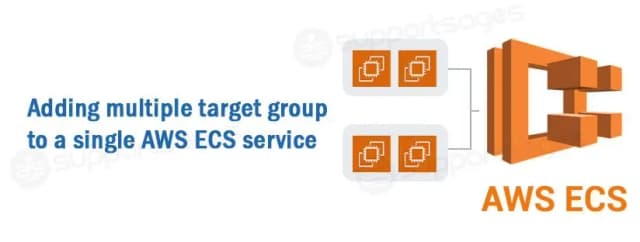
Suppose, you have only 2 subnets in your VPC and you have deployed ECS in those 2 subnets. But one day, you were required to add an additional subnet to your VPC and you have added it. Now, you also want to modify your ECS service’s network configuration and want to add this additional subnet. How will you do it?
Well, today we are going to learn how we can achieve this. We are going to use AWS CLI for this as this cannot be done via AWS console.
1. Create an IAM ROLE with ECS full access
To create an IAM role with full access, follow these steps:
- Login to your AWS Console.
- Go to IAM.
- Select USERS.
- Click Create User.
- Give your User a name.
I am going to give ECS full access to my user as I only have one service, you can give restricted access to only the service that need to be modified if it is desired.
You can check the AWS documentation for reference.
6. Click attach policies directly.
7.Select “AmazonECS_FullAccess”.
8. Click Next.
9. Click Create User.
2. Create an Access Key
To create an access key:
- Select the User you have created.
- Go to Security Credentials.
- Scroll down and on Access Key box, click Create Access Key.
- Select Command line interface.
- Select “I understand the above recommendation and want to proceed to create an access key.”
- Click Next.
- Save the Access Key and Secret Key.

3. Configure AWS PROFILE in your machine
To configure the AWS Profile:
- Go to your terminal
- You can set the profile as default profile or as a specific profile.
- If you want to set it as the default profile, Run the command “aws configure” and it will ask the access key, provide your access key and press ENTER and then it will ask your Secret Access Key, provide it and press ENTER and the it will ask the Region, provide the Region-id in which your resource is created and press ENTER and it will ask Format, just press ENTER for that. That’s it.
- To set it as a specific profile follow the same steps as above but run the command:
aws configure --profile=<profile-name”” instead of “aws configure4. Create the Json for configuration
You need to create a Json with the subnet configuration and other configuration. I will provide the example JSON below.
{
"awsvpcConfiguration": {
"subnets": ["subnet-abc", "subnet-def", “subnet-ghi”],
"securityGroups": ["sg-12345"],
"assignPublicIp": "DISABLED"
}
}
You need to change the names of subnets and security groups and set the assign public IP as per your configuration, there are two options DISABLED and ENABLED.
Previously I only has “subnet-abc” and “subnet-def”, I am adding the “subnet-ghi”.
note: You may be thinking that we only need to modify subnets and we can skip the “securitygroups” and “assingpublicip”, but if you do so, your ECS service’s security group will be set to default and “assignpublicip” will be set to default too. So, you need to pass this whole JSON that I have provided above.
After copying and editing the JSON, save the file. For example, let’s save it as network.json
5. Reconfiguring using AWS CLI
Now, for the last step. If you have configured the AWS profile as a specific profile, you need to first, export the profile using the below command:
export AWS_PROFILE=<profile-name>After that, run the below command:
aws ecs update-service --cluster <ECS cluster name> --service <ECS service-name> --network-configuration file://network.jsonChange the ECS cluster name, ECS Service name and the file’s name as per your configuration.
Also, if you have set the profile as default profile, no need for export command. You can directly run the above command.
Now, you can go to you ECS service and can see the subnet configuration under “Network Configuration” in “Configuration and Networking” and can see that your modification has been applied.
Facing a growing VPC and need to adapt your ECS service’s subnets? This blog empowers you to leverage the AWS CLI for effortless subnet modifications. Ensure your ECS deployments remain flexible and optimized — learn how to add new subnets and streamline your DevOps workflow today!