
AWS Cloudwatch Logs is a service that allows the users to centralize the logs from all their systems, applications, and AWS services in a single place.
AWS CloudWatch logs can be accessed by using the Wazuh CloudWatch Logs integration. The AWS API allows Wazuh to retrieve those logs, analyze them, and raise alerts if applicable.
AWS configuration
Take into account that the policies below follow the principle of least privilege to ensure that only the minimum permissions are provided to the Wazuh user.
To allow an AWS user to use the module with read-only permissions, it must have a policy like the following attached:
{
"Version": "2012-10-17",
"Statement": [
{
"Sid": "VisualEditor0",
"Effect": "Allow",
"Action": "logs:DescribeLogStreams",
"Resource": "arn:aws:logs:region:account_ID:log-group:log_group_name:*"
},
{
"Sid": "VisualEditor1",
"Effect": "Allow",
"Action": "logs:GetLogEvents",
"Resource": "arn:aws:logs:region:account_ID:log-group:log_group_name:log-stream:log_stream_name"
}
]
}
Wazuh configuration
- Open the Wazuh configuration file (
/var/ossec/etc/ossec.conf) and add the following configuration block to enable the integration with CloudWatch Logs:
<wodle name="aws-s3">
<disabled>no</disabled>
<interval>5m</interval>
<run_on_start>yes</run_on_start>
<service type="cloudwatchlogs">
<aws_profile>default</aws_profile>
<aws_log_groups>example_log_group</aws_log_groups>
<regions>us-east-1</regions>
</service>
</wodle>
2. Restart Wazuh in order to apply the changes
systemctl restart wazuh-managerIf you are configuring a Wazuh agent:
systemctl restart wazuh-agentNow, login to Wazuh and you have to enable AWS module in the dashboard, for that follow the below steps.
- Login to Wazuh
- Select Wazuh
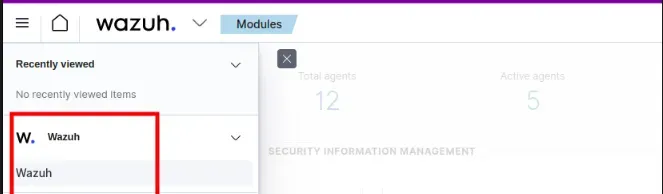
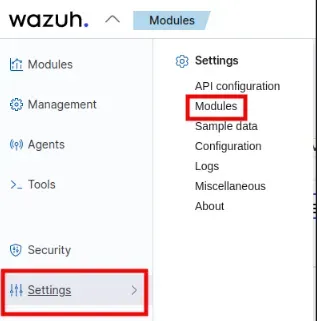
3. Click the dropdown and select Settings -> Modules
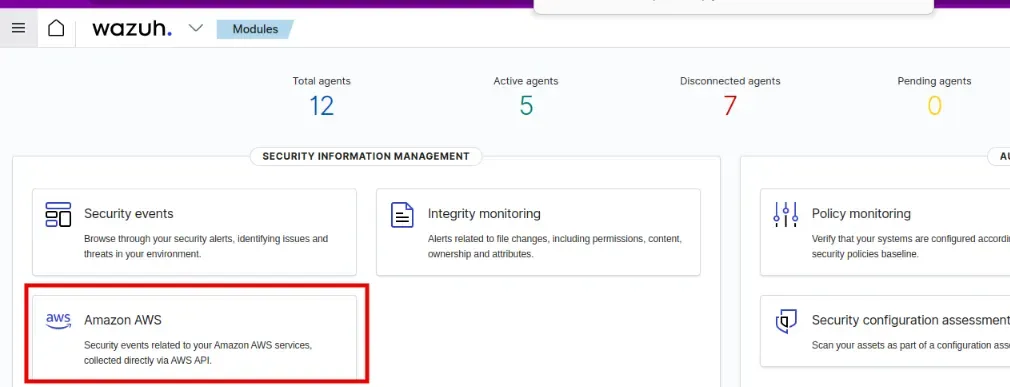
Now you can see Amazon AWS enabled in your Wazuh Dashboard
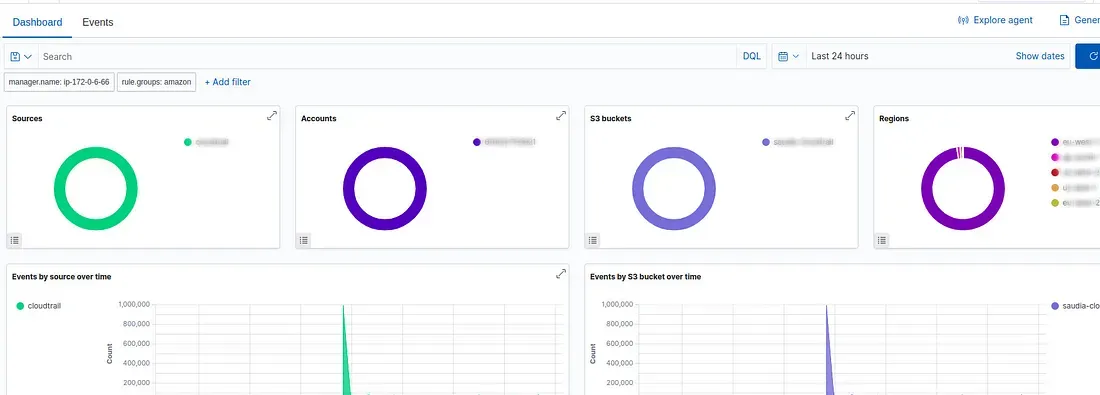
You can see your metrics/logs in AWS dashboard in Wazuh
Now, sometimes, you may face issues like when checking the logs in (/var/ossec/logs/ossec.log) the logs will be pulled into Wazuh but you may not be able to see it in Wazuh. This is an issue that is widely discussed and faced and I will also explain the workaround to pull the logs from Cloudwatch if you face the issue.
For that, you need to follow the below steps:
- You need to change logall_json no to yes in /var/ossec/etc/ossec.conf
<logall_json>yes</logall_json>2. Then you need to edit /etc/filebeat/filebeat.yml and set archives enabled to true.
archives:
enabled: true
3. Restart both filebeat and wazuh
systecmtl restart filebeat
systemctl restart wazuh-manager
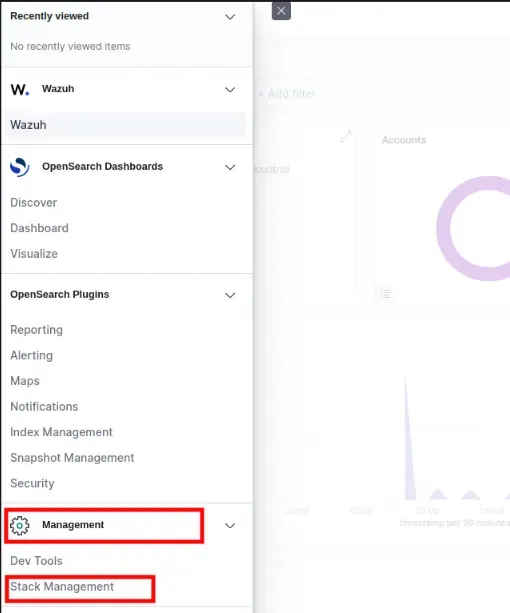
4. Go to Management -> Stack Maanagement
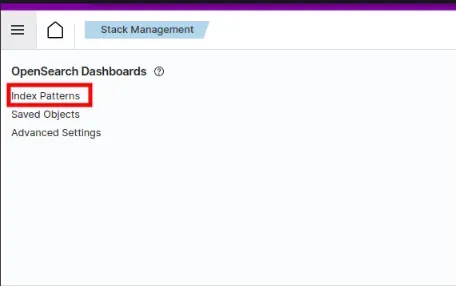
5. Go to index patterns
6. Create Index patterns

7. Create a new index pattern with name wazuh-archives-*
8. Select timestamp as the primary time field for use with the global time filter, then proceed to create the index pattern.
9. Open the menu and select Discover under OpenSearch Dashboards.
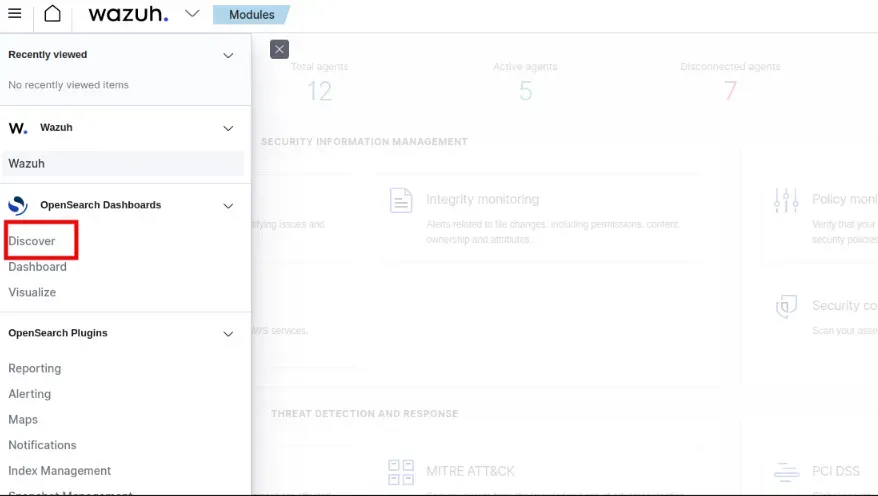
Events should be getting reported there.
Effortlessly centralize logs from diverse sources with AWS CloudWatch Logs and Wazuh integration. Securely configure AWS and Wazuh for streamlined log analysis. Unlock enhanced visibility and effortlessly manage your AWS logs in Wazuh. Improve AWS log monitoring now!