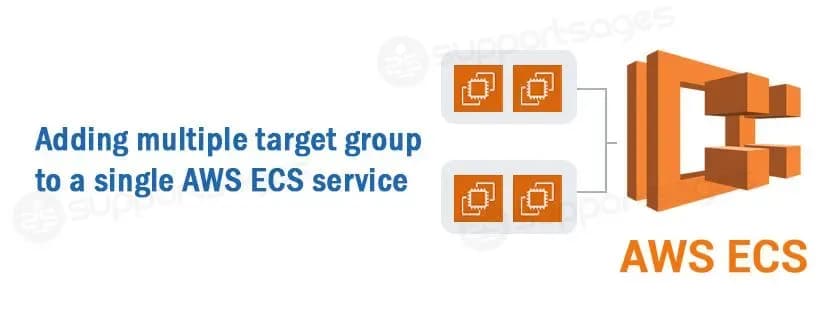
Let’s see how we can add multiple target groups to an existing AWS ECS Service.
Your Amazon ECS service can serve traffic from multiple load balancers and expose multiple load balanced ports when you specify multiple target groups in a service definition.
Prerequisites:
- To create a service specifying multiple target groups, you must create the service using the Amazon ECS API, SDK, AWS CLI, or an AWS CloudFormation template.
- AWS-CLI installed on your machine.
- IAM full access to AWS ECS, ELB.
- IAM access key and secret key to create a profile in your machine.
After the service is created , you can view the service and the target groups registered to it with the AWS Management Console.

Multiple target group considerations
The following should be considered when you specify multiple target groups in a service definition.
- The service must use either an Application Load Balancer or Network Load Balancer.
- For services that use an Application Load Balancer or Network Load Balancer, you cannot attach more than five target groups to a service.
- The service must use the rolling update (
ECS) deployment controller type. - Specifying multiple target groups is supported for services containing tasks using both the Fargate and EC2 launch types.
- When creating a service that specifies multiple target groups, the Amazon ECS service-linked role must be created. The role is created by omitting the
roleparameter in API requests, or theRoleproperty in AWS CloudFormation.
Suppose you have an ECS service in a private subnet which has a target group which is attached to a private loadbalancer. One day, it is required for the service to be accessible via public too. The new feature of Multiple Load Balancer Target Group support for Amazon ECS allows you to attach a single Amazon ECS service running on either EC2 or AWS Fargate, to multiple target groups.
Let’s see how we can achieve it.
As mentioned above, you need to have an AWS profile setup in your machine.
Next, we need to create a new target group in AWS with the same configuration as same as the one that the service is using.
After creating the target group, associate the target group with the 2nd loadbalancer which is a public loadbalancer
Now, we are going to use ecs updateservice via AWS-CLI to attach this target group to our ECS service.
Create a json like I have given example below:
[
{
"targetGroupArn": "arn:aws:elasticloadbalancing:<Region>:<account-ID>:targetgroup/<target-group-name-1>/a046521740a93df2",
"containerName": "nginx",
"containerPort": 80
},

{
"targetGroupArn": "arn:aws:elasticloadbalancing:<Region>:<account-ID>:targetgroup/<target-group-name-2>/10312964732aa4e8",
"containerName": "nginx",
"containerPort": 80
}
]
Change Region, Account-ID, target-group-name, containerName and containerPort as per your requirement.
If you are using any loadbalancer other than Network or Application loadbalancer, you will also have to add one more value to the json which is loadbalancerName. You can refer the official AWS CLI ecs update service documentation for reference.
Save this file as a json file. For example ELB.json. After that you will have to export your AWS profile that you have configured.
nb: If it is your default profile, you can skip this step.
To export your AWS profile, you can use the command below:
export AWS_PROFILE=<profile-name>After exporting the profile run the below command:
aws ecs update-service --cluster <cluster-name> --service <service-name> --load-balancers file://ELB.jsonHer, I have specified the file name as ELB.json as I have mentioned it as an example above, please change it as per the name of your save file’s name.
After running the command you will see the output as a big json file. You can see in the top of the json in the loadbalancers block that the target group has been updated. You can also check the console and check the specific ECS that you have updated and you can see the changes have been applied.

As you can see above, the service has been updated with multiple target groups.
Enhance your ECS service load balancing! This guide details adding multiple target groups using AWS CLI. Attach services to both private and public load balancers for flexible traffic routing.