




Install SAP HANA, express edition on a Linux server, from downloading hxe.tgz to verifying SQL access. This SupportSages walkthrough uses RHEL 9.4 for SAP and includes an optional GCP VM setup, installation commands, browser access and fixes for errors encountered in our lab.
This is a learning and evaluation environment. HANA Express installation and SQL access were completed in our lab; the fresh provisioning examples below were reviewed but not executed as a new deployment during authoring.
What you will install
HANA Express is a database platform, not the S/4HANA ERP application suite. SAP describes Express as a streamlined HANA platform for applications using up to 32 GB of memory; the applicable download and license terms govern its use. SAP HANA Express overview
If you want an ERP evaluation landscape with SAP Fiori and business processes, use our separate SAP S/4HANA deployment on GCP guide. That deployment includes its own database and does not require this HXE server.
What this guide covers
- Requirements and download
- Prepare Linux
- Upload and extract hxe.tgz
- Install HANA Express
- Verify databases and SQL ports
- Browser access
- Create a database user
- Troubleshooting
- Operations and SupportSages services
- FAQs
Before you run commands
The code blocks identify where to run commands. Linux shell commands belong at a shell prompt; SQL belongs inside hdbsql. Do not paste prompt text such as hdbsql HXE=> into either environment.
Replace values beginning with YOUR_ or REPLACE_ before running a command. Run each command block separately and continue only when it succeeds. The VM creation commands create billable resources.
Use two terminals: one on your computer for downloads, uploads and gcloud, and one SSH session connected to the HANA server. Commands below say which terminal to use. The local examples use Bash on Linux or macOS; they are not PowerShell commands.
For the GCP steps, first open the Google Cloud console, select or create a project, and link it to a billing account under Billing. Copy its Project ID, not its display name. Install the Google Cloud CLI for your computer's operating system, open a new terminal, and run:
gcloud init
gcloud auth list
In gcloud init, sign in with the Google account that manages the project and select that project. Keep the HXE SSH/upload commands on your computer so they use the source IP allowed by the firewall.
Step 1: check the hardware, operating system and installation media
SAP's binary installation guide lists the following baseline:
Resource | Server only | Server plus applications |
RAM | 16 GB minimum; 24 GB recommended | 24 GB minimum; 32 GB recommended |
CPU | 4 cores | 4 cores |
Disk | 120 GB recommended | 120 GB recommended; allow additional space for your workload |
Swap | At least 32 GB if installing on a 16 GB RAM system | Size for the selected configuration |
The commands below use RHEL 9.4 for SAP, x86-64, and the HANA Express server-only installer. RHEL 9.4 is listed for HANA 2.0 SPS 08 in SAP's binary guide. Use this combination for the walkthrough; do not run the RHEL commands on Ubuntu or SUSE. SAP HANA Express binary installation guide
The GCP example creates 4 vCPUs, 32 GB RAM and a 150-GB SSD persistent boot disk. Use a fresh server with that capacity or more for this walkthrough. The 32-GB swap requirement in the table applies to the alternative 16-GB RAM configuration; the commands below use 32 GB RAM.
Download hxe.tgz to your computer
The file you need to install HANA Express is hxe.tgz. First obtain SAP's Download Manager, then use it to download that archive:
- Open the SAP HANA Express download page in your browser and select Start your free trial.
- Sign in or register as prompted and accept the download agreement.
- Select Platform-independent Download Manager and save HXEDownloadManager.jar in your computer's Downloads folder. This Java file is the downloader, not the database installer. SAP registration instructions
- On that computer, run java -version. The manager requires Java 8 or later. If Java is missing, open the
Eclipse Temurin installation page, choose your computer's OS and architecture, and install a Java 17 JDK. On macOS, use its .pkg installer; on Linux, use the RPM/DEB instructions for your distribution. A JDK includes the runtime needed by the downloader. Open a new terminal and confirm java -version works before continuing.
Run in your computer's terminal, not the SSH session:
cd ~/Downloads java -version ls -lh HXEDownloadManager.jar mkdir -p
sap-hana-express java -jar HXEDownloadManager.jar -d ./sap-hana-
express \ linuxx86_64 installer hxe.tgz
Getting_Started_Binary_Installer.pdf
The platform argument selects the target Linux server, even when the downloader runs on a Mac. Accept any prompts and wait until the download finishes. SAP Download Manager command syntax Check the result:
ls -lh ~/Downloads/sap-hana-express/hxe.tgz gzip -t ~/Downloads/sap-hana-express/hxe.tgz gzip -t should finish without an error. If it reports an incomplete or corrupt archive, download again before uploading. Keep the downloaded PDF for the matching installer instructions. The file to transfer in Step 3 is ~/Downloads/sap-hana-express/hxe.tgz; do not upload only the .jar file or select the virtual-machine image instead.
Optional: create the HANA Express lab VM on GCP
Skip this subsection if you already have a suitable Linux server and working SSH access. Otherwise, run these commands on your computer. Set HXE_ADMIN_CIDR to that computer's public IPv4 address followed by /32; for example, 203.0.113.10/32 illustrates the format but is not a usable address. Use the same internet connection for the later SSH and upload steps.
Run in an authenticated Bash terminal with gcloud:
export SAP_PROJECT_ID="YOUR_PROJECT_ID"
export HXE_REGION="asia-south1" export
HXE_ZONE="asia-south1-b" export
HXE_ADMIN_CIDR="YOUR_PUBLIC_IPV4/32"
gcloud projects describe "$SAP_PROJECT_ID" gcloud billing projects
describe "$SAP_PROJECT_ID" gcloud services enable compute.googleapis.com
--project="$SAP_PROJECT_ID"
gcloud compute networks create hxe-lab-vpc \   --subnet-
mode=custom --project="$SAP_PROJECT_ID"
gcloud compute networks subnets create hxe-lab-subnet \   --
network=hxe-lab-vpc --region="$HXE_REGION" \  --
range=10.50.0.0/24 --project="$SAP_PROJECT_ID"
gcloud compute firewall-rules create hxe-lab-ssh \   --
network=hxe-lab-vpc --direction=INGRESS --allow=tcp:22 \
 --source-ranges="$HXE_ADMIN_CIDR" --target-tags=hxe-lab \   -
-project="$SAP_PROJECT_ID"
gcloud compute images describe-from-family rhel-9-4-sap-ha \
--project=rhel-sap-cloud
gcloud compute instances create hana-express-lab \  --
project="$SAP_PROJECT_ID" --zone="$HXE_ZONE" \
 --machine-type=n2-highmem-4 \
  --image-family=rhel-9-4-sap-ha --image-project=rhel-sap-cloud \
 --boot-disk-size=150GB --boot-disk-type=pd-ssd \
 --network=hxe-lab-vpc --subnet=hxe-lab-subnet \   --tags=hxe-
lab --no-service-account --no-scopes
gcloud compute ssh hana-express-lab \   --
project="$SAP_PROJECT_ID" --zone="$HXE_ZONE"
The final command opens the server's SSH shell. Leave it open for Step 2. Keep the local terminal variables on your computer; they do not automatically become variables on the server.
The RHEL for SAP image has OS charges in addition to VM charges. The VM has no attached Google service account because the HXE installation does not call Google APIs. It has SSH access from your selected IP;
Step 6 uses that SSH connection for browser access too. Google Cloud OS images
Step 2: prepare and inspect Linux
Run on the HANA server:
sudo -i cat /etc/os-release
uname -m lscpu free -h swapon
--show df -hT hostnamectl
getent ahostsv4 "$(hostname)"
timedatectl
Confirm x86_64, approximately 32 GB RAM, enough free space on the root filesystem, and the expected hostname. Check package repositories and install the tools used below:
dnf repolist dnf install -y tar gzip which util-linux chrony systemctl enable --now chronyd chronyc tracking chronyc tracking should show a time source and Leap status : Normal after synchronization. Next compare hostname resolution with the private address on the network interface:
ip -4 address show
cat /etc/hosts
getent ahostsv4 "$(hostname)"
If the hostname already resolves to the correct private address, leave /etc/hosts unchanged. Otherwise run sudo vi /etc/hosts and add or correct one entry in this format, substituting the server's actual private IP and hostname:
10.50.0.10 hana-express-labThe address above is an example, not an address assigned by the VM creation command. Re-run getent ahostsv4 "$(hostname)" and confirm the corrected address before installing HANA. For RHEL 9, the referenced HXE guide instructs disabling SELinux persistently and rebooting:
grubby --args="selinux=0" --update-kernel=ALL
reboot
The reboot closes SSH. From your computer, reconnect:
gcloud compute ssh hana-express-lab \   --
project="$SAP_PROJECT_ID" --zone="$HXE_ZONE"
For a non-GCP server, reconnect with the same ssh command you used initially. In the server terminal, verify:
sudo -i
getenforce
The expected result is Disabled.
Set the kernel values used by this HXE lab. Run in the server terminal:
sudo tee /etc/sysctl.d/90-hxe-lab.conf >/dev/null <<'EOF'
vm.max_map_count = 2147483647 kernel.pid_max = 4194304
EOF sudo sysctl --system
sysctl vm.max_map_count kernel.pid_max
The final command should report vm.max_map_count = 2147483647 and kernel.pid_max = 4194304. The file in /etc/sysctl.d/ preserves those settings after a reboot.
Step 3: upload hxe.tgz and extract the installer
Open a second terminal on your computer. Upload the exact archive downloaded in Step 1. Choose one of the following transfer methods.
For the GCP VM created above, set the variables again in this new terminal and upload:
export SAP_PROJECT_ID="YOUR_PROJECT_ID" export
HXE_ZONE="asia-south1-b" ls -lh ~/Downloads/sap-hana-
express/hxe.tgz gcloud compute scp ~/Downloads/sap-hana-
express/hxe.tgz \   hana-express-lab:/tmp/hxe.tgz \   --
project="$SAP_PROJECT_ID" --zone="$HXE_ZONE"
For another Linux server using an SSH private key, run this instead. Replace the key path, Linux login user and server address:
scp -i /path/to/your-private-key \   ~/Downloads/sap-hana-
express/hxe.tgz \
 YOUR_LINUX_USER@YOUR_SERVER_IP:/tmp/hxe.tgz
For password-based SSH, omit -i /path/to/your-private-key. Wait for the transfer to complete. Both commands copy hxe.tgz from your computer to /tmp/hxe.tgz on the server.
Switch back to the server terminal. Verify the uploaded file, then extract it into /opt/sap-install:
sudo -i ls -lh /tmp/hxe.tgz gzip -t /tmp/hxe.tgz
install -d -m 0755 /opt/sap-install install -m 0644
/tmp/hxe.tgz /opt/sap-install/hxe.tgz install -d -m
0755 /opt/sap-install/extracted cd /opt/sap-
install/extracted umask 022 tar -xzf /opt/sap-
install/hxe.tgz chmod u+x setup_hxe.sh namei -l
/opt/sap-install/extracted/HANA_EXPRESS_20 ls -l
/opt/sap-install/extracted/setup_hxe.sh
Every parent directory must be traversable by the accounts the installer uses. In our first attempt, media under /home/rhel failed because that home directory did not allow the necessary traversal. chmod +x setup_hxe.sh alone cannot fix a parent-directory permission problem. Do not use chmod -R 777 as a repair.
The extraction and setup script follow SAP's binary installation workflow. SAP HANA Express installation tutorial
Step 4: run the HANA Express installer
From the root shell on the server:
cd /opt/sap-install/extracted
./setup_hxe.sh
For this example, use:
Installer field | Example value |
Installer root | /opt/sap-install/extracted/HANA_EXPRESS_20 |
System ID | HXE |
Instance number | 90 |
Local hostname | The verified server hostname |
Installer field | Example value |
Master password | A unique password accepted by this installer |
Enter the displayed installer root, accept SID HXE and instance 90, confirm the hostname, and enter the master password twice. For the installer shown, use at least eight characters with an uppercase letter, a lowercase letter and a number; it rejects backslash, single quote, double quote, backtick and dollar sign. The setup screen states the rules for the media you downloaded. Review the component summary and enter y at Proceed with installation? The installer creates hxeadm; do not create it manually.
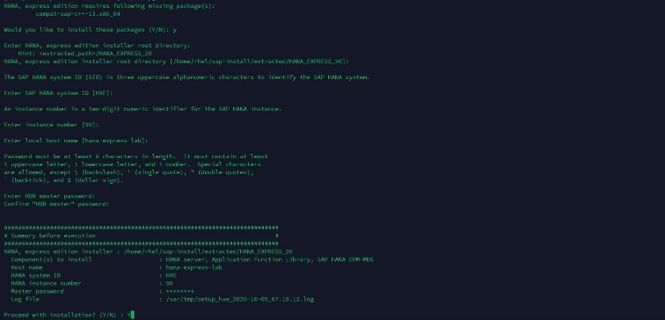
Lab screenshot: installer selections before execution. The screenshot uses the original home-directory staging path; this guide uses /opt/sap-install to avoid the traversal problem.
If setup reports that compat-sap-c++-13.x86_64 is missing, answer y when it offers to install the package. This was required by our HANA build. If setup exits instead, run the following in the server root shell, then run ./setup_hxe.sh again from
/opt/sap-install/extracted:
dnf install -y compat-sap-c++-13
rpm -q compat-sap-c++-13
If dnf reports No match for argument, run dnf repolist --all and confirm you selected a RHEL for SAP image with access to its SAP repositories. Stop at this error until the named dependency installs; a generic compiler package is not a substitute. If setup names another compatibility package, use that exact package name.
The successful lab installation finished with:
Server Installation...(OK)
XSC Installation...(OK)
HXE Optimization...(OK)
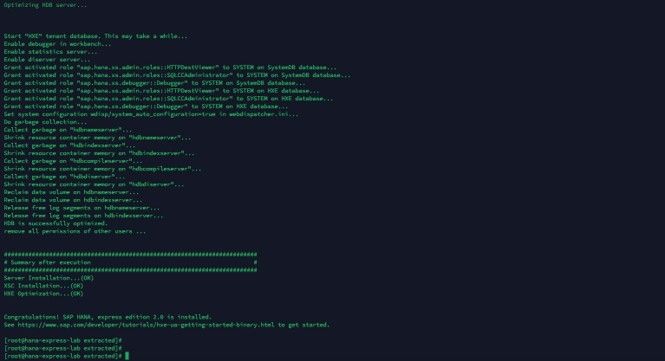
Lab screenshot: the completed installation. Installer output is evidence of installation completion; verify processes and SQL connectivity next.
Retain the paths printed for the setup and lifecycle-manager logs. To locate recent setup logs: ls -lt /var/tmp/setup_hxe_*.log
Inspect the named log before retrying a failed installation. Do not remove an existing HANA installation or re-extract media merely because a later browser request fails.
Step 5: verify processes, databases and SQL ports
In the server root shell, switch to the HANA OS administrator:
su - hxeadm HDB version HDB info
sapcontrol -nr 90 -function GetProcessList
hdbsql -i 90 -d SYSTEMDB -u SYSTEM
Enter the database password at the password prompt. At hdbsql SYSTEMDB=>, run each statement on one line:
SELECT DATABASE_NAME, ACTIVE_STATUS FROM SYS.M_DATABASES;
SELECT DATABASE_NAME, SERVICE_NAME, HOST, SQL_PORT FROM SYS_DATABASES.M_SERVICES WHERE SQL_PORT > 0 ORDER BY DA
TABASE_NAME, SERVICE_NAME; \q sapcontrol should report the expected processes as GREEN and Running; the database query should show HXE active. If it does not, inspect the installation log before continuing to browser access.
M_DATABASES is in the SYS schema. Using SYS_DATABASES.M_DATABASES caused an invalid-table error in the lab. The separate SYS_DATABASES.M_SERVICES query worked and returned these SQL endpoints:
Database | Service | SQL port observed for instance 90 |
HXE | indexserver | 39015 |
SYSTEMDB | nameserver | 39013 |
Query your own system rather than treating the tenant port as universal. SAP M_DATABASES reference, system and tenant monitoring schemas
Now connect to the tenant from the hxeadm shell: hdbsql -i 90 -d HXE -u SYSTEM Run inside hdbsql:
SELECT DATABASE_NAME FROM SYS.M_DATABASE;
SELECT CURRENT_USER, CURRENT_TIMESTAMP FROM DUMMY;
\q
For interactive multiline SQL, enable \mu ON first, or start hdbsql with -m. Without multiline mode, pressing
Enter can submit an incomplete statement. SAP HDBSQL tutorial
Step 6: connect to HANA and understand the available UI
For SQL work, use hdbsql or a compatible SQL client with the SAP HANA driver. Connect to HXE for application data; SYSTEMDB is for system administration. Each database has its own users and privileges. SAP system database documentation
The firewall created in Step 1 permits SSH. Use an SSH tunnel to reach XS Admin through that connection.
Run one of the following commands on your computer, leaving its terminal open.
For an existing server reached with an SSH private key:
ssh -i /path/to/your-private-key -N -o ExitOnForwardFailure=yes \
-L 18090:127.0.0.1:8090 \
 -L 39015:127.0.0.1:39015 \
 YOUR_LINUX_USER@YOUR_VM_PUBLIC_IP
Replace the key path, login user and public IP. If you use password-based SSH, omit -i /path/to/your-private-key. For the GCP VM created above, use this instead:
export SAP_PROJECT_ID="YOUR_PROJECT_ID" export
HXE_ZONE="asia-south1-b" gcloud compute ssh hana-
express-lab \   --project="$SAP_PROJECT_ID" --
zone="$HXE_ZONE" -- \
 -N -o ExitOnForwardFailure=yes \
 -L 18090:127.0.0.1:8090 \
 -L 39015:127.0.0.1:39015
Open this URL in the browser on the same computer:
http://localhost:18090/sap/hana/xs/admin/
For the first check, log in as SYSTEM using the installation's master password. In our lab, this XS Admin route served SYSTEMDB. The HANADEV user created in HXE in Step 7 is for tenant SQL access and will not automatically work on that SYSTEMDB login page.
If the browser redirects to another hostname or port, do not keep changing the password. Check the redirected URL and Web Dispatcher routing. Tenant-specific XS URLs require a separate hostname/routing configuration; this walkthrough uses the existing default XS Admin route. SAP HTTP(S) tenant-access guidance
Direct browser access is also possible with a reachable listener, a GCP ingress rule, the host firewall and correct routing. Use HTTPS with an appropriate certificate and limit source addresses. Opening HTTP port 8090 alone does not encrypt credentials. In the lab, 4390 was also listening, but that observation does not establish that certificate-based HTTPS access was configured correctly.
To inspect listeners, open a separate server SSH session as your Linux login user with sudo access. hxeadm is not assumed to have sudo privileges:
sudo ss -lntp
Through the tunnel, a local SQL client can connect to host 127.0.0.1, port 39015, database HXE, using the
HXE user created below. Close the tunnel only after finishing browser/remote SQL access. If local port 39015 is already in use, change only its local side to 39016 (-L 39016:127.0.0.1:39015) and use 39016 in that local client.
The lab's internal 39008 listener was bound to loopback. A GCP firewall rule cannot make a loopback-only service externally reachable.
What does XS Admin actually provide?
XS Classic Admin manages XS application settings, authentication and related services. It is not the S/4HANA Fiori launchpad or a complete database development environment.
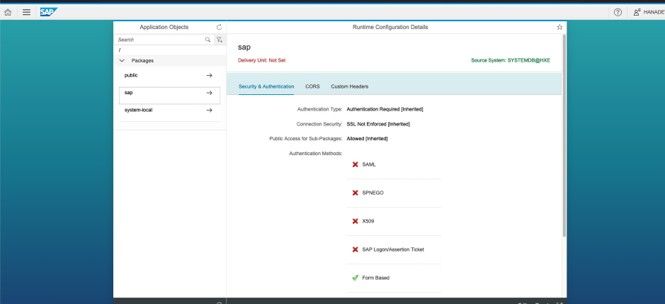
Lab screenshot: the source system is SYSTEMDB@HXE. Form-based authentication is enabled. The red crosses show authentication methods not enabled for the displayed configuration; they do not by themselves mean that the logged-in user failed authorization.
The lab's /sap/hana/ide/ request returned 404, and the attempted developer role was absent from the queried catalog. This does not prove that every HANA Express distribution lacks a development UI. Tool availability depends on the installed components, route and release. Additional permissions cannot install a missing application.
Step 7: create a database user for a small SQL exercise
Use an administrative connection to HXE. Replace the password placeholder inside the double quotes with a unique value satisfying your database policy. Do not reuse the literal placeholder.
From the hxeadm shell:
hdbsql -i 90 -d HXE -u SYSTEM Inside
hdbsql HXE=>:
CREATE USER HANADEV PASSWORD "REPLACE_WITH_UNIQUE_PASSWORD" NO FORCE_FIRST_PASSWORD_CHANGE;
\q
For this self-managed lab exercise, NO FORCE_FIRST_PASSWORD_CHANGE lets you set the final password at creation. Omit it when issuing a temporary password to another person, and complete the required password change before running queries. Standard users can create objects in their own schema. SAP CREATE USER reference Log in as the new user: hdbsql -i 90 -d HXE -u HANADEV
Then use the standard user's own schema for a disposable exercise:
CREATE COLUMN TABLE LAB_HEALTHCHECK (ID INTEGER PRIMARY KEY, NOTE NVARCHAR(100));
INSERT INTO LAB_HEALTHCHECK VALUES (1, 'HANA Express SQL connection works');
SELECT * FROM LAB_HEALTHCHECK;
\q
This test does not need every XS administrative role. Grant additional privileges for a defined task rather than using broad permissions to diagnose an unrelated URL problem.
The SQL exercise is now complete. The following is an optional XS role example, not a prerequisite for SQL access. It grants a role in HXE only; it does not grant access to the SYSTEMDB page above. From the hxeadm shell, reconnect as the administrator: hdbsql -i 90 -d HXE -u SYSTEM
At hdbsql HXE=>, inspect installed roles:
SELECT ROLE_NAME FROM SYS.ROLES WHERE ROLE_NAME LIKE 'sap.hana.xs.admin.roles::%' ORDER BY ROLE_NAME;
If the intended user exists in that database and needs runtime configuration administration, an authorized administrator can grant the activated role with:
CALL "_SYS_REPO"."GRANT_ACTIVATED_ROLE"('sap.hana.xs.admin.roles::RuntimeConfAdministrator','HANADEV');
\q
The procedure grants an existing repository role; it does not create missing roles or copy users between databases. SAP activated-repository privilege procedures
Troubleshooting HANA Express
HXE installation fails with missing execute permissions
Use namei -l on the complete installer path. The original failure identified /home/rhel, not the setup script. Correct the specific traversal issue or use the dedicated staging directory shown earlier. Preserve the installer logs before retrying.
SQL reports syntax errors on SELECT, FROM or WHERE
Run the whole statement on one line, or enable multiline mode. SQL pasted into Bash produces command not found; shell commands pasted into hdbsql are not SQL. Exit hdbsql with \q before returning to shell commands.
An XS role grant fails
invalid role name means the requested role was not found in that database. Inspect SYS.ROLES and the installed component rather than guessing a role name. Cannot grant activated roles can require the repository grant procedure and an administrator authorized to execute it. A failed CREATE USER must be corrected before attempting grants to that user.
If CREATE USER fails with a syntax error near a password character such as !, use the double-quoted password form shown in Step 7, inside hdbsql. A later invalid user name error can simply mean that the preceding user-creation command never succeeded.
The password works in SQL but fails in the browser
Check the target database, user state and authentication route. The lab's HANADEV initially existed in HXE, while the XS Admin page later identified its source as SYSTEMDB@HXE. Users with identical names in those databases are independent. Repeated password resets do not correct a wrong database route.
Use a private browser session when testing changed credentials to avoid confusion with an existing login.
Distinguish an authentication failure from an authorization error after login.
Operating HANA Express
For HXE, inspect health as hxeadm:
HDB info
sapcontrol -nr 90 -function GetProcessList
When an intentional maintenance stop is needed, use HDB stop; use HDB start to bring it back. Treat these as service-changing actions, not routine health checks.
Before storing meaningful data, establish database backups and test a restore. Document the distinction between a HANA backup and a VM disk snapshot; a snapshot alone does not demonstrate that the application can be recovered consistently.
Where SupportSages fits into an SAP cloud project
The installation workflow highlights the infrastructure work around SAP: maintaining an OS baseline, managing IAM, making network access predictable, planning quota, collecting useful logs and keeping idle environments from consuming unnecessary budget.
SupportSages helps engineering teams with cloud infrastructure management, infrastructure as code, monitoring, security and ongoing DevOps operations. For an SAP project, that infrastructure work should align with the SAP Basis team's application responsibilities and SAP's support requirements. Explore SupportSages DevOps services
An effective handover includes a versioned provisioning process, documented access, tested recovery, monitoring ownership and a clear environment-retirement plan. If your team needs help building and operating the cloud foundation for an SAP lab or evaluation, discuss your requirements with SupportSages.
Frequently asked questions
Can I install SAP HANA Express on a cloud VM?
Yes, provided the VM, OS and selected HANA revision meet the applicable requirements. The binary installer can run on a suitable Linux server; cloud placement does not remove OS compatibility or licensing requirements.
Can I install S/4HANA on top of this HANA Express lab?
This guide does not use that architecture. The CAL S/4HANA appliance includes its own database and application components. Treat it as a separate landscape.
Do I need to expose HANA SQL ports to the internet?
No. Local access, SSH forwarding or private network access can provide connectivity. If you choose direct remote access, configure the network, encryption and source restrictions deliberately.
Why is there no Fiori interface in HANA Express?
Fiori business applications belong to the application landscape, such as S/4HANA. The XS Admin screen shown here manages XS configuration; it does not install ERP business functions.