


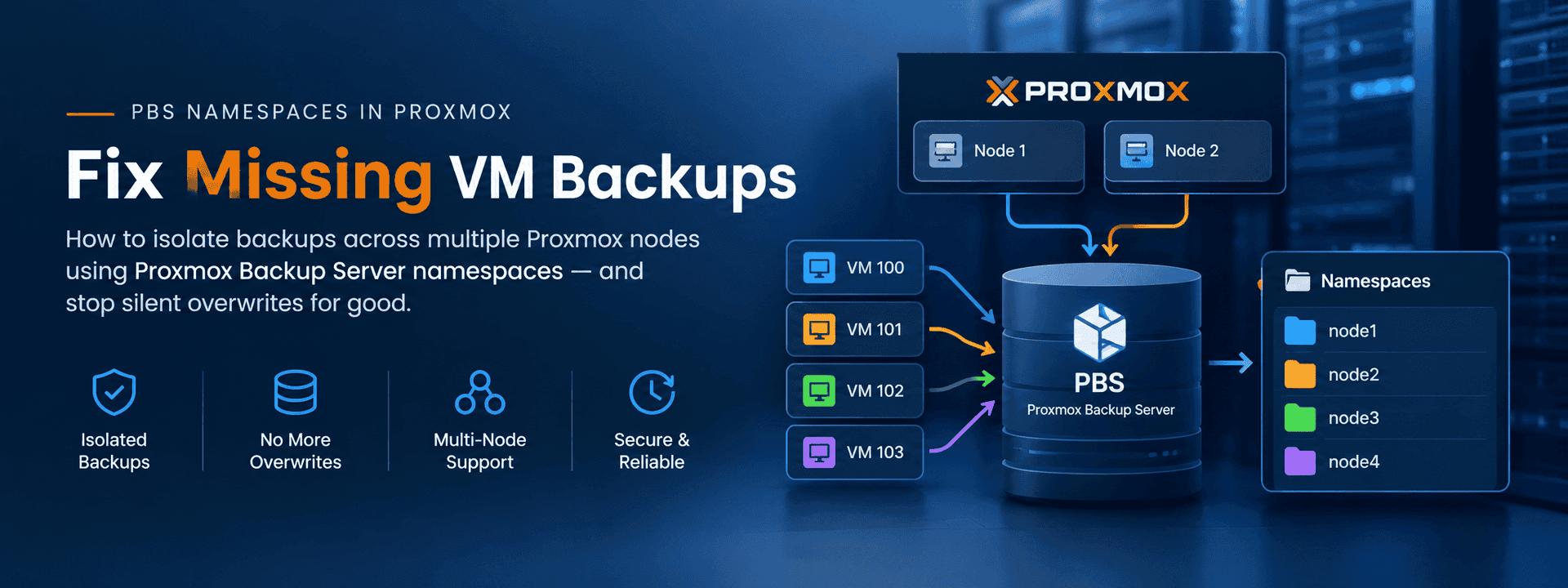
How to isolate backups across multiple Proxmox nodes using Proxmox Backup Server namespaces - and stop silent overwrites for good
You configured backup jobs on all your Proxmox VE nodes, everything reported success - but when you open the PBS Content view, half your VMs are simply not there. No error. No warning. Just missing data. If this sounds familiar, you are likely hitting one of the most common and misunderstood issues in multi-node Proxmox environments: overlapping VM IDs silently overwriting each other's backups in PBS. The solution is PBS namespaces - a built-in feature of Proxmox Backup Server that isolates each node's backups into its own logical container. This guide explains why it happens, how PBS stores backups internally, and the exact steps to configure namespaces so every VM backup is correctly separated, visible, and independently manageable.
What Is Proxmox Backup Server?
Proxmox Backup Server (PBS) is a dedicated backup solution built to work alongside Proxmox VE. Unlike generic backup tools, it is designed specifically for VM and container backups - with enterprise features that make it both efficient and reliable for production environments.
- Incremental backups - only changed data blocks are transferred after the first full backup
- Deduplication - identical data blocks across backups are stored only once, saving storage
- Encryption - backups can be encrypted client-side before reaching the PBS server
- Verify jobs - periodic integrity checks confirm backups are actually restorable
- Namespaces - logical grouping of backups within a single datastore (the focus of this guide)
PBS runs as a separate server or VM. Proxmox VE nodes connect to it as a storage backend, backup jobs are configured on the PVE side, and data is pushed to PBS over the network.
How PBS Stores Backups Internally
Understanding PBS's internal structure is essential to understanding why the missing backup problem occurs. When a Proxmox VE node backs up a VM, PBS stores it in a path structure like this:
<datastore>/
■■■ vm/
    ■■■ 100/
    ■   ■■■ 2026-06-07T23:30:00Z.fidx     ■   ■■■ 2026-06-08T23:30:00Z.fidx
    ■■■ 101/
    ■■■ 102/
The backup group is simply vm/<VMID>. PBS has no built-in concept of which Proxmox node a backup came from. That information is not stored unless you explicitly configure it - and that is exactly what namespaces solve.
■ The silent overwrite problem: If Node A backs up vm/100 and Node B also backs up vm/100 to the same datastore without namespaces, both write into the same backup group. One node's backup silently overwrites or merges with the other's. You lose visibility of one VM entirely - with no error in the job logs.
The Missing Backup Problem: A Real-World Example
Here is a typical two-node setup that triggers this issue:
Node | VM ID | VM Name |
Node 1 | 100 | Web Server |
Node 1 | 101 | Mail Server |
Node 1 | 102 | App Server |
Node 1 | 103 | Database Server |
Node 2 | 100 | Dev Environment |
Node 2 | 101 | Staging Server |
Node 2 | 102 | Monitoring Server |
Node 2 | 103 | Backup Relay |
Both nodes back up to the same PBS datastore with no namespace configured. The PBS Content view shows only 4 backup groups - vm/100 through vm/103 - but there are 8 unique VMs across both nodes.
The administrator sees vm/100 with recent timestamps and assumes it is protected. In reality, it belongs to only one node's VM. The other node's vm/100 has no backup at all - and there is no error in the job log to indicate this.
■ This creates a false sense of security: backup jobs report success, but half your VMs are unprotected. Without namespaces, you cannot detect this from the Proxmox VE UI alone.
What Are PBS Namespaces?
Namespaces are logical containers within a PBS datastore that let you group backups separately per node, per client, or per team. Think of them as folders inside your datastore - each Proxmox VE node gets its own folder, so vm/100 from Node 1 and vm/100 from Node 2 live in completely separate paths and never conflict.
- No ID conflicts - each node's backups are fully isolated
- Independent retention policies - production and dev nodes can have different prune schedules
- Separate permissions - namespace-scoped access for multi-team or multi-client environments
- Independent verify jobs - run integrity checks per namespace
- Nested namespaces - PBS supports up to 8 levels deep (e.g. pve-node1/production)
How to Configure PBS Namespaces in Proxmox
Follow these five steps to isolate backups per Proxmox node using PBS namespaces. Complete all steps in order.
Step 1 - Create Namespaces in PBS
- Log in to the PBS web interface at https://<PBS-IP>:8007.
- Navigate to:
Datastore → <your-datastore> → Content tab- Click Add Namespace (top right of the Content view).
- Create one namespace per Proxmox VE node:
pve-node1     namespace for your first Proxmox VE node
pve-node2     namespace for your second Proxmox VE node
✔ Use consistent, descriptive names that clearly identify each node. Namespace names are case-sensitive - the name you create here must exactly match what you configure in storage.cfg in Step 2.
Step 2 - Assign the Namespace in storage.cfg on Each PVE Node
The namespace field in the Proxmox VE GUI may appear greyed out depending on your PVE version. Use the CLI method below - it is the reliable approach for all versions.
SSH into Node 1:
ssh root@<node1-ip>Edit the storage configuration file:
nano /etc/pve/storage.cfgFind the PBS storage block and add the namespace line:
pbs: pbs-backup     server <PBS-IP>
datastore <datastore-name>
username <user>@pam     password <password>
namespace pve-node1    # <-- add this line
fingerprint <fingerprint>
Save and exit. SSH into Node 2 and repeat with namespace pve-node2.
■ Cluster vs standalone: /etc/pve/storage.cfg is a cluster-wide file in a Proxmox cluster - editing it on one node replicates automatically to all cluster members. For standalone nodes, edit each node individually.
Step 3 - Set PBS Permissions for Each Namespace
The PBS user or API token used by Proxmox VE needs write permission scoped to each namespace path:
- Go to:
PBS UI → Datastore → <your-datastore> → Permissions tab- Click Add → User Permission.
- Set the following for Node 1's namespace:
Path:  /datastore/<datastore-name>/pve-node1
User:  <user>@pam
Role:  DatastoreBackup
- Repeat for Node 2's namespace path: /datastore/<datastore-name>/pve-node2.
Step 4 - Verify the Configuration Was Saved Correctly
On each Proxmox VE node, confirm the namespace line appears in the storage config:
grep -A 10 'pbs-backup' /etc/pve/storage.cfgThe output should include the namespace line for that node. If it is missing, re-edit the file and save again.
Step 5 - Run a Test Backup and Confirm
- On each PVE node, go to Datacenter → Backup, select any job, and click Run now.
- In PBS, go to the Content tab and switch the Namespace dropdown to pve-node1.
- Confirm the backup appears under the correct namespace with a current timestamp.
- Switch back to the Root namespace - the new backup should not have updated timestamps there.
CLI verification on PBS:
proxmox-backup-client list \   --repository
<user>@pam@<PBS-IP>:<datastore> \
  --ns pve-node1
✔ If you see the backup appear in the correct namespace and the Root namespace timestamp did not change, your namespace configuration is working correctly. All future backups from that node will land in the right place automatically.
Expected Result After Configuration
Once namespaces are configured correctly, your PBS Content view will show clearly separated backup groups per node. No more ID conflicts - every VM is visible, isolated, and independently manageable:
<datastore>/
■■■ Root Namespace  (legacy backups - expire per retention policy)
■■■ pve-node1/
■   ■■■ vm/100   (Web Server)
■   ■■■ vm/101   (Mail Server)
■   ■■■ vm/102   (App Server)
■   ■■■ vm/103   (Database Server)
■■■ pve-node2/
    ■■■ vm/100   (Dev Environment)
    ■■■ vm/101   (Staging Server)
    ■■■ vm/102   (Monitoring Server)
    ■■■ vm/103   (Backup Relay)
Setting Retention Policies Per Namespace
A practical benefit of namespaces is that each one can carry its own independent retention (prune) policy. Configure this under:
PBS → Datastore → Prune & GC JobsExample configuration:
Namespace | Environment | Retention Policy |
pve-node1 | Production servers | keep-daily=7, keep-weekly=4, keep-monthly=3 |
pve-node2 | Dev / staging servers | keep-last=5 |
■ keep-last vs keep-daily: keep-last=12 keeps the 12 most recent backups regardless of timing. keep-daily=10 keeps one backup per day for the last 10 days. Choose based on your recovery time objectives - for production systems, daily + weekly + monthly is generally recommended.
Handling Existing Backups in the Root Namespace
After configuring namespaces, backups that were previously stored in the Root namespace are not automatically moved. You have two options:
Option A - Let Them Expire Naturally
Do nothing. Old Root namespace backups will be pruned on your next GC/prune job run, based on your existing retention settings. New backups will accumulate in the correct namespace going forward. This is the safest approach for most environments.
Option B - Prune the Root Namespace Manually
If you want to clean up Root namespace backups immediately, run this on PBS:
# Preview first - always run --dry-run before committing
proxmox-backup-manager prune-datastore <datastore> \
--ns ""  --keep-last 1  --dry-run

# Remove the --dry-run flag to execute proxmox-backup-
manager prune-datastore <datastore> \   --ns ""  --
keep-last 1
■ Always run with --dry-run first to preview what will be deleted before committing. Prune operations are irreversible.
Troubleshooting: Backups Still Not Appearing in Namespace
If backups are still landing in the Root namespace or failing after configuration, work through these issues in order:
Issue: Backups still going to Root namespace
- Confirm the namespace line was saved correctly in storage.cfg:
- If the line is missing, re-edit and save. Then restart the PVE daemon:
grep -A 10 'pbs-backup' /etc/pve/storage.cfg
systemctl restart pvedaemon
Issue: Permission denied error in backup job log
- The PBS user does not have DatastoreBackup permission on the namespace path.
- Go to PBS → Datastore → Permissions and confirm the path is exactly:
/datastore/<datastore-name>/<namespace-name>Issue: Namespace not found error
- The namespace name in storage.cfg must exactly match the namespace created in PBS - names are case-sensitive.
- Verify in the PBS Content view that the namespace exists under the correct datastore.
Issue: GUI Namespace field is greyed out
- This is a known limitation in some PVE versions - the field is read-only in the GUI.
- Always use the CLI method via storage.cfg to set the namespace.
Issue: Backup job shows success but nothing visible in namespace
- Check the backup job log under Datacenter → Backup → Job Detail to confirm which namespace was used.
- Ensure you are selecting the correct namespace in the PBS Content dropdown - it defaults toRoot on every page load.
When You Do Not Need PBS Namespaces
Namespaces are not always necessary. You can safely skip them if:
- You have only one Proxmox VE node backing up to PBS - no ID conflicts are possible with a single node.
- Your nodes use completely non-overlapping VM ID ranges - for example, Node 1 uses 100–199 and Node 2 uses 200–299. (Namespaces are still good practice for clarity, but not strictly required.)
- You are already using separate PBS datastores per node - each datastore is inherently isolated, so namespaces within them are redundant.
■ For any setup with two or more Proxmox nodes sharing a datastore with overlapping VM IDs, PBS namespaces are not optional - they are the correct architecture. Without them, you are relying on VM ID ranges never overlapping, which breaks the moment a new VM is created.
Frequently Asked Questions
Q: Will configuring namespaces affect my existing backup jobs?
A: Yes - once the namespace is set in storage.cfg, all future backups from that node will go to the configured namespace. Existing backups in the Root namespace are unaffected and will expire per your retention policy. You do not need to modify individual backup job schedules - they inherit the namespace from the storage configuration automatically.
Q: Can I use the same namespace name on both nodes?
A: No. Each node must use a unique namespace name. Using the same namespace on two nodes recreates the exact same ID conflict you are trying to solve - both nodes would write vm/100 into the same namespace path again.
Q: Can I nest namespaces within namespaces?
A: Yes. PBS supports nested namespaces up to 8 levels deep. For example, you could create pve-node1/production and pve-node1/staging as separate sub-namespaces under pve-node1.
For most environments, a single level per node is sufficient.
Q: What happens to backups in PBS if I remove the namespace from storage.cfg?
A: Backups already stored in PBS are not deleted when you remove the namespace line from storage.cfg. They remain in PBS until pruned by your retention policy. New backups from that node will revert to the Root namespace until a namespace is configured again.
Q: Does each namespace need a separate encryption key?
A: No. Encryption is configured per backup job in PVE, not per namespace. The same encryption key can be used across namespaces, or different jobs can use different keys regardless of which namespace they write to.
Q: How do I verify which namespace a specific backup belongs to?
A: In the PBS Content view, use the Namespace dropdown to switch between namespaces and inspect their contents. Via CLI, use: proxmox-backup-client list --repository @: --ns
Conclusion
PBS namespaces are a simple but essential configuration step for any multi-node Proxmox environment. Without them, overlapping VM IDs across nodes silently corrupt your backup visibility - creating a false sense of security where you believe VMs are protected when they are not.
The fix is five steps: create a namespace per node in PBS, add one line to /etc/pve/storage.cfg on each PVE node, assign the correct permissions, verify the config, and confirm with a test backup. From that point forward, every VM backup is clearly separated, independently manageable, and fully visible in PBS.
Key takeaways:
- Always use namespaces when two or more PVE nodes share a PBS datastore
- The GUI Namespace field may be greyed out - use storage.cfg via CLI instead
- Old Root namespace backups expire naturally - no manual migration needed
- Each namespace supports its own retention policy - use this for production vs dev nodes
- Always verify by checking PBS Content under the specific namespace after a test run
Running a multi-node Proxmox environment?
At SupportSages, our CloudOps engineers handle Proxmox setup, PBS configuration, namespace management, and ongoing infrastructure support - so your backups are always correct, visible, and recoverable.
→ [email protected] | +91 77363 81410 | www.supportsages.com